Display several teams and export the calendar to PDF
Managing several teams? Choose how to display them in the calendar, then export your schedule to PDF to share it or put it up on display.
Choose the team layout
-
Click the Calendar module, then the Teams layout menu (Standard by default), to the right of the views.
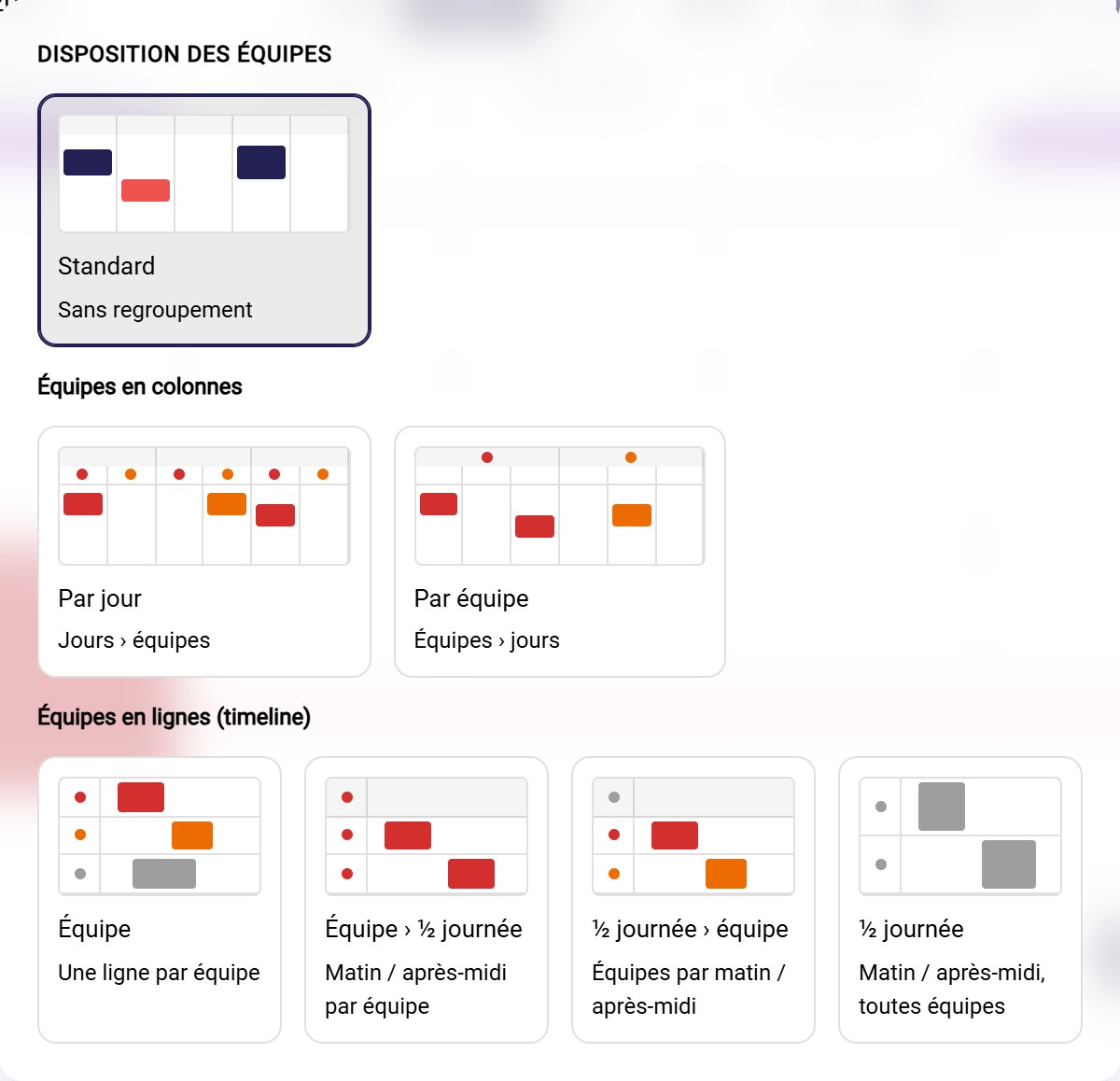
The Team layout menu
Three families of layouts are available:
- Standard: all events together, with no grouping;
- Teams as columns: by day (each day split by team) or by team (each team split by day);
- Teams as rows (timeline): one row per team, or a morning / afternoon split per team or for all teams.
-
With a timeline layout, each team has its own row: you see at a glance who is doing what each day.
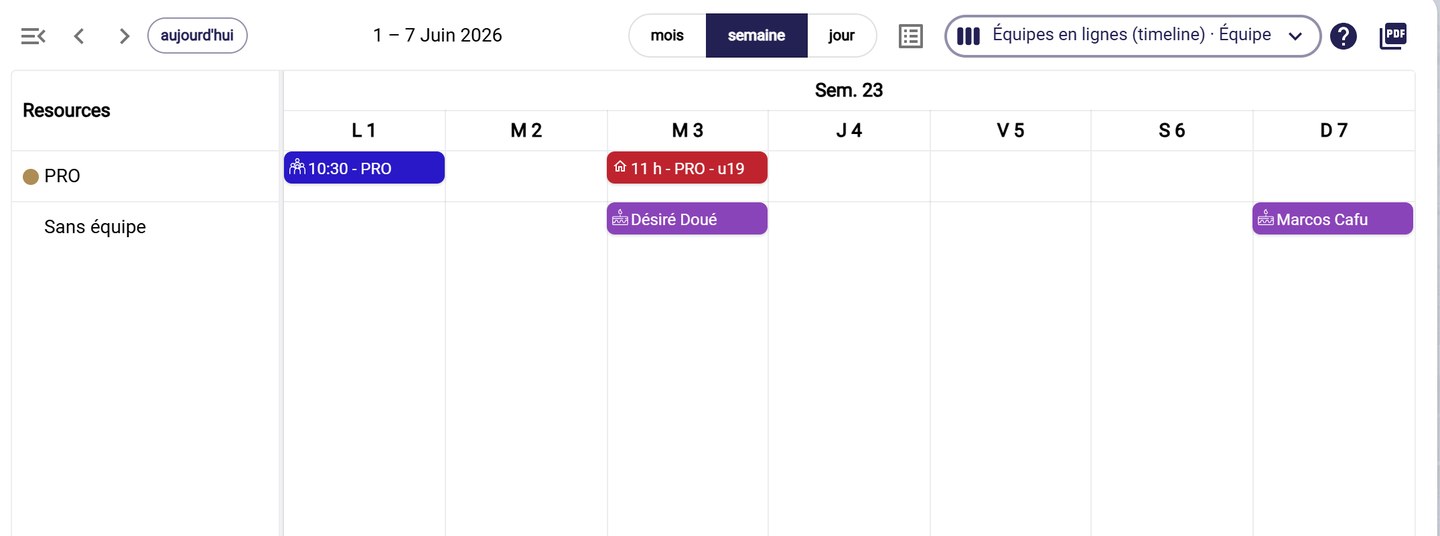
The timeline calendar
Export the calendar to PDF
-
Choose the period and the view to export, then click the PDF icon in the top right corner of the calendar.

The Generate PDF icon
-
In Export PDF, change the PDF title and the time range if needed (from the first to the last event, calendar range or custom). Check the options you need:
- One page per team;
- Separate morning and afternoon;
- Hide days without events.
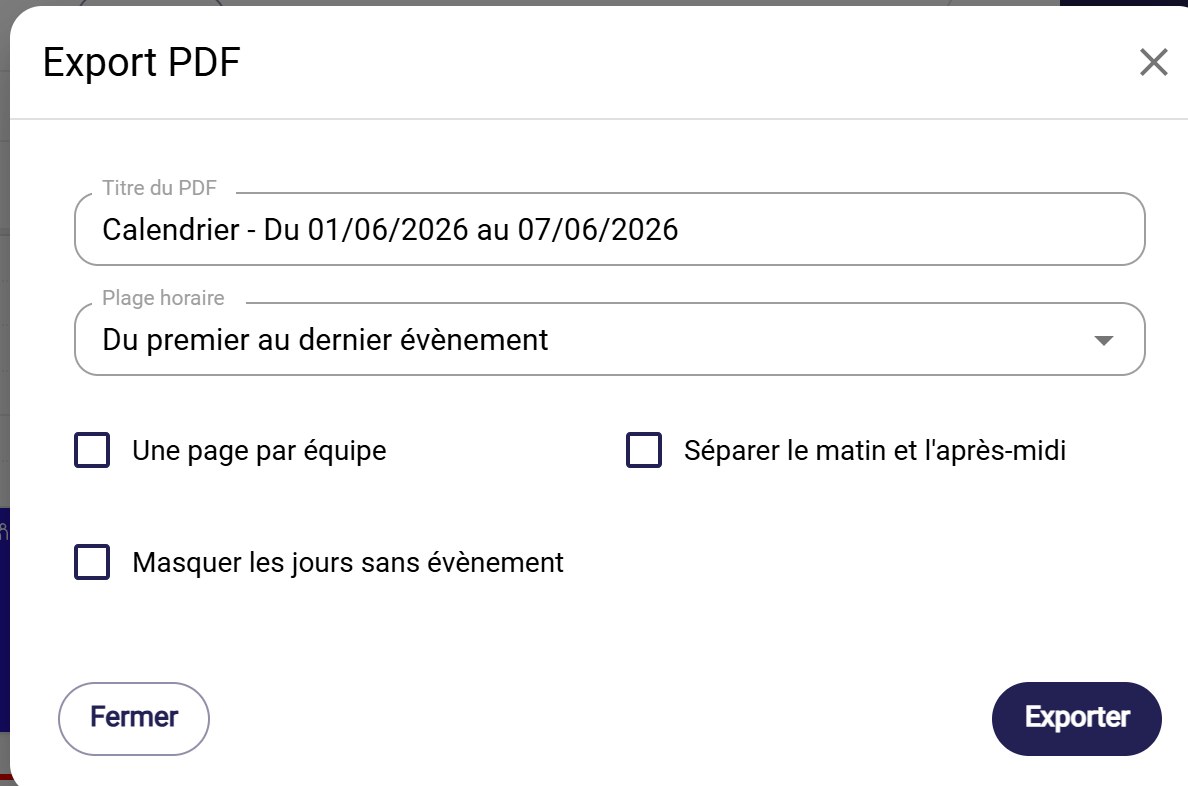
The PDF export window
-
Click EXPORT to download the PDF.
Need help
Email support@mycoachpro.io with any questions about exporting the calendar.