Edit, duplicate or delete a session
The Actions menu on a session's page groups together every operation on the session.
Open the Actions menu
-
Open the session (see View a session), then click Actions, in the top right corner.
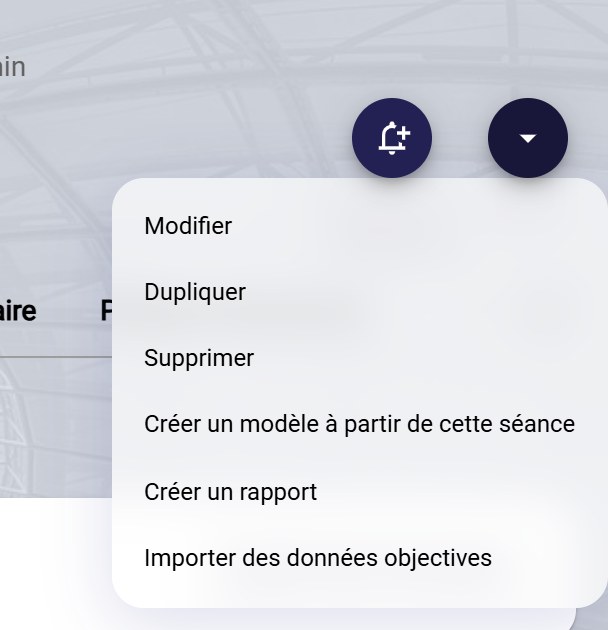
The Actions menu
Edit or duplicate the session
-
Modify reopens the session form: change what needs to change, then click FINISH.
-
Duplicate opens the same form, pre-filled: change at least the date, then click FINISH.
Create a template from the session
-
Create a template from this session opens the template form, pre-filled. Choose the usage (Staffs or Players (mobile application)) and, if needed, an expiration date, then click NEXT to check the exercises, and FINISH.
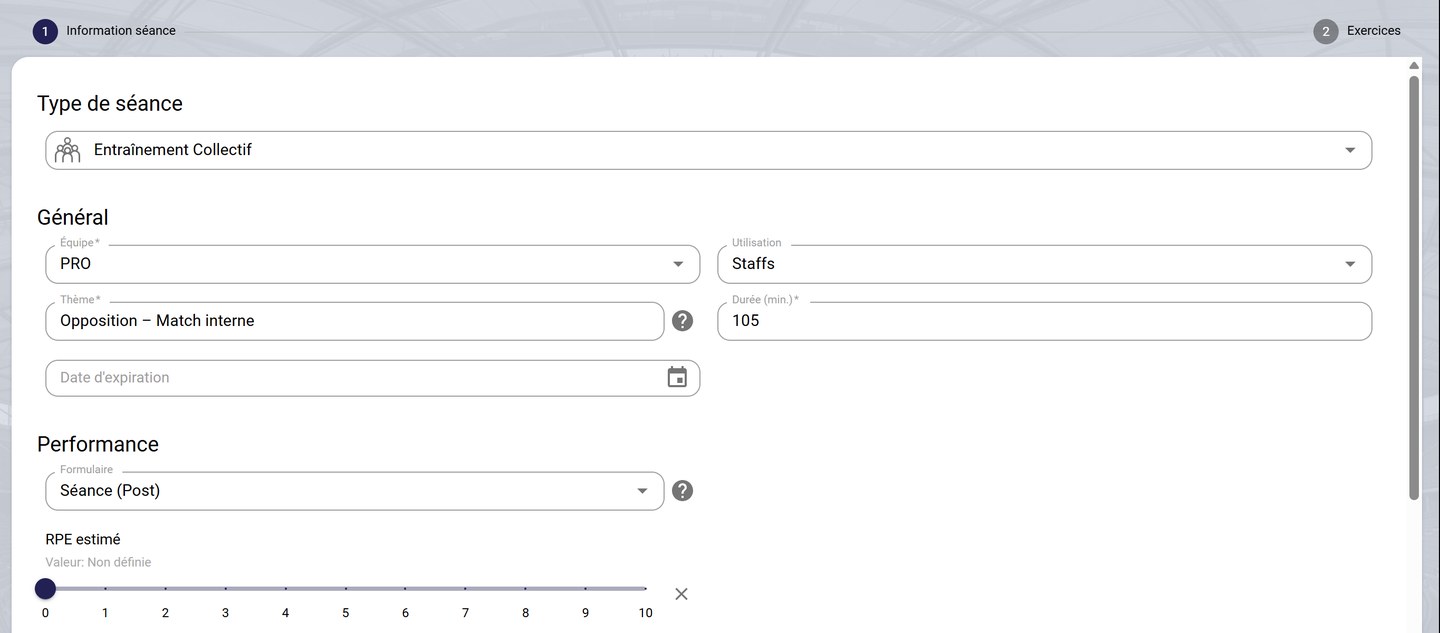
Creating a template
The template then appears in the Session templates tab: see Use session templates.
Delete the session
-
Delete asks for confirmation: click DELETE.
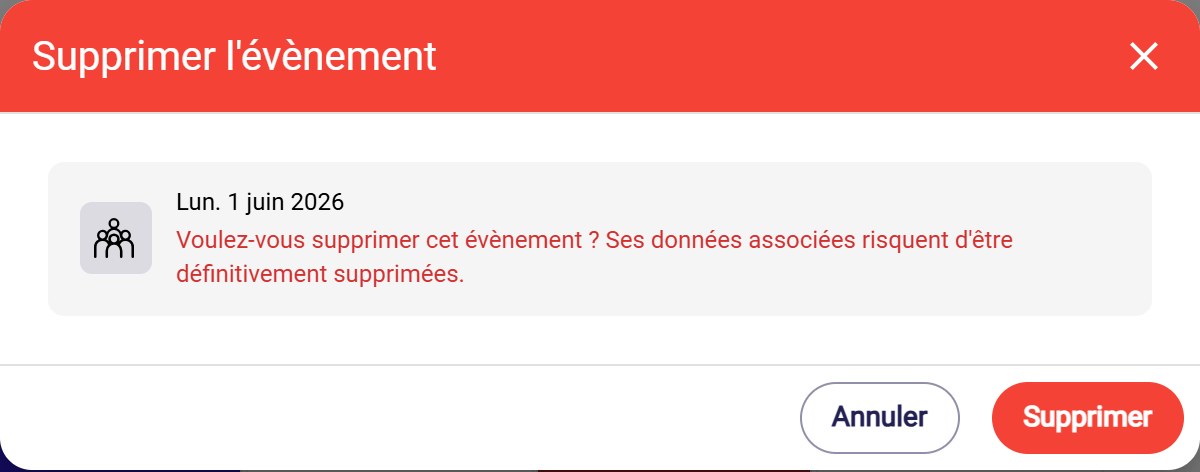
The deletion confirmation
Associated dataDeleting a session can permanently delete its associated data (attendance, form responses, objective data…).
Create a report generates a report on the session, and Import objective data opens the GPS import: see Import objective data into a session.
Need help
Email support@mycoachpro.io with any questions about managing sessions.