Create a session
Create a training session in five steps: information, call-up, exercises, facility booking and summary.
Enter the session information
-
Click the Sessions module, then the Add button. You can also use the calendar's + button, option Create a session.
-
If you start from a template, click Select template: see Use session templates. Otherwise, choose the session type, then enter the team, the date, the theme and the duration. If needed, add a video conference link and the staff call-up list, and choose whether the session is visible to players.
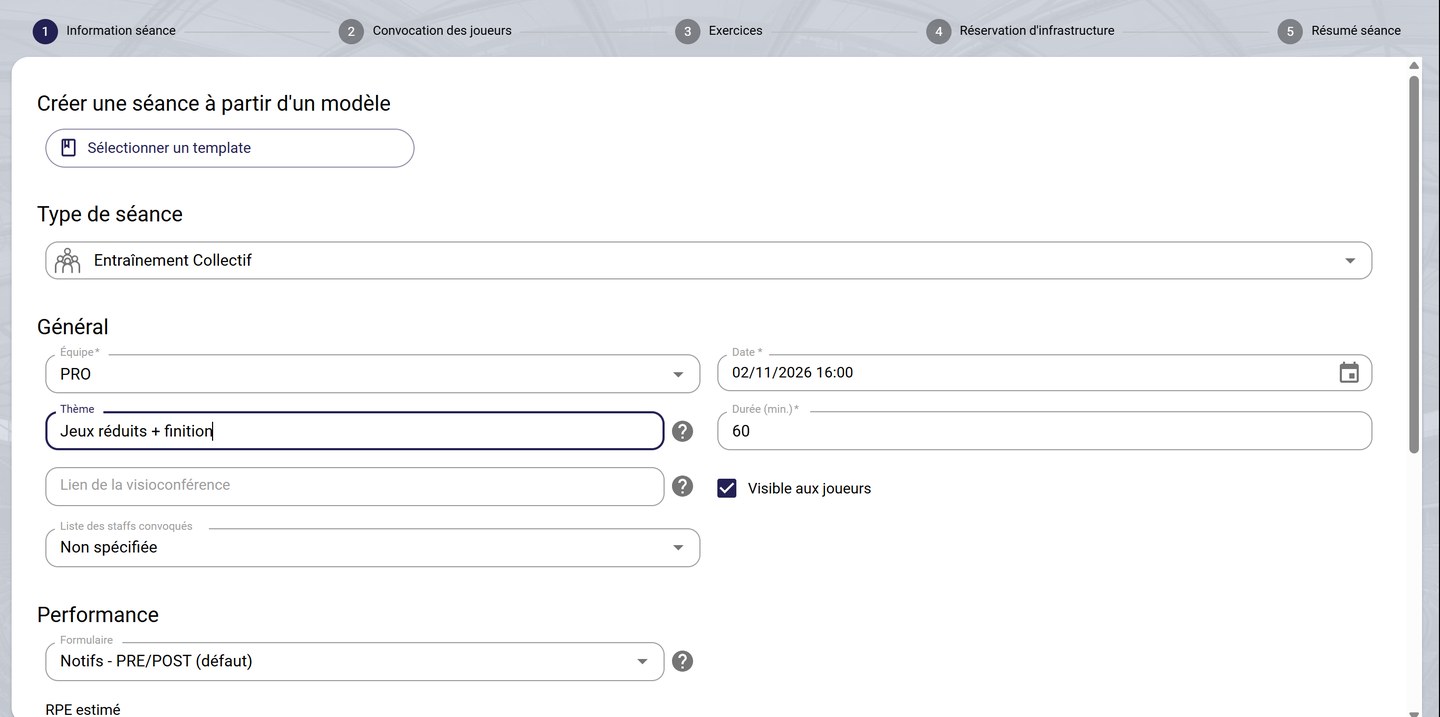
The session information
-
Further down, choose the form your players will receive, enter the estimated RPE, add tags and a temporal context, then a coach comment and instructions for players.
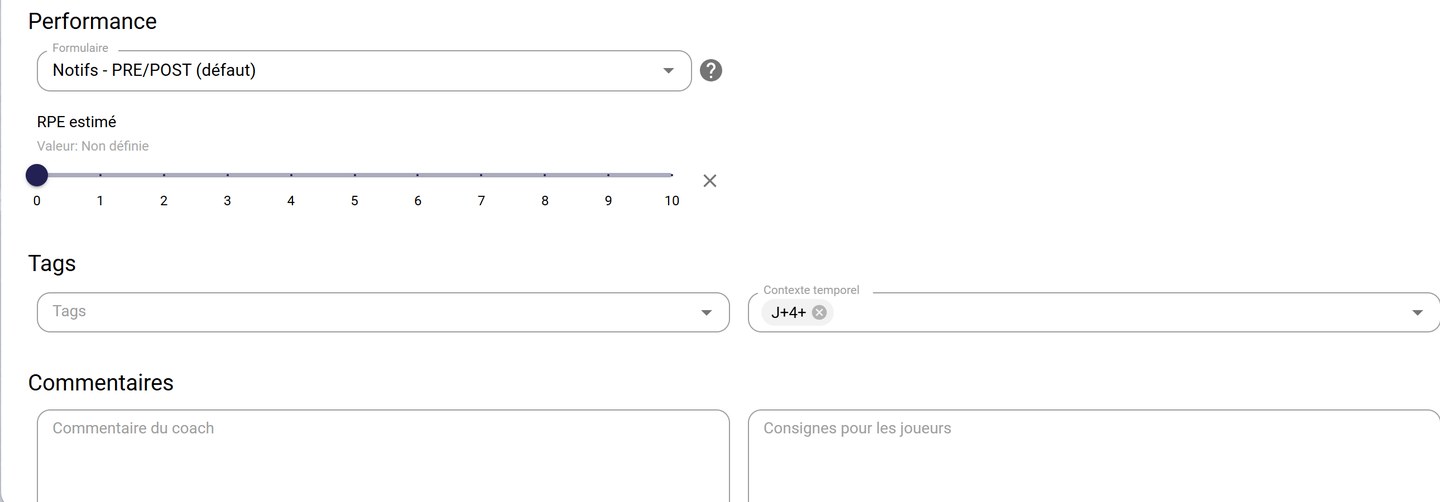
The form, RPE, tags and comments
-
Click NEXT.
Call up your players
-
Add the convened players with each player's +, or ADD ALL. The advanced filters let you search by group, status or position. Click NEXT.
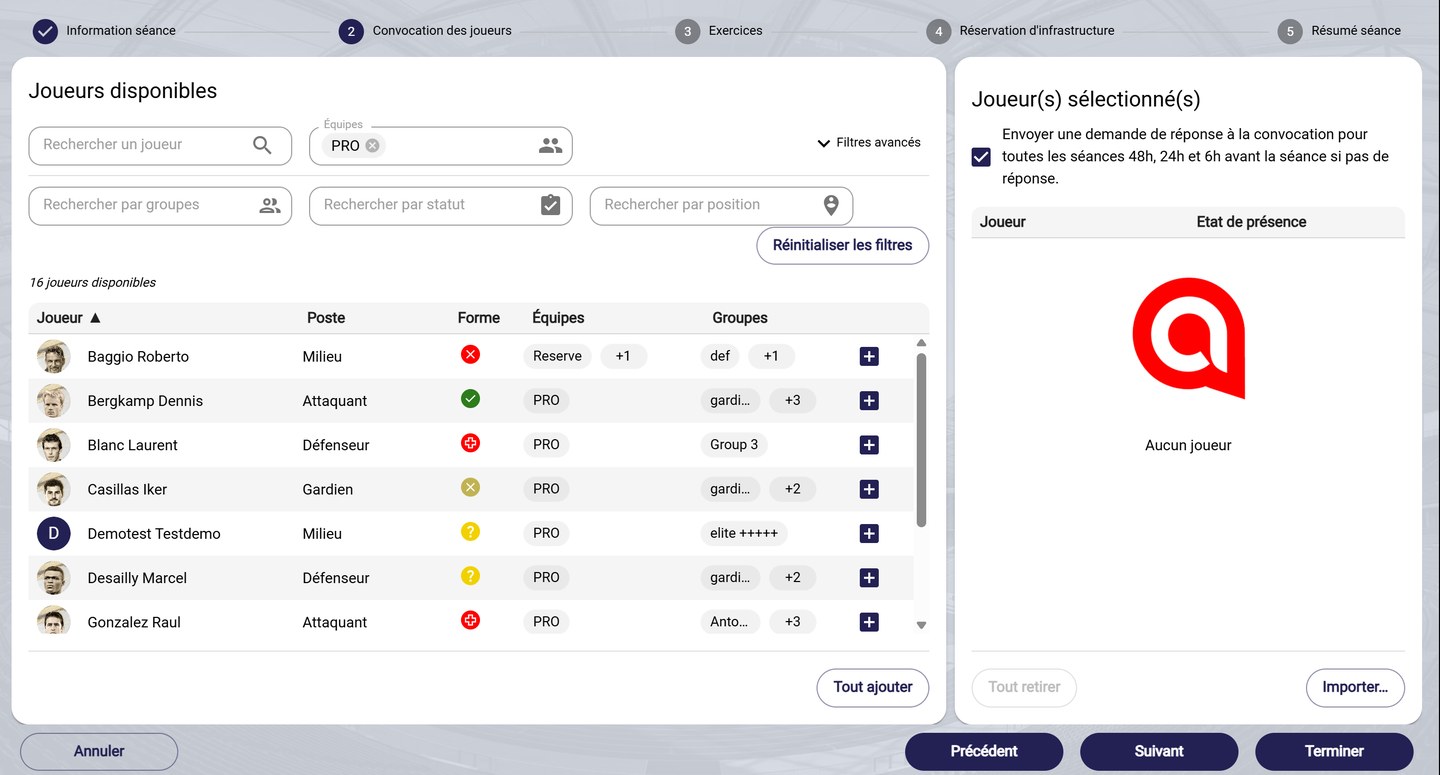
The player call-up
Add exercises
-
Search for exercises in the library (Mosaic or List view, Filters by author, tags, intensity, duration…) and add them with the +. They appear in Selected exercises, with the total duration. Check Hide exercices from players if needed, then click NEXT.
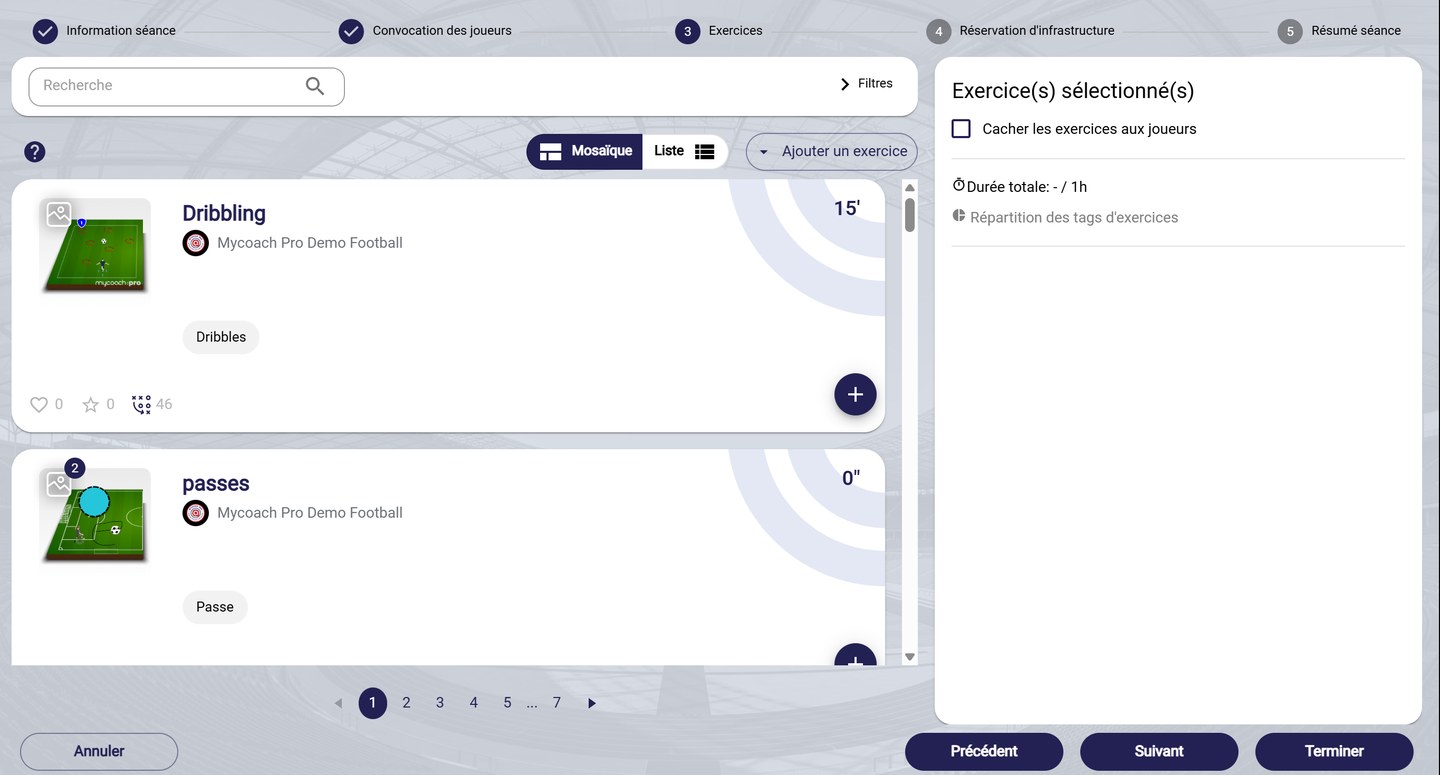
Choosing the exercises
A new exercise?Add an exercise lets you create one without leaving the session: see Create an exercise.
Book a facility
-
Choose the training center and the infrastructure type, add a margin before and after the session if needed, then select the pitch on the map and, in the Locker rooms tab, the changing rooms. Click NEXT.
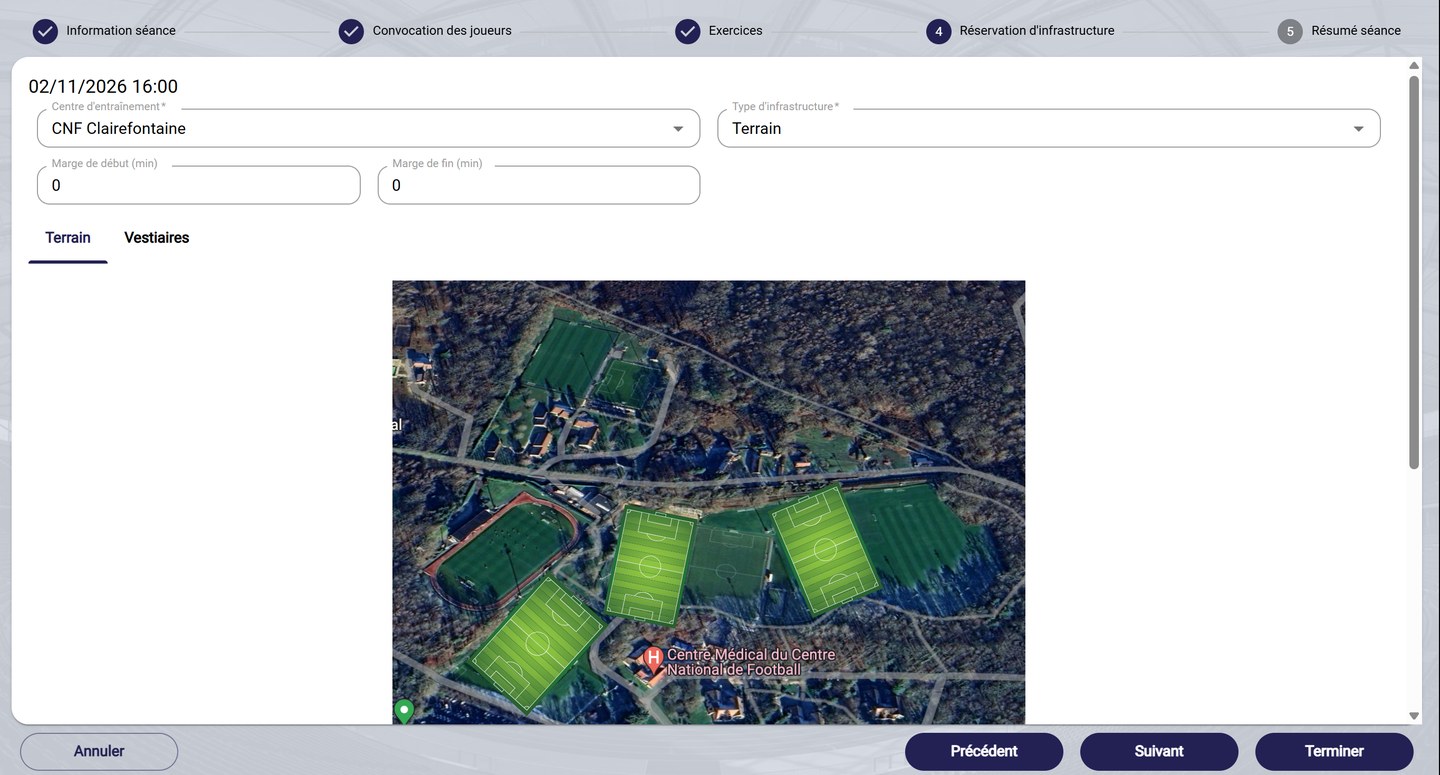
The facility booking
Check and confirm
-
The summary recaps the session. Click FINISH to create it.
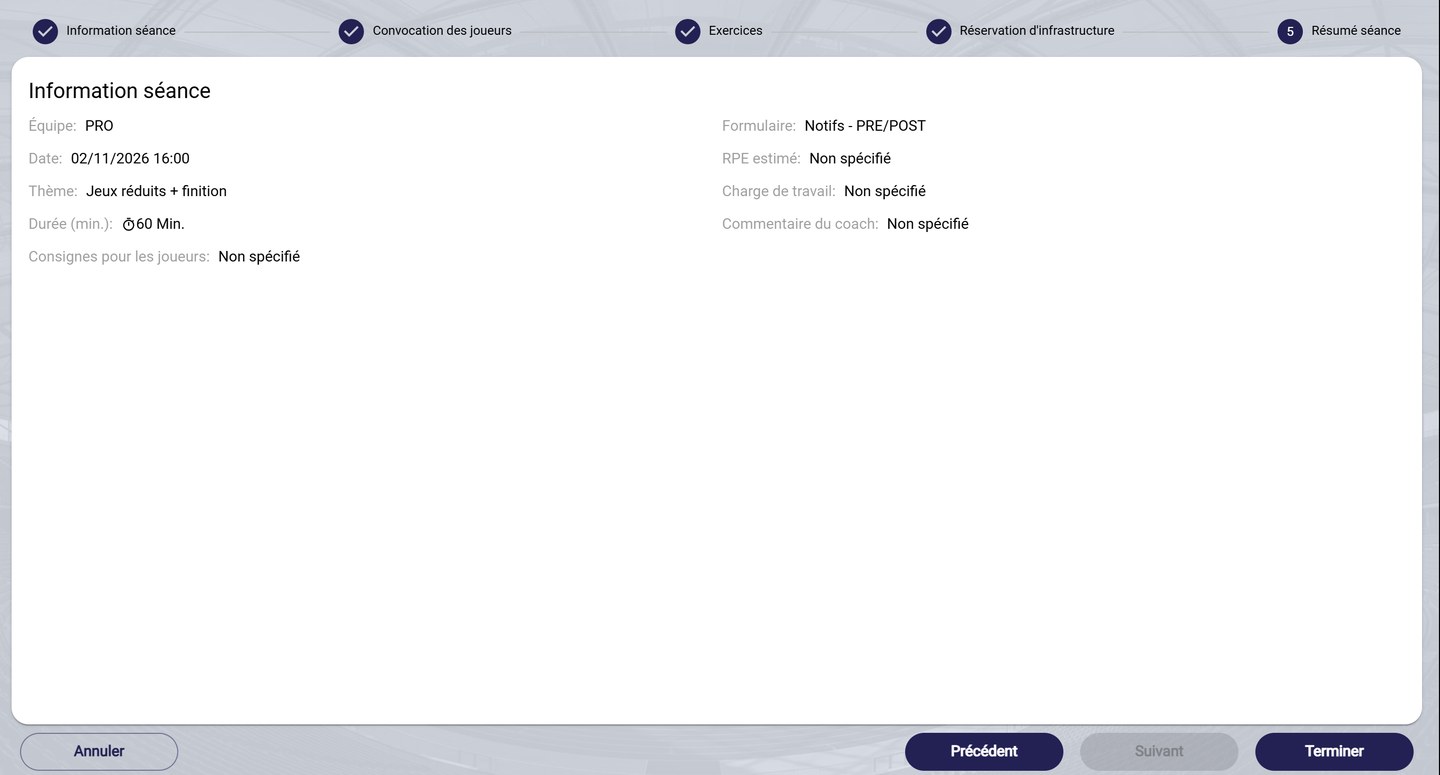
The session summary
Finish earlyThe FINISH button is available at every step: the following steps are then left empty.
To schedule a series of sessions, use Schedule: see Plan your training sessions.
Need help
Email support@mycoachpro.io with any questions about creating sessions.