View a session
A session's page brings together everything about it: information, call-ups, attendance, forms, exercises, documents and data.
Open a session
-
Click the Sessions module, then a session in the dashboard. You can also click a session in the calendar and choose View.
The header shows the team, the date, the type and the duration. The Visible to players switch shows or hides the session from players, and Send notification sends them a reminder.
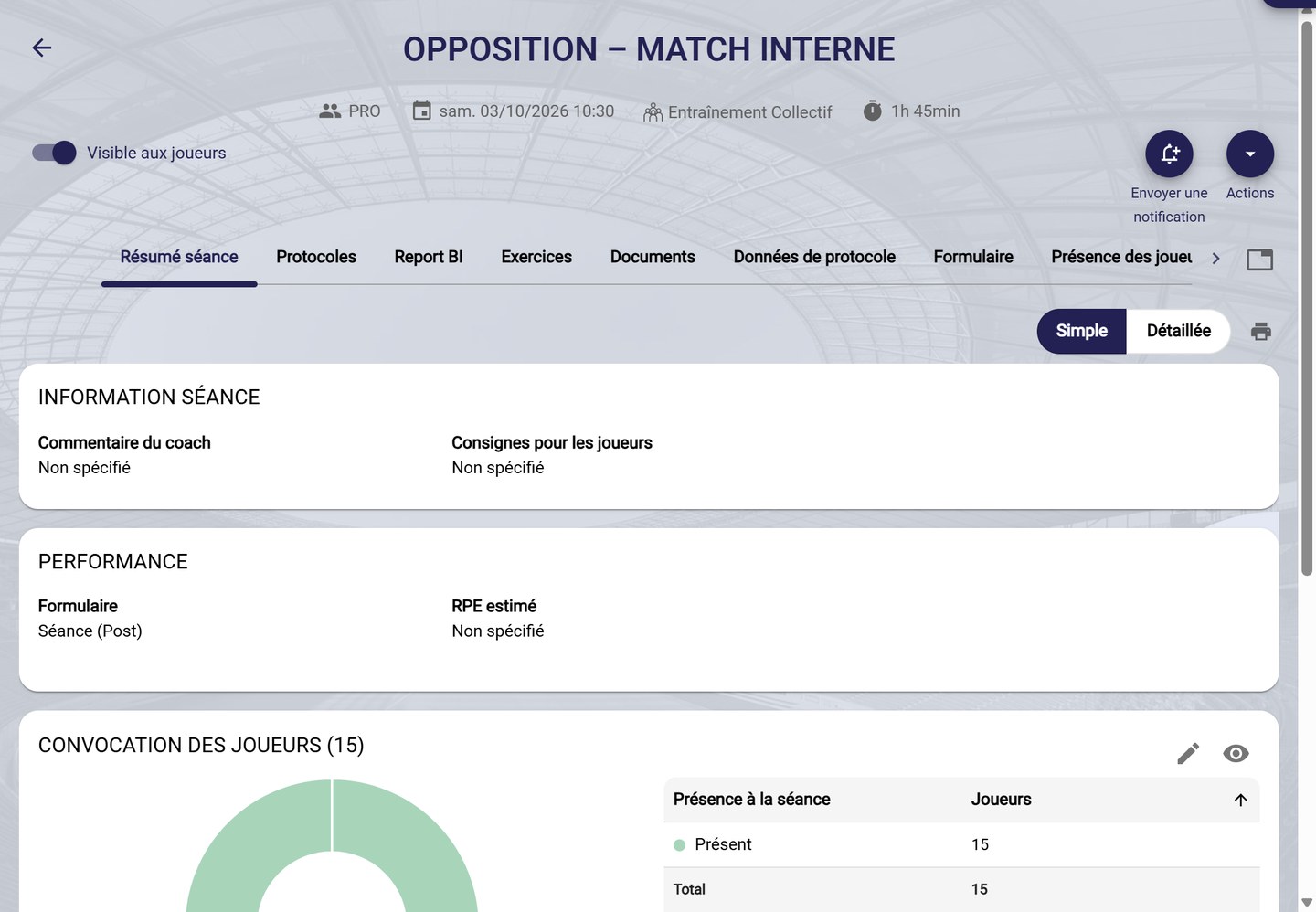
A session's page
-
The left panel lists your sessions by Days, Weeks or Months: click a session to open it without going back.
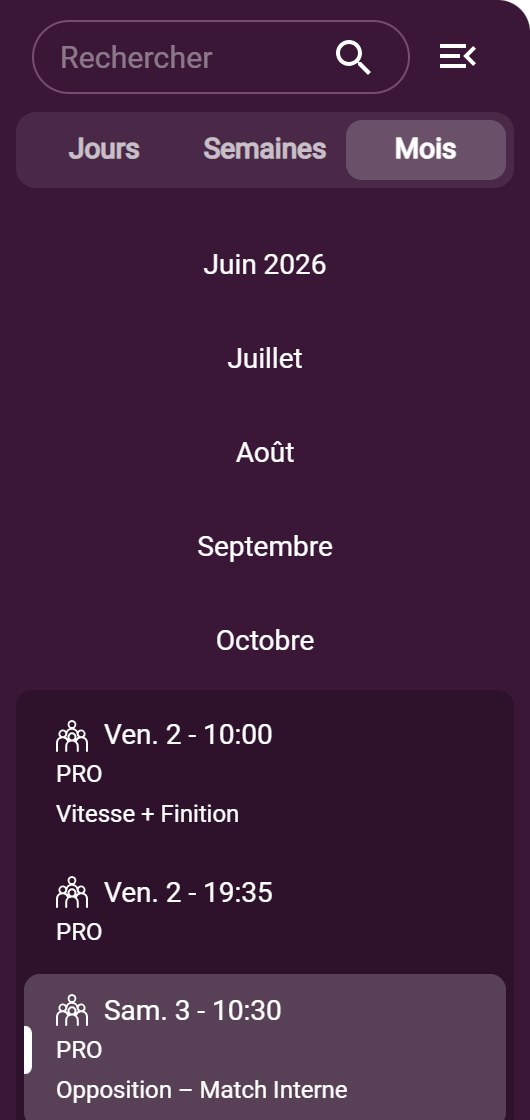
The sessions panel
Browse the tabs
-
Session summary shows the information, the form, the response rates, the player and staff call-up and the session organization. Switch between the Simple and Detailed views, or print the page.
-
Exercises lists the session's exercises and the breakdown of their tags. The pencil lets you edit them.
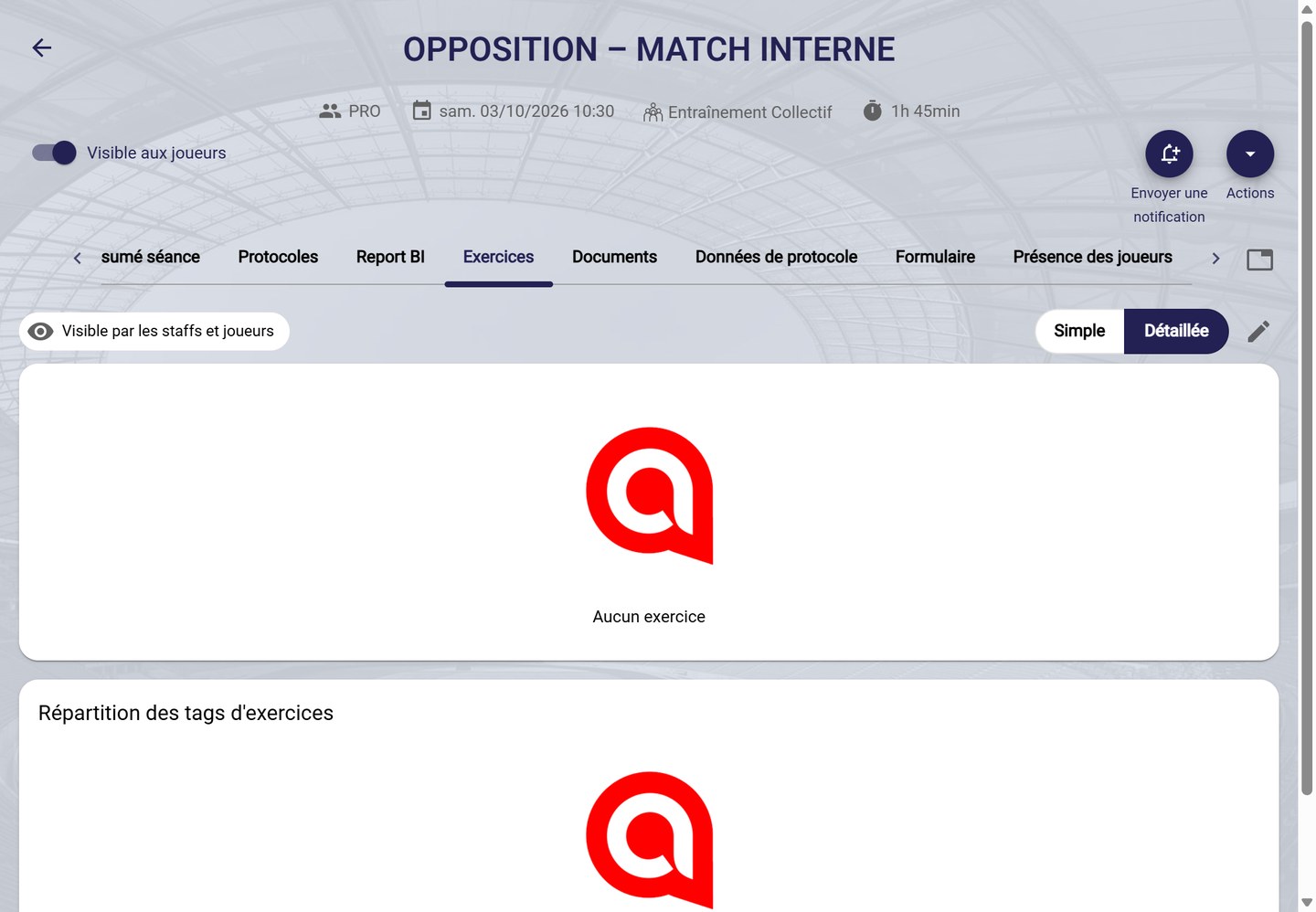
The Exercises tab
-
Players attendance shows the called-up players with their form type and their attendance status. Change the attendance or the individual duration, or add a note, directly in the table.
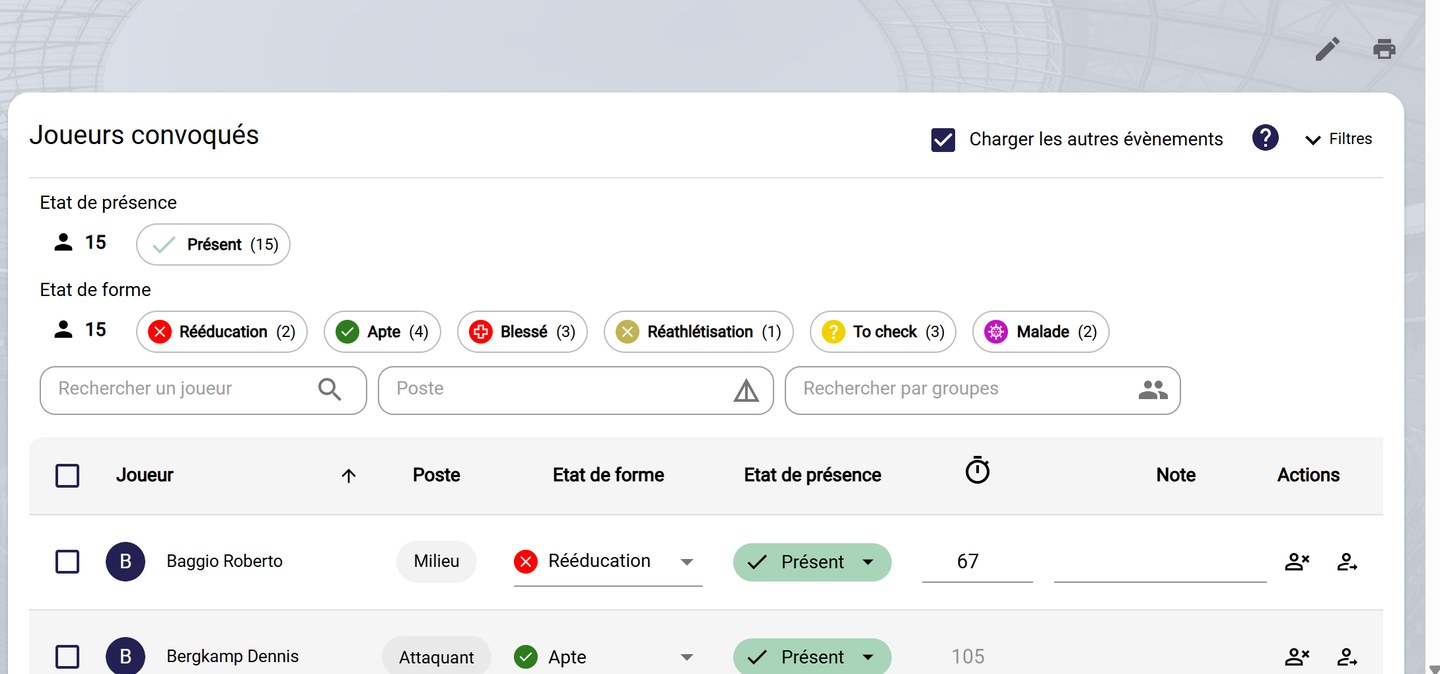
The Player attendance tab
-
Form shows the PRE and POST event responses and the RPE analysis. ANSWER lets you enter a response on behalf of a player, and the icons on the right send reminders to players or export the responses.
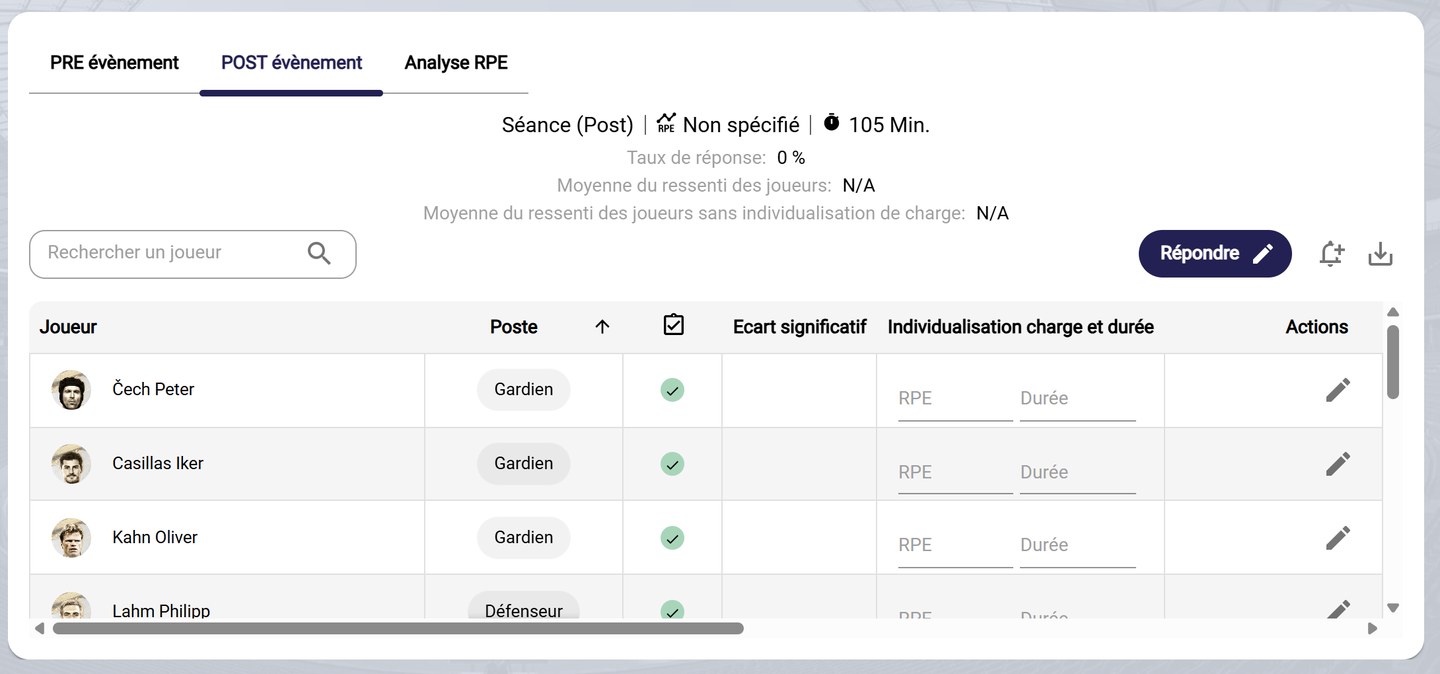
The Form tab
The other tabsDocuments gathers the session's files, Video analysis its videos and Objective data its GPS data: see Import objective data into a session.
Need help
Email support@mycoachpro.io with any questions about viewing sessions.