Analyze a game on video
The Video analysis tab links a game's video to its events: every pass, shot or phase of play is time-stamped and takes you straight to the right moment in the video.
Browse the events
-
Open a game, then click the Video analysis tab. The Sources field chooses the events displayed, for example the official OPTA - Events.
The Actions list, on the right, shows each event with its minute, the player involved and its type. Click an event to play the matching passage in the video.
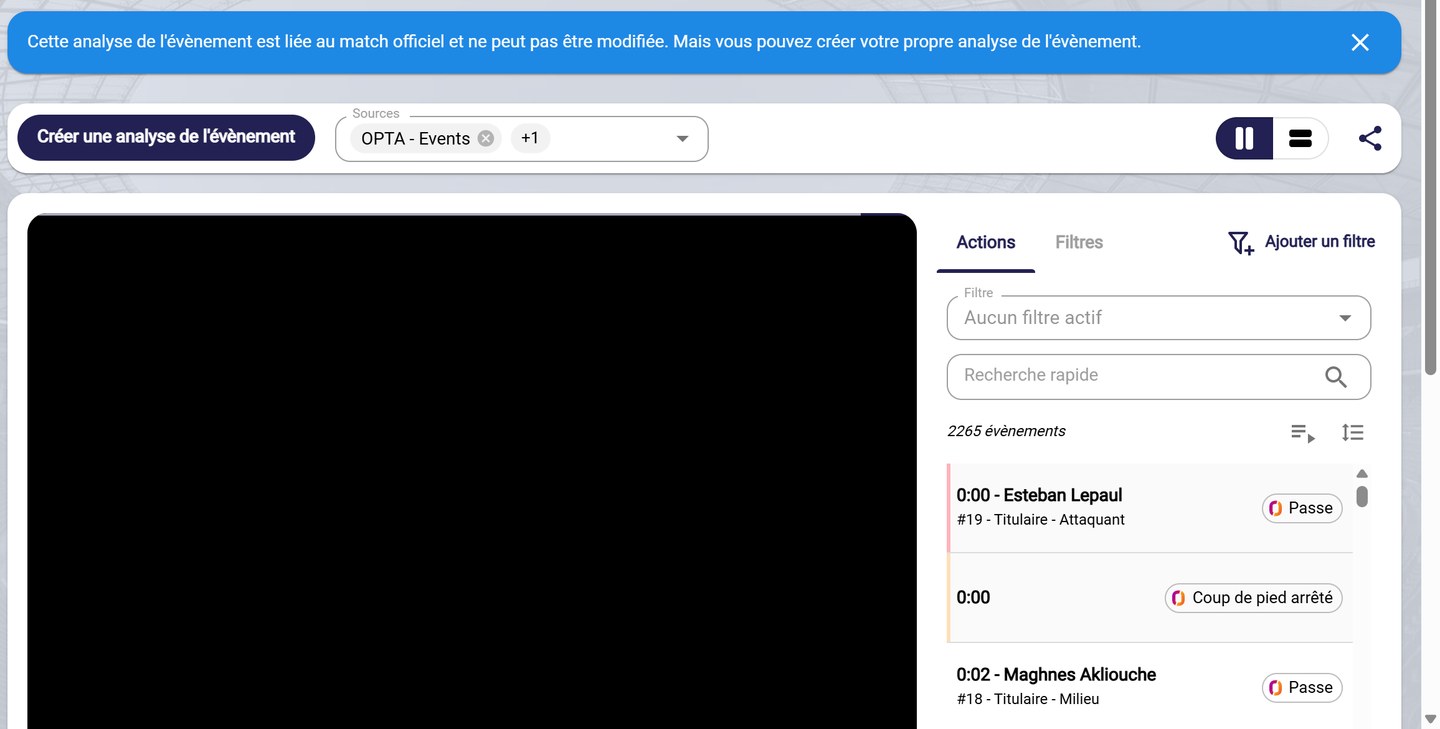
A game's video analysis
Official gameOn an official game, the analysis is linked to the official data and cannot be modified.
-
Below the video, the Timeline places the events along a strip. Zoom in with the magnifying glass to display them more precisely.
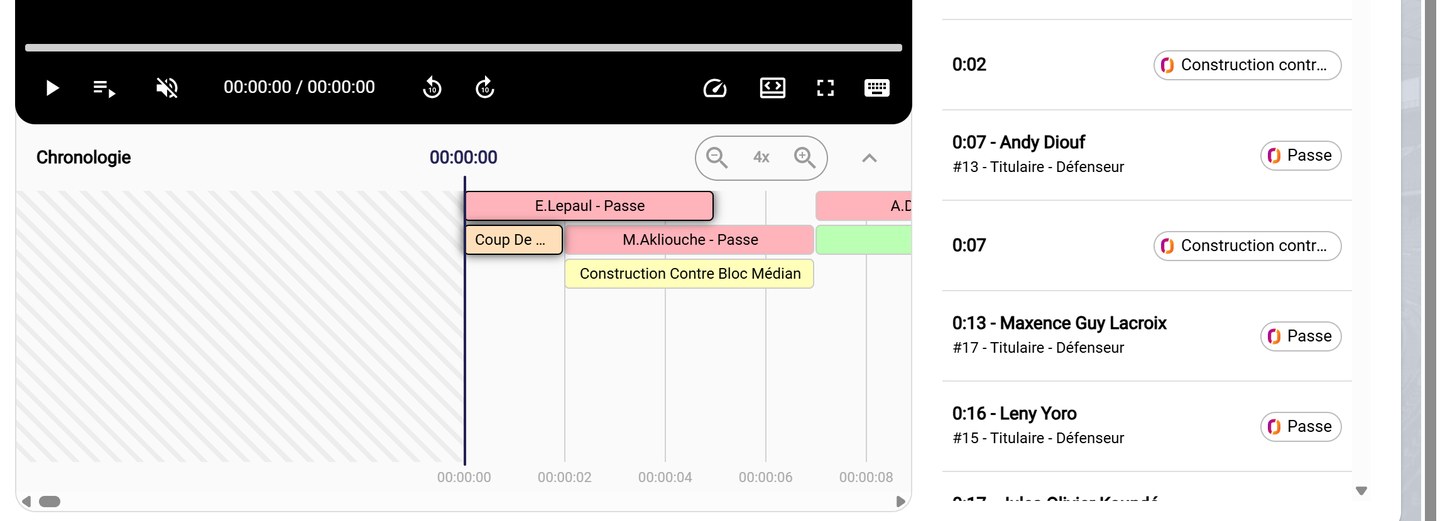
The events timeline
Filter the actions
- In the Actions list:
- Quick search finds a player or an action type;
- the Filter field applies a saved filter, for example all fouls or all yellow cards;
- Add a filter creates a new filter. The Filters tab lists the existing filters and their visibility.
Need help
Email support@mycoachpro.io for any question about video analysis.