Club logo, theme and colors
Give MyCoach Pro your club's colors: logo, color of each team in the calendar, background image and theme colors.
Logo and team colors
-
In the left menu, click Settings, then the Customization tab. The Club sub-tab opens.
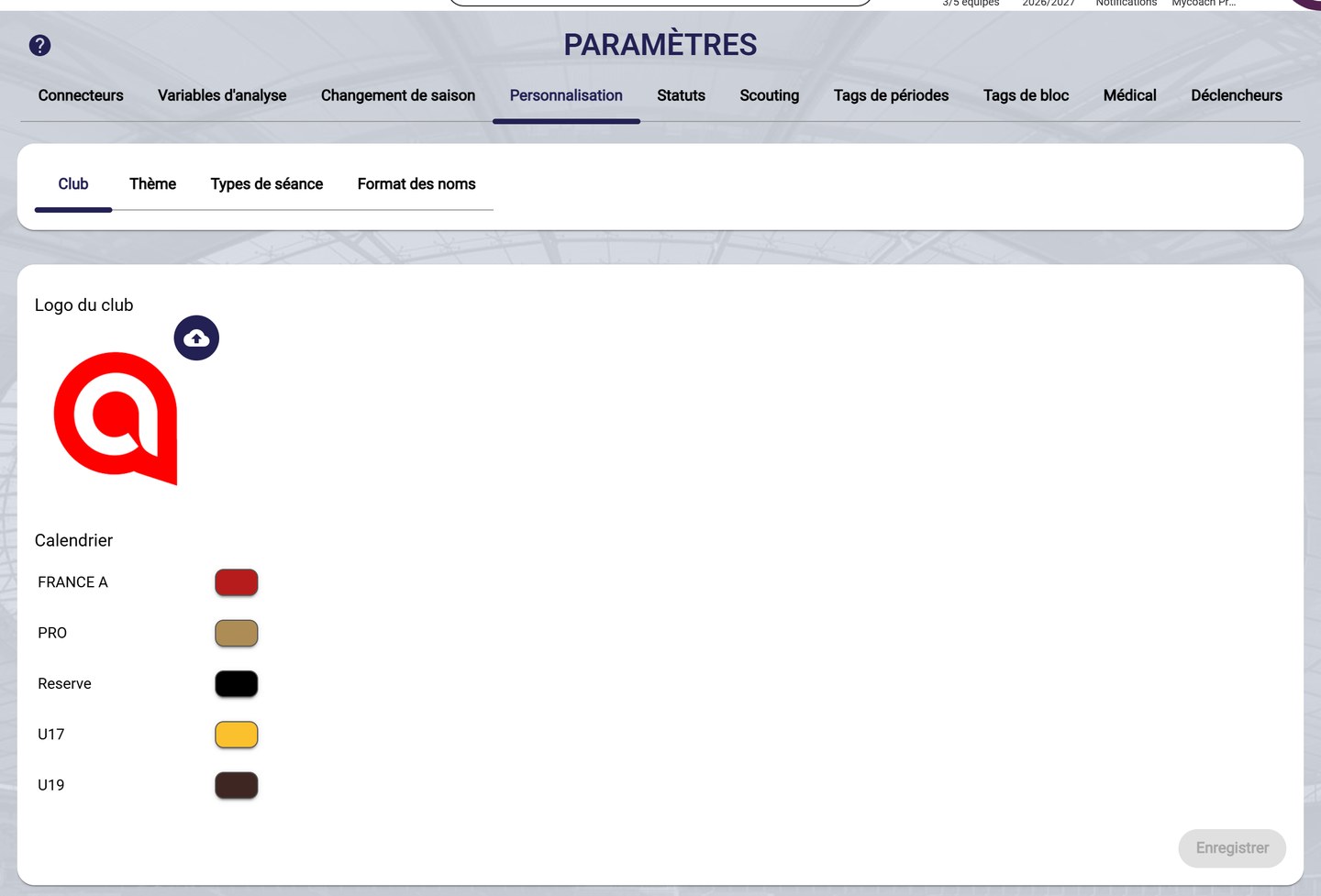
The club logo and the team colors
-
Under Club logo, click the upload icon to import your club's logo.
-
Under Calendar, click a team's color dot to change it. This color identifies the team's events in the calendar.
-
Click Save.
Application theme
-
Open the Theme sub-tab.
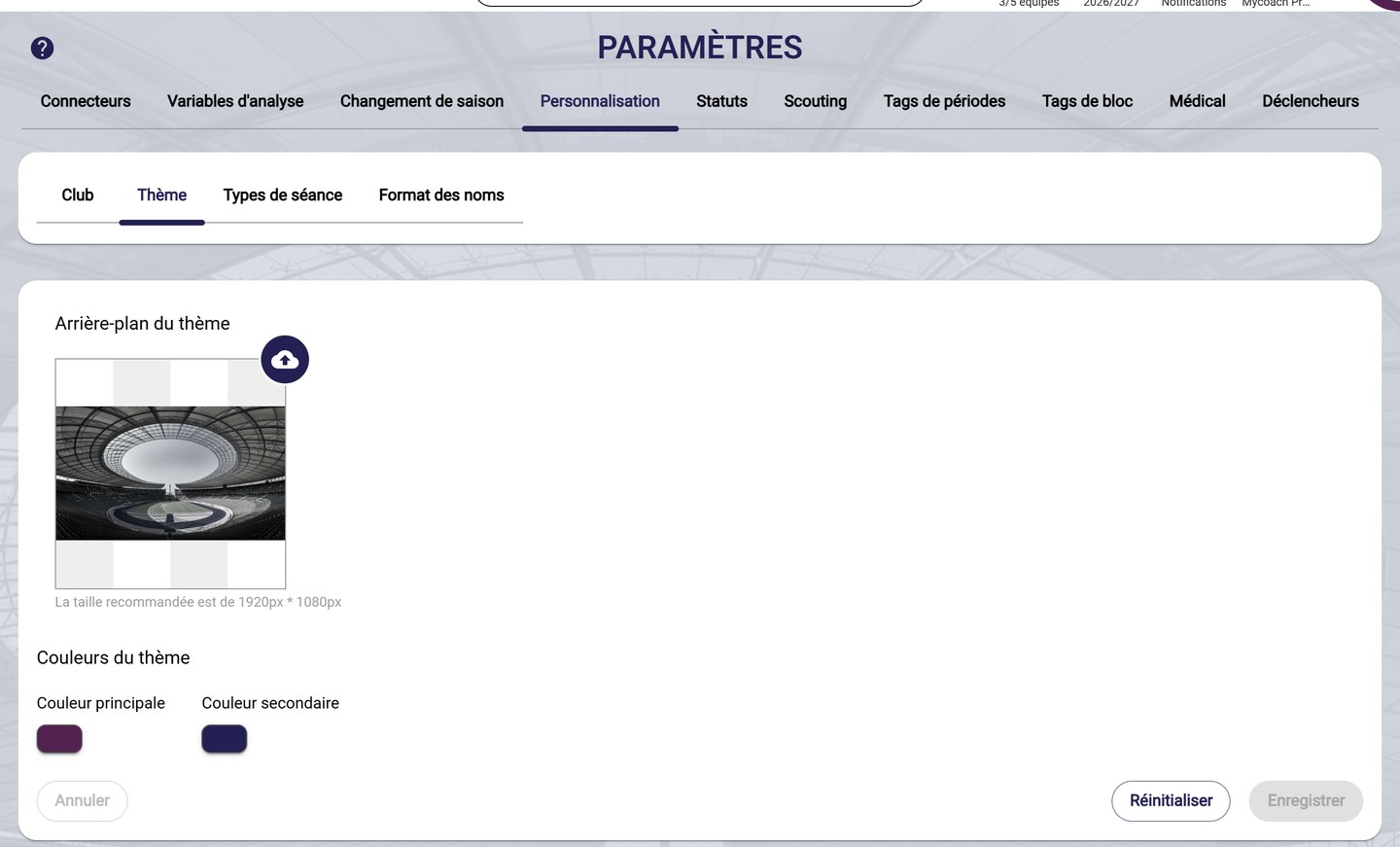
The background image and the theme colors
-
Under Theme background, click the upload icon to import a background image.
Image sizeThe recommended size is 1920 × 1080 pixels.
-
Under Theme colors, click the Primary color or the Secondary color to change it.
-
Click Save. Reset goes back to the default MyCoach Pro theme.
Need help
Email support@mycoachpro.io with any questions about customizing your club.