Scouting player statuses
Scouting player statuses show where each scouted player stands: Priority, To sign, To review, Stop… Adapt them to your recruitment team's method.
Manage player statuses
-
In Settings, open the Scouting tab.
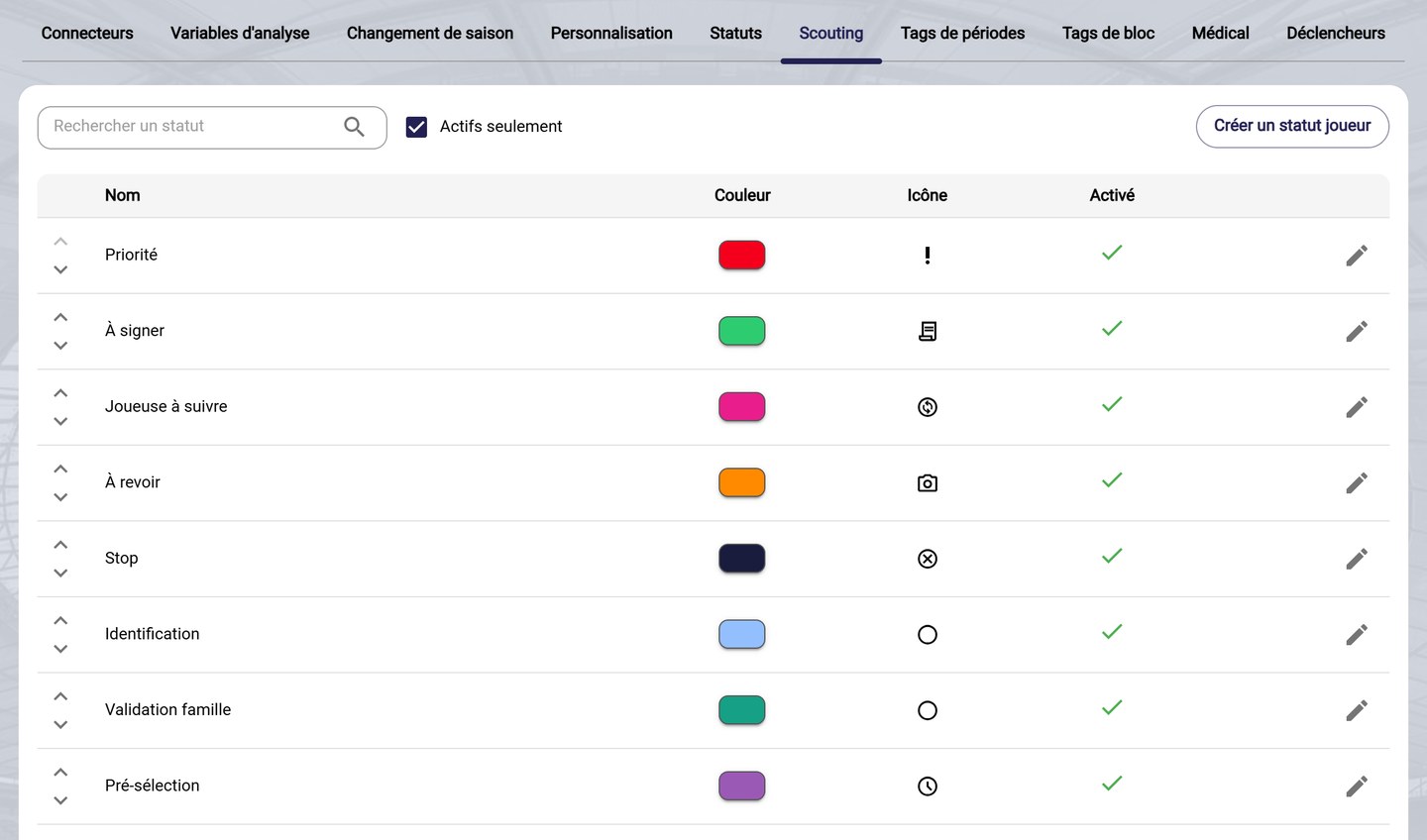
The scouting player statuses
-
Each status has a Color and an Icon, and can be Enabled or not. The arrows on the left change the order of the statuses, and the pencil edits a status.
-
To add a status, click Create a player status, then give it a name, a color and an icon.
-
Click Save.
Find statuses
Tick Enabled only to show only the statuses in use, and use Search a status to find one.
Need help
Email support@mycoachpro.io with any questions about scouting statuses.