Attendance and report statuses
The Status tab gathers the statuses your staff assign: a player's attendance at an event, and the progress of your reports.
Attendance statuses
-
In Settings, open the Status tab. The Attendance sub-tab opens.
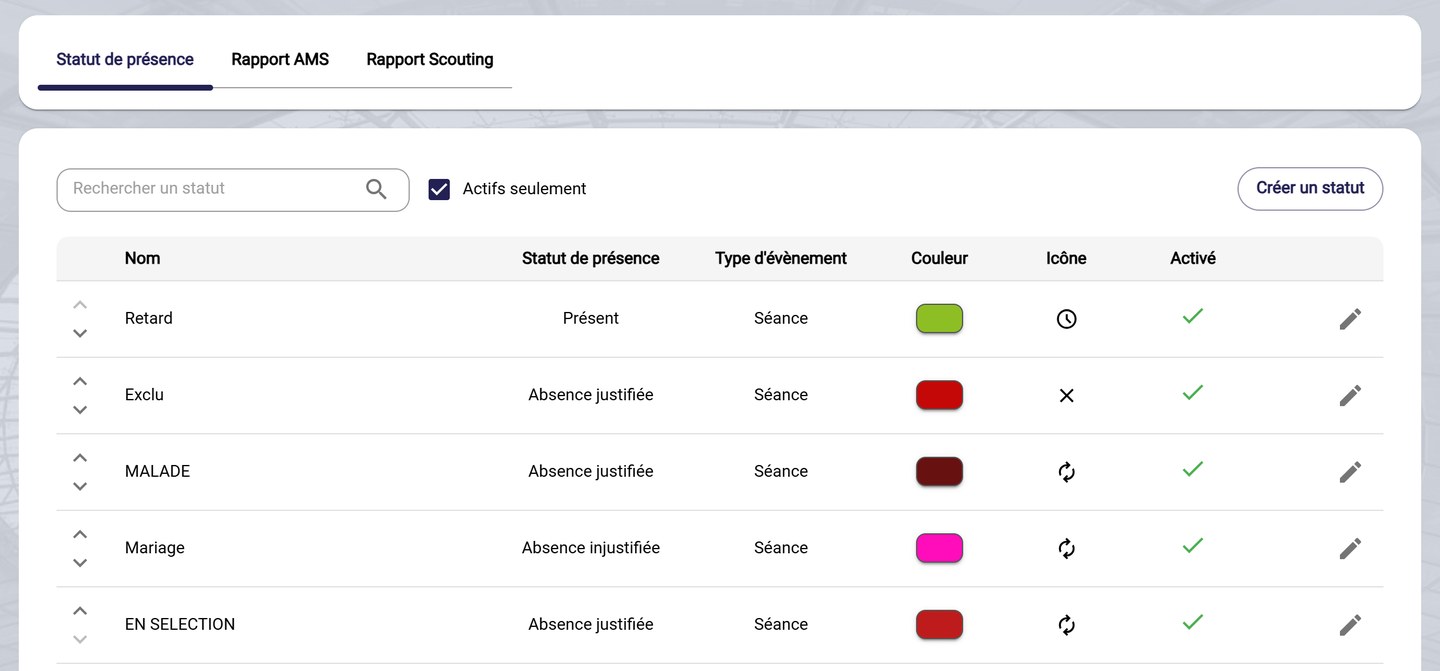
The attendance statuses
Each status specifies:
- the Attendance status it corresponds to: Present, Justified absence or Unjustified absence. For example, "Late" counts as present and "Sick" as a justified absence;
- the Event type it is offered on;
- its Color and its Icon;
- whether it is Enabled.
-
The arrows on the left change the order of the statuses. The pencil edits a status.
Create a status
-
Click Create a status.
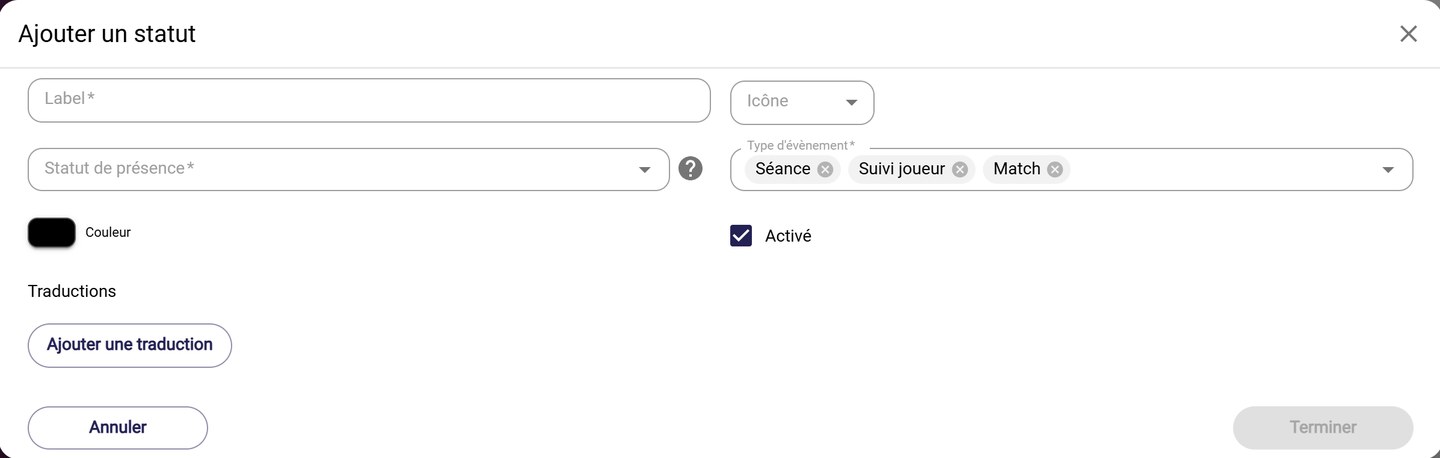
The Add a status window
-
Fill in:
- the Label, that is the status name, and its Icon;
- the Attendance status it corresponds to;
- the Event types it is offered on: Training, Player monitoring, Game;
- its Color, and whether it is Enabled.
Absence statusFor an absence status, the event's duration is automatically set to 0 for the player.
-
With Add translation, translate the status name for users of other languages.
-
Click Finish, then Save.
Report statuses
-
The Report AMS and Report Scouting sub-tabs list the statuses you assign to your reports, for example "Urgent" or "Share with players".
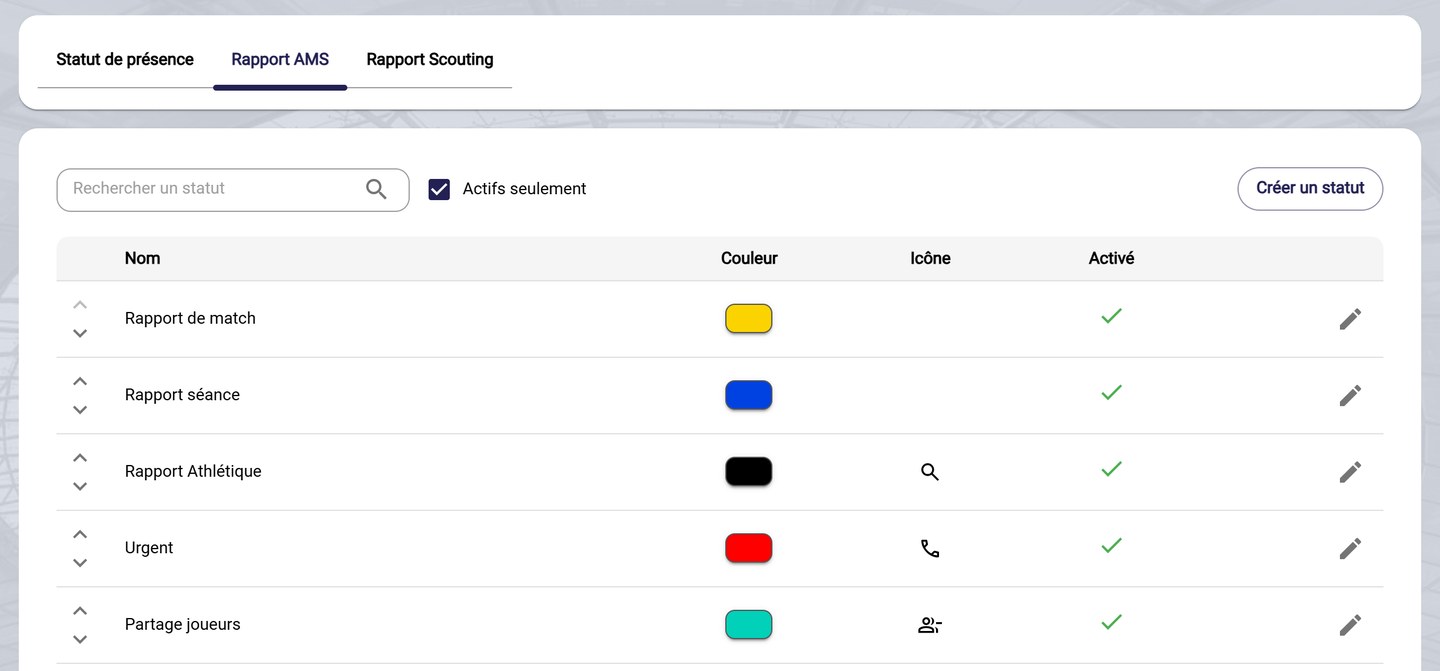
The AMS report statuses
They are managed like attendance statuses: Create a status, name, color, icon and activation.
A status that is no longer used can be disabled. Tick Enabled only to show only the statuses in use.
Need help
Email support@mycoachpro.io with any questions about statuses.