View and manage an exercise
An exercise sheet shows all of its content. You can keep it at hand in your favorites, and edit it if you are its author.
Open an exercise sheet
-
In the library, click an exercise. Its sheet opens: author, team, duration, repetitions, series and tags.
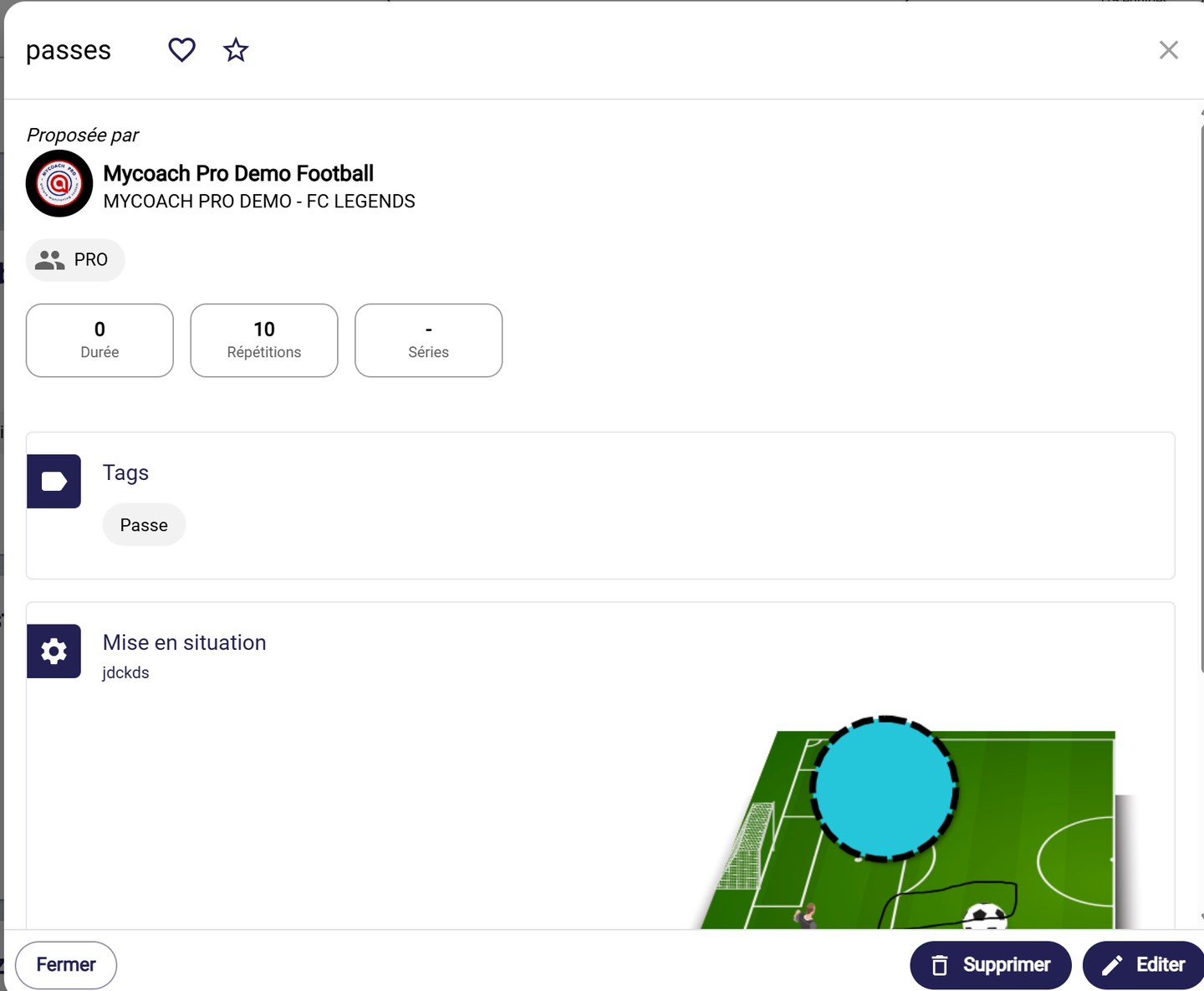
An exercise sheet
-
Further down, the scenario and the description come with the exercise's visual.
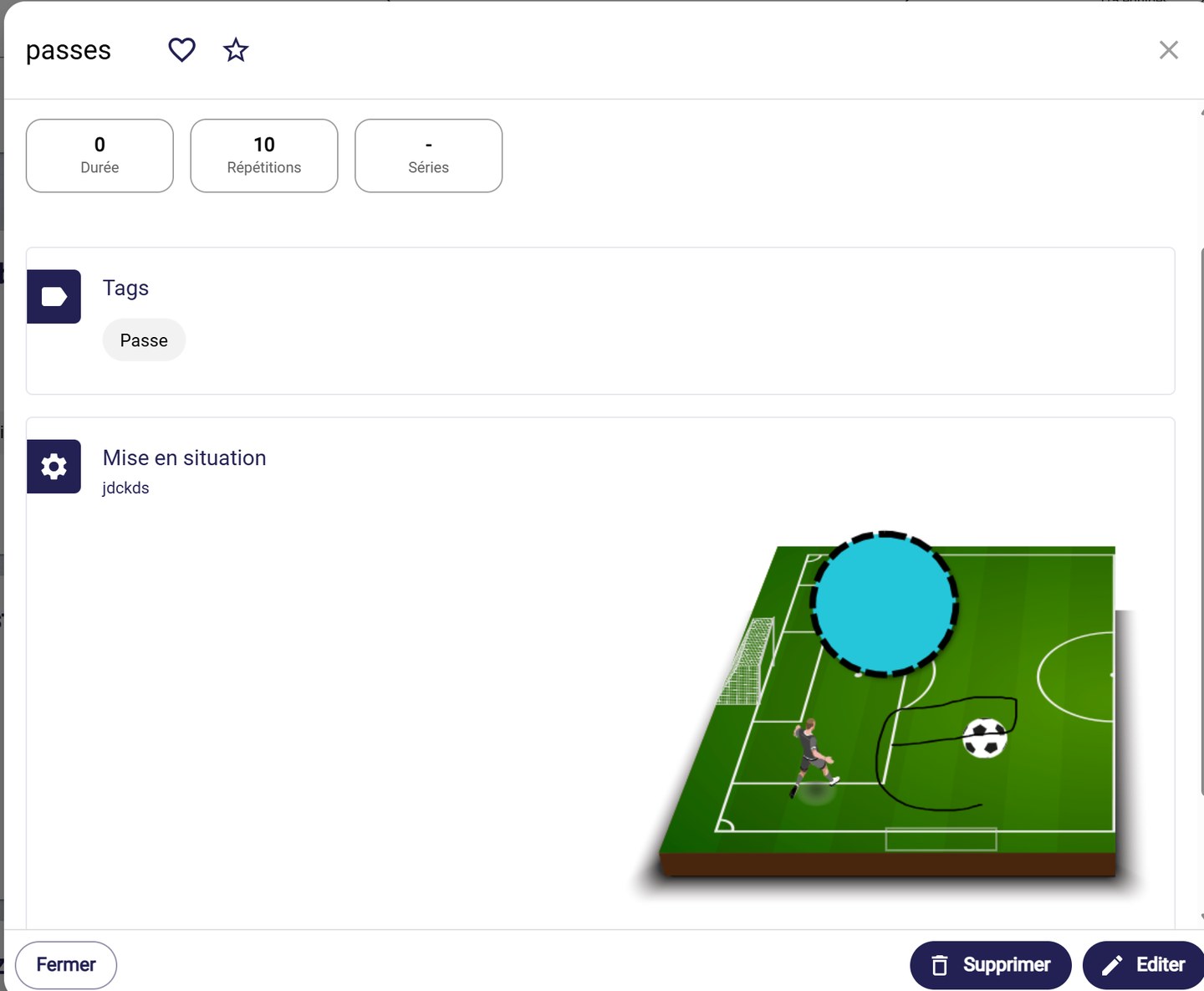
The setup and the visual
Like an exercise or add it to your favourites
-
Next to the title, click the heart to like the exercise, or the star to add it to your favourites.

The heart and the star
-
Find them in the My library tab: Favorites exercises, Liked exercises and My exercises (the ones you created).
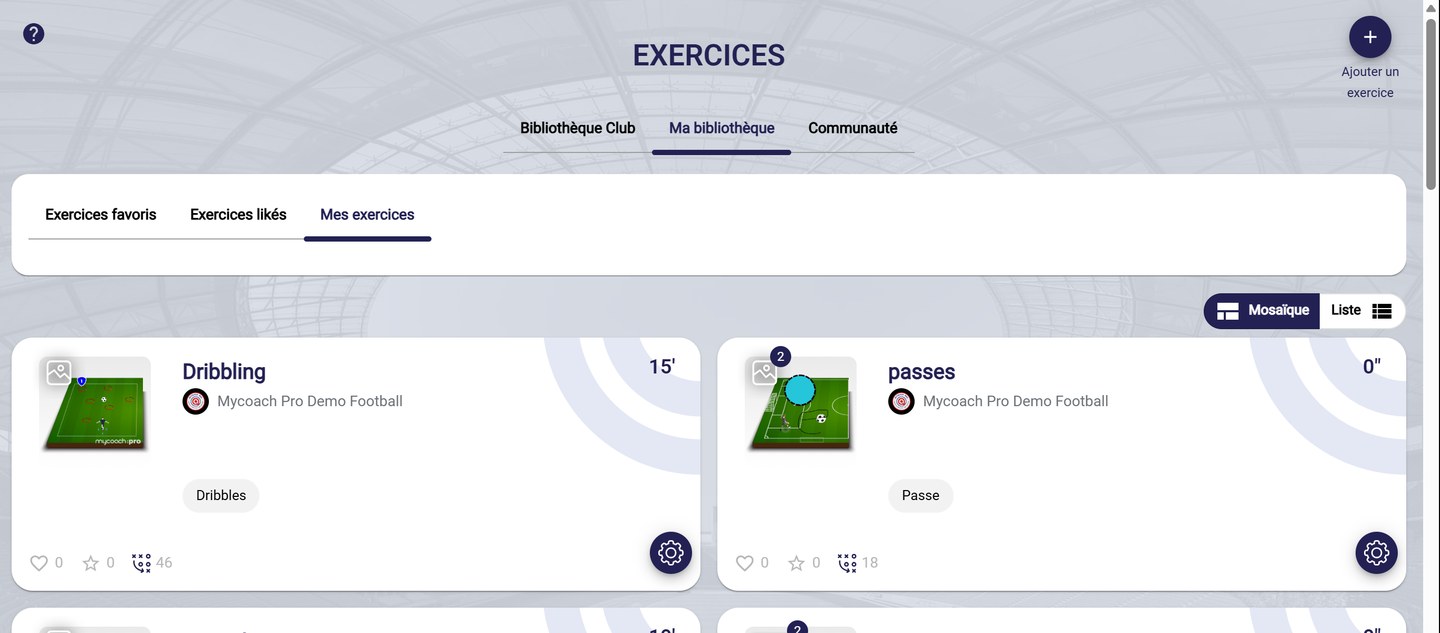
The My library tab
Edit, duplicate or delete an exercise
-
At the bottom of the sheet, click EDIT to change the exercise, or DELETE to delete it.
-
From the library, a sheet's gear icon also offers Edit, Duplicate and Delete. Duplicate creates a copy of the exercise that you can adapt.
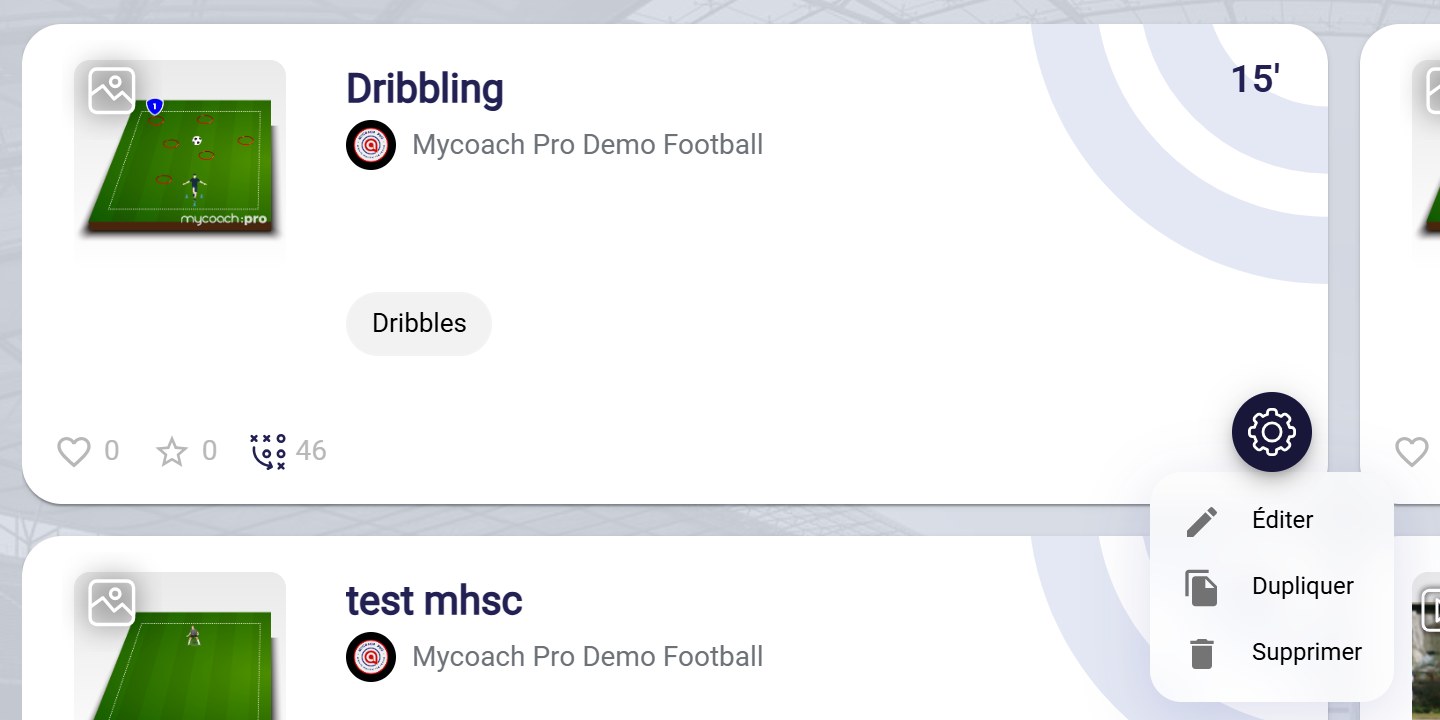
An exercise's menu
Other people's exercisesYou can only edit or delete exercises you have rights to.
Need help
Email support@mycoachpro.io with any questions about managing exercises.