Create a squad
The Create my squad page lets you create the accounts of all the players in a team in one go, by entering them in a grid or by importing an Excel or CSV file. Creation takes three steps: Input, Check and Creation.
- Set up the squad: team, language, usernames, passwords and modules.
- Enter or import the players: in the grid or from a file.
- Check and create the accounts: review, then creation.
- Print the login credentials: one sheet per player or one sheet for the whole team.
To create a single player, use Create a player instead.
Set up the squad
-
From the Players page, open the menu and choose Create my squad. The page shows the three steps: Input, Check and Creation.
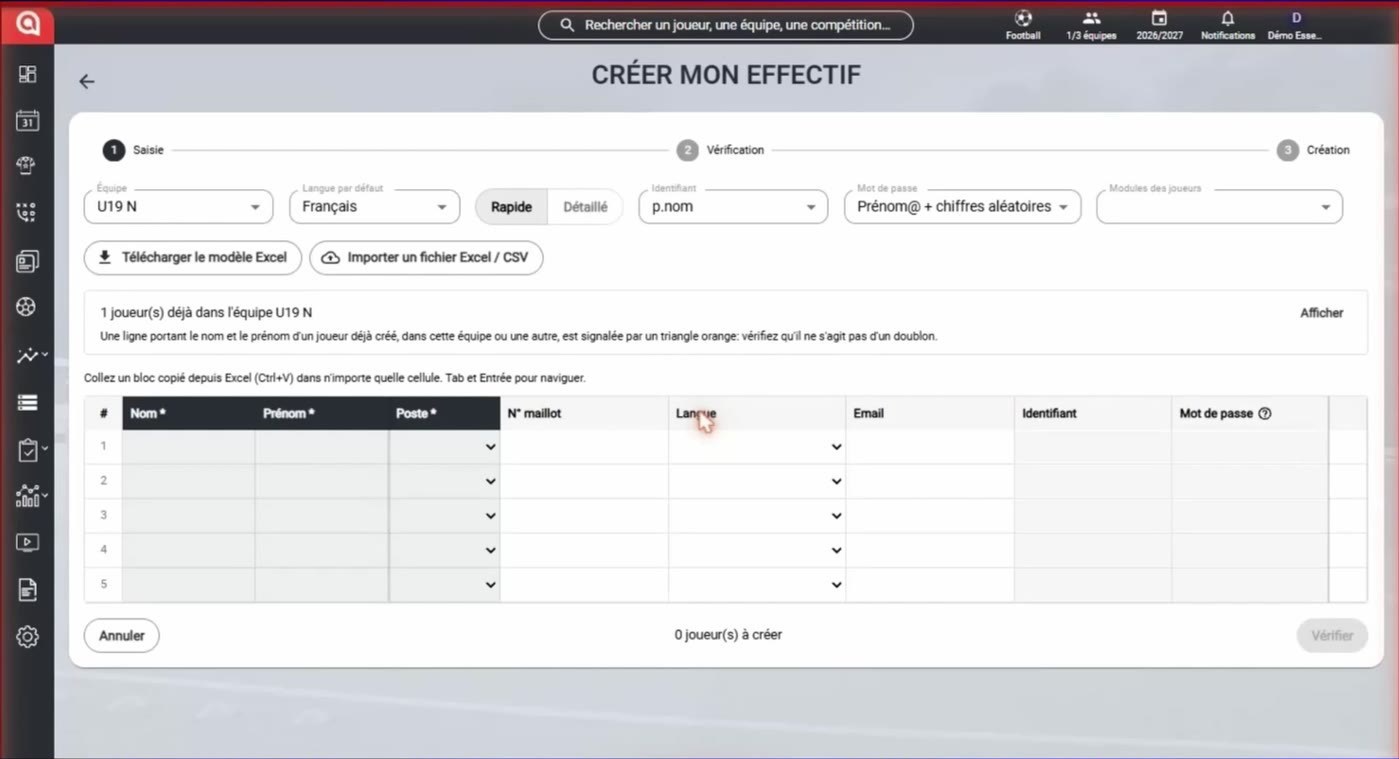
The Create my squad page
-
Choose the team and the players' default language.
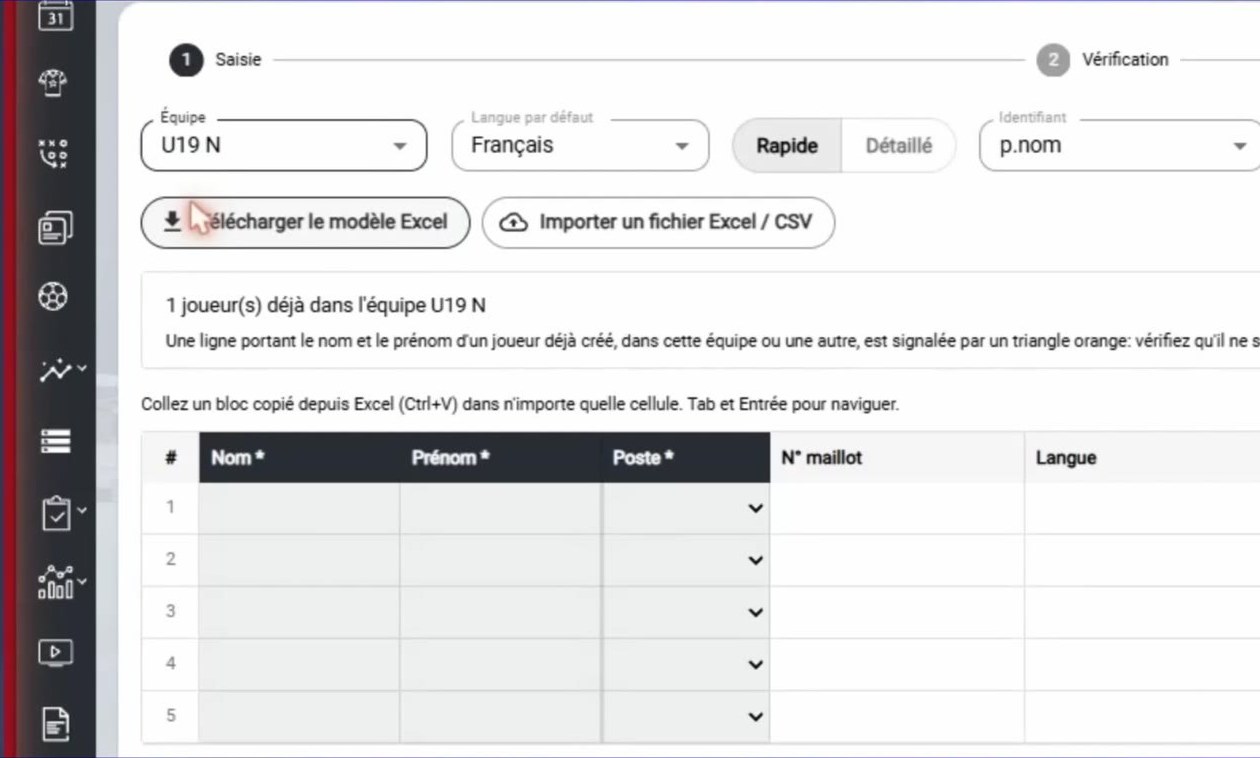
Choosing the team and the default language
-
Click Download the Excel template to get our template, or Import an Excel / CSV file to import your own file directly.
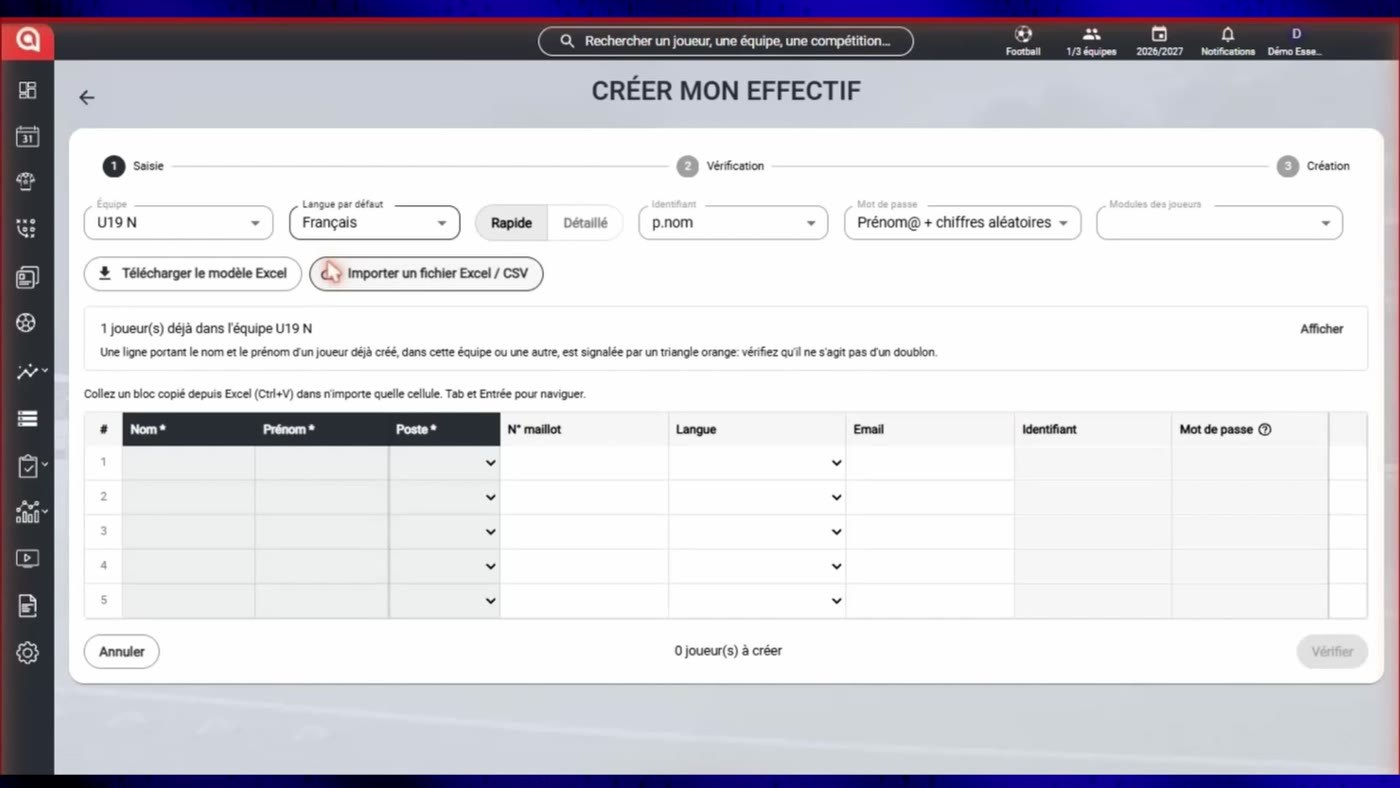
The Download the Excel template and Import an Excel / CSV file buttons
Our template or your own exportWe provide our Excel template, but you don't have to use it: another export can work too, such as the SportEasy export. Just check the imported players in the grid before moving on to the check.
-
Choose the entry mode: Detailed mode offers more columns to fill in than Quick mode.
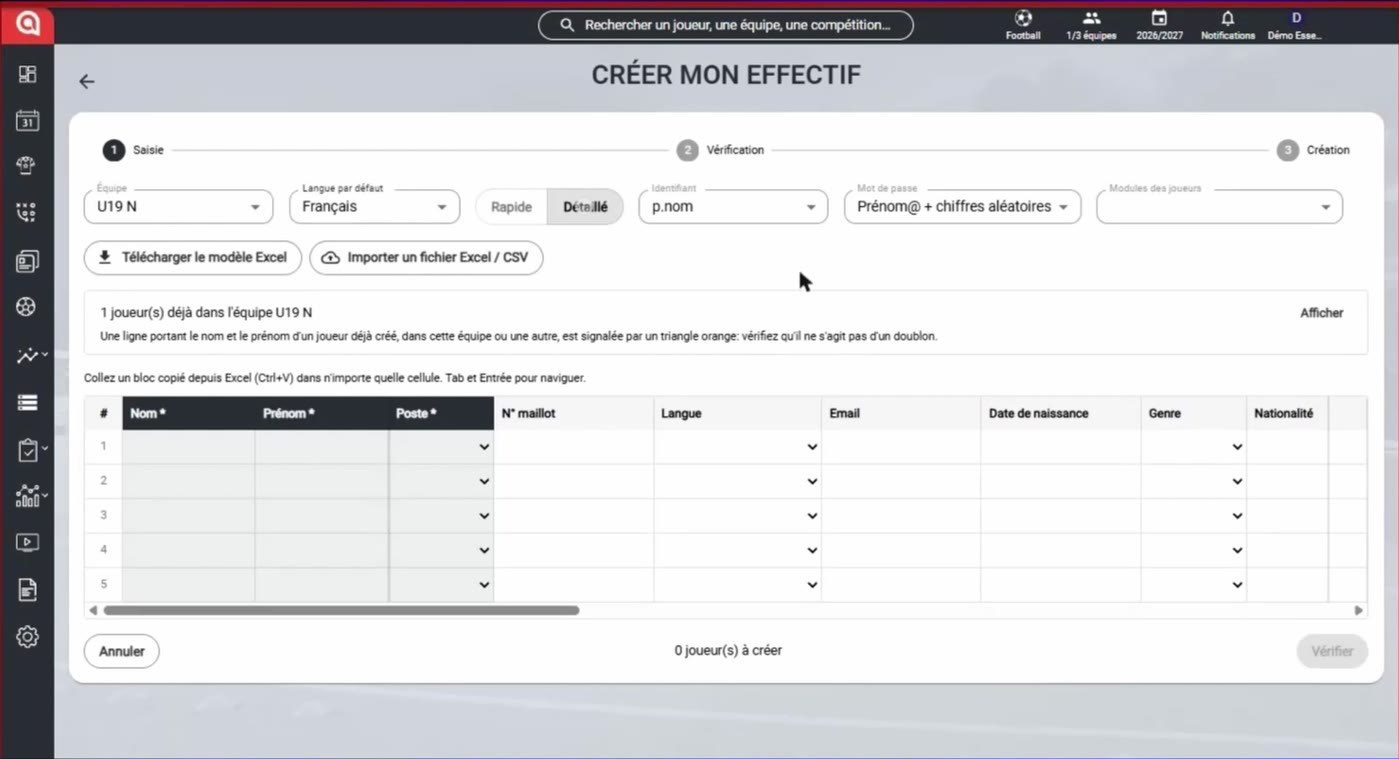
Detailed mode
-
Choose the username format: f.lastname, firstname.lastname or Free (entered manually).
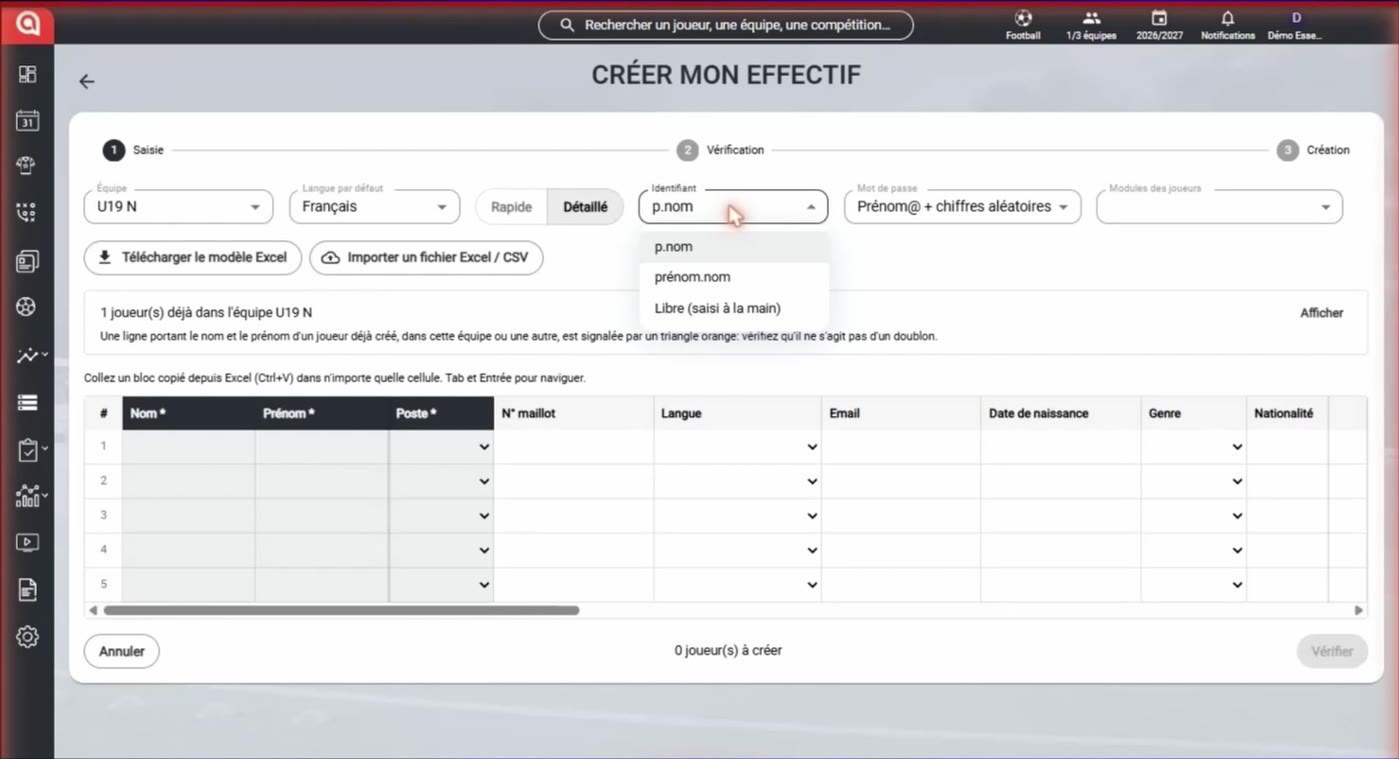
Choosing the username format
-
Choose the password format: FirstName@ + random digits or FirstName@ + jersey number.
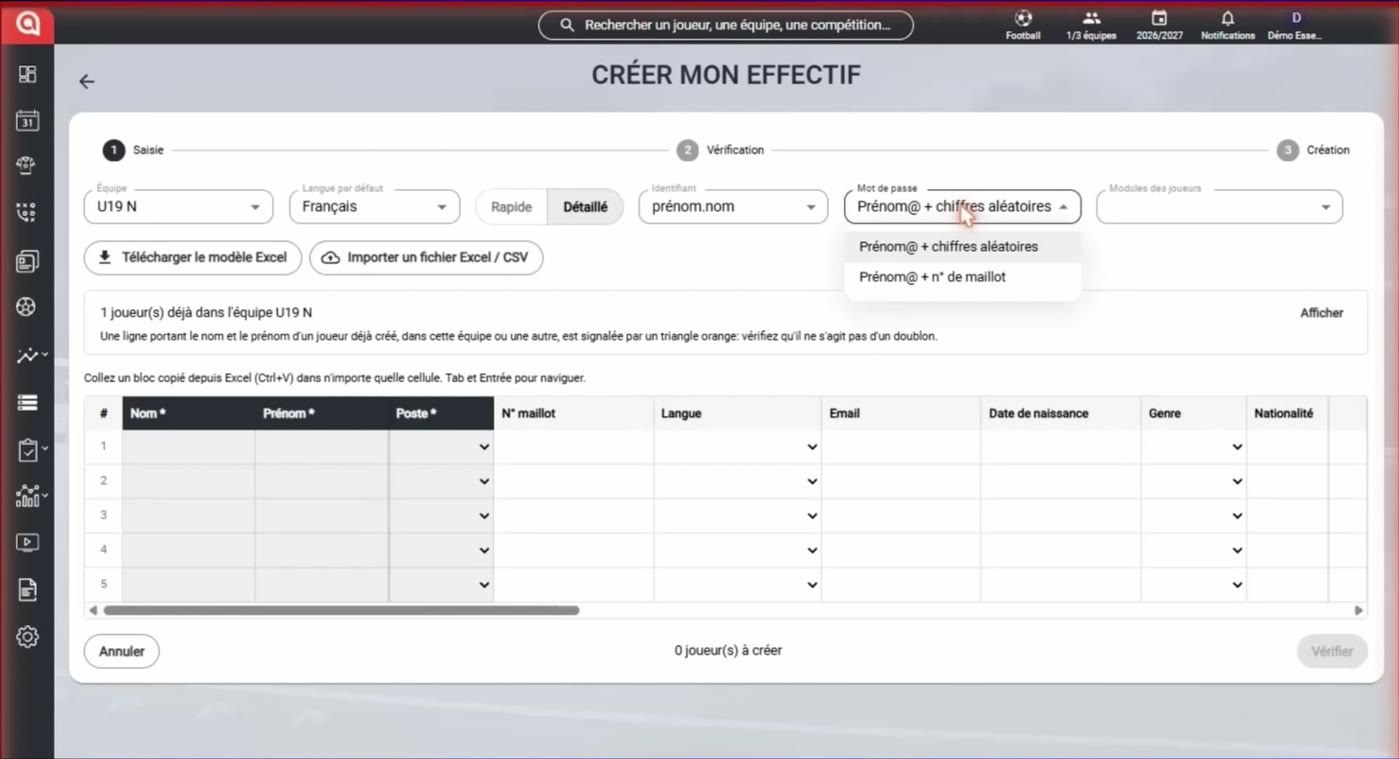
Choosing the password format
-
Under Player modules, select the modules enabled for the players.
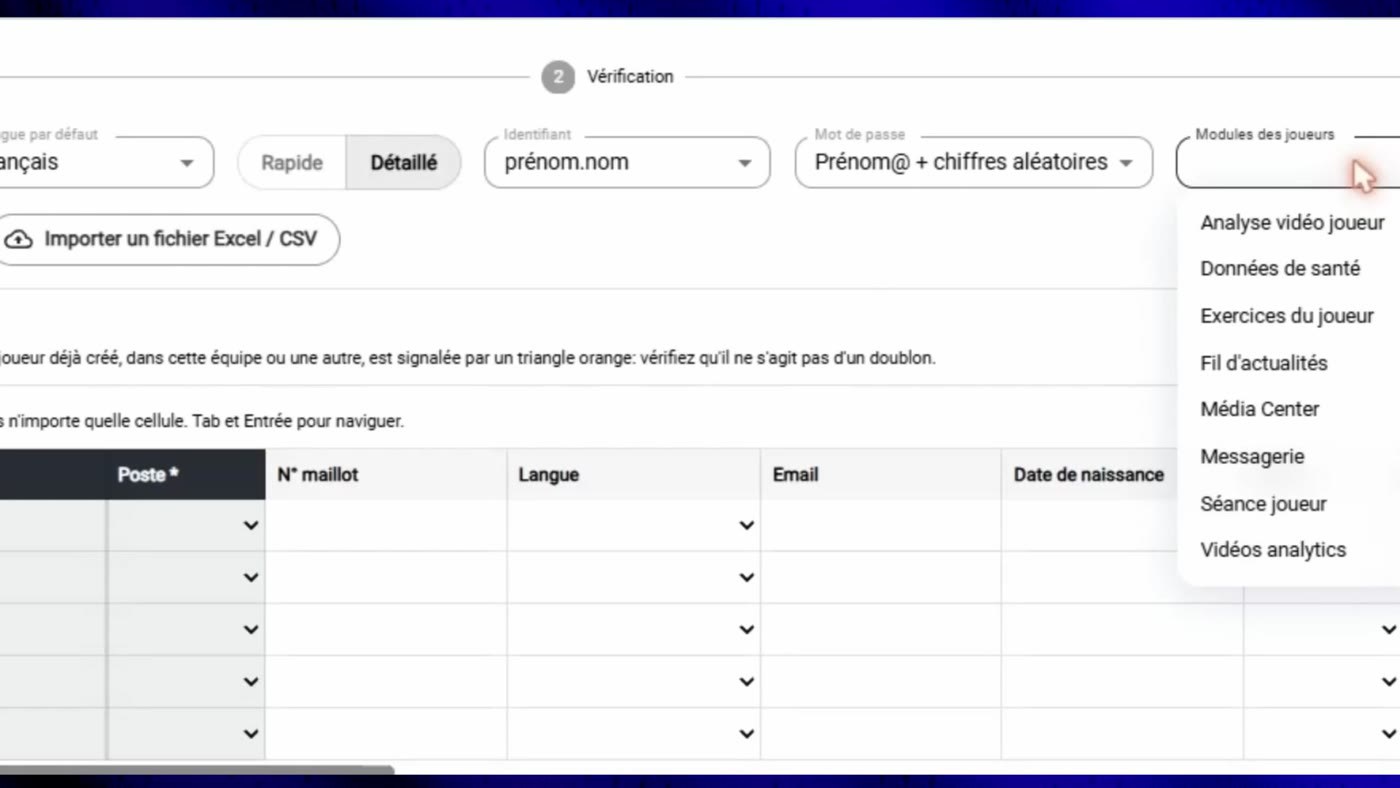
Selecting the player modules
-
Click Show to see the players already in the team.
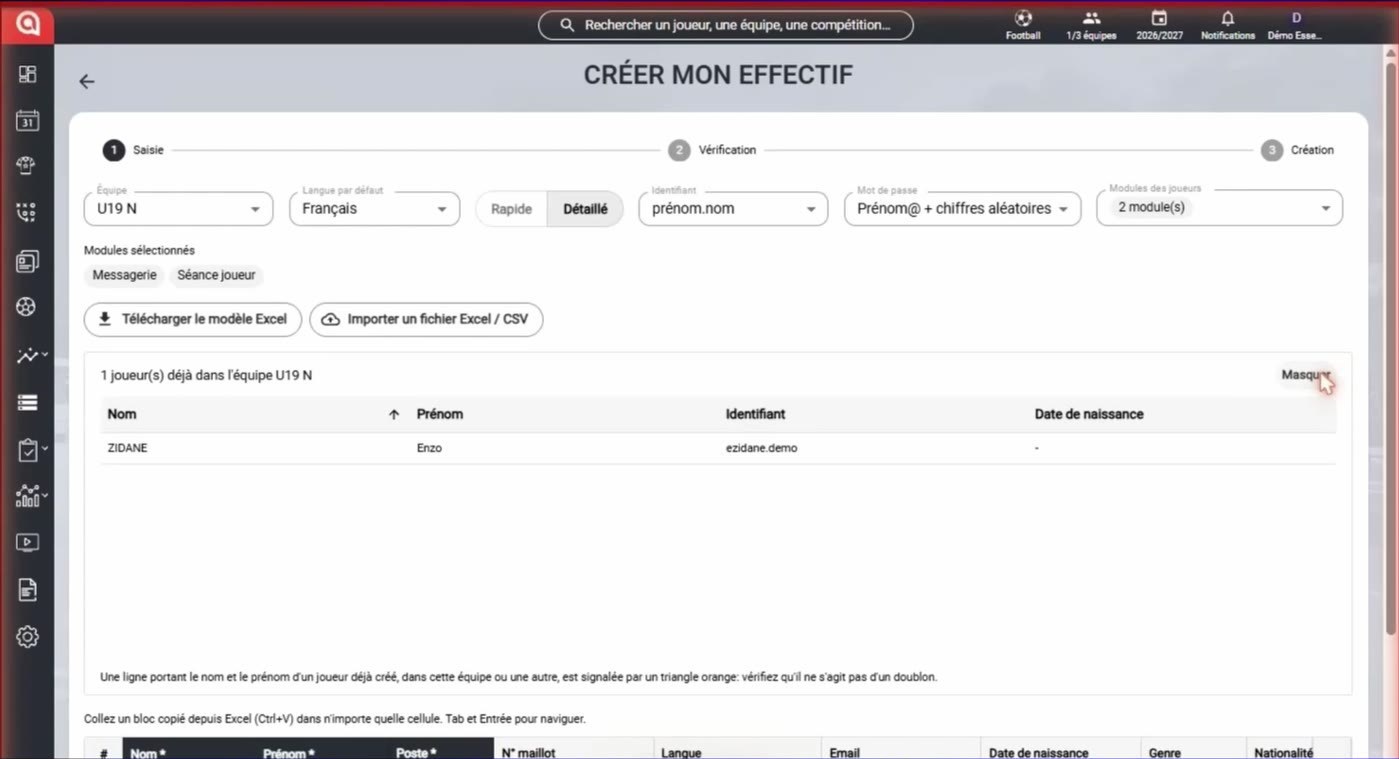
The players already in the team
Watch out for duplicatesA row with the last name and first name of a player already created, in this team or another, is flagged with an orange triangle: check that it isn't a duplicate.
Enter or import the players
-
Enter the players in the grid, or paste a block copied from Excel (Ctrl+V) into any cell. Use Tab and Enter to move around.
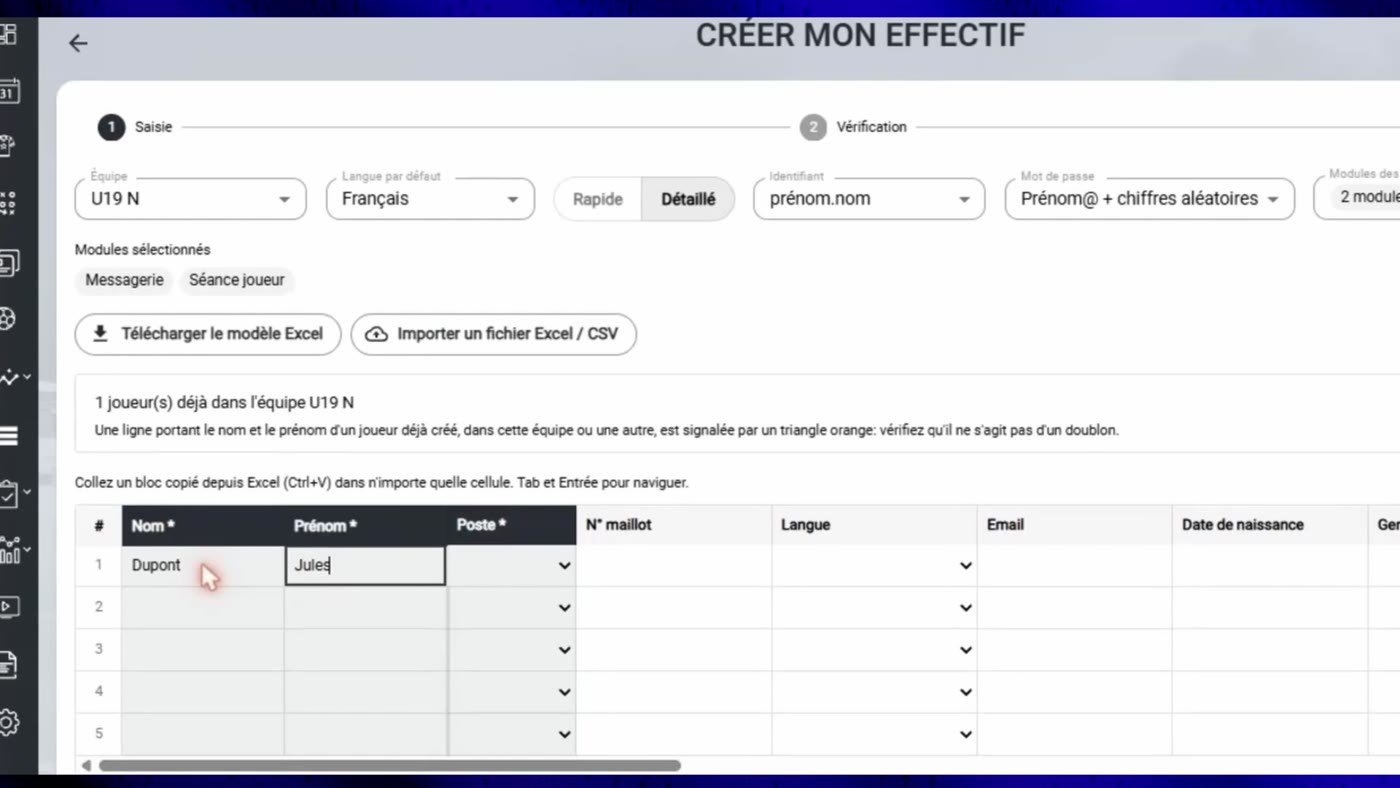
Entering players in the grid
Mandatory fieldsThe Last name, First name and Position columns are mandatory.
-
Or import your Excel or CSV file: the players are added to the grid.
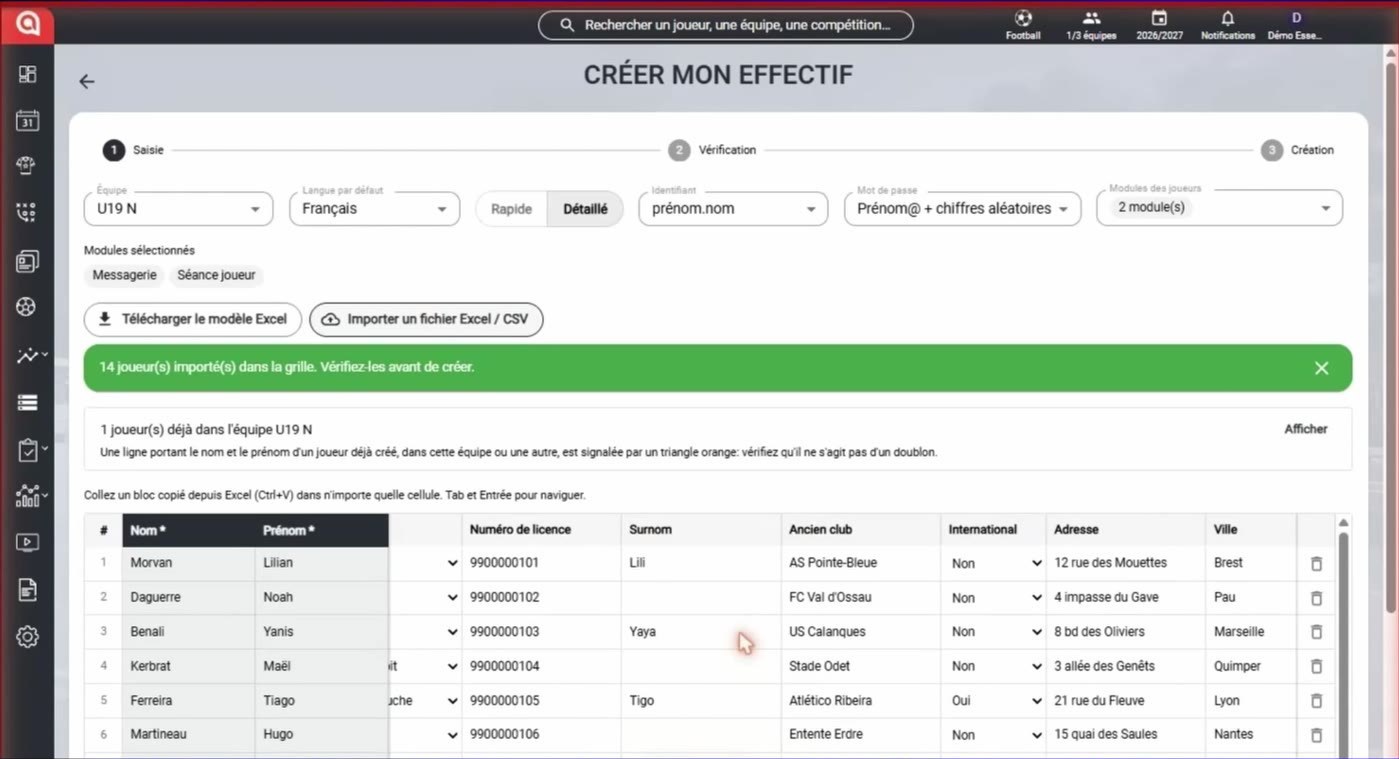
The players imported into the grid
Check and create the accounts
-
Review the information, then click Check.
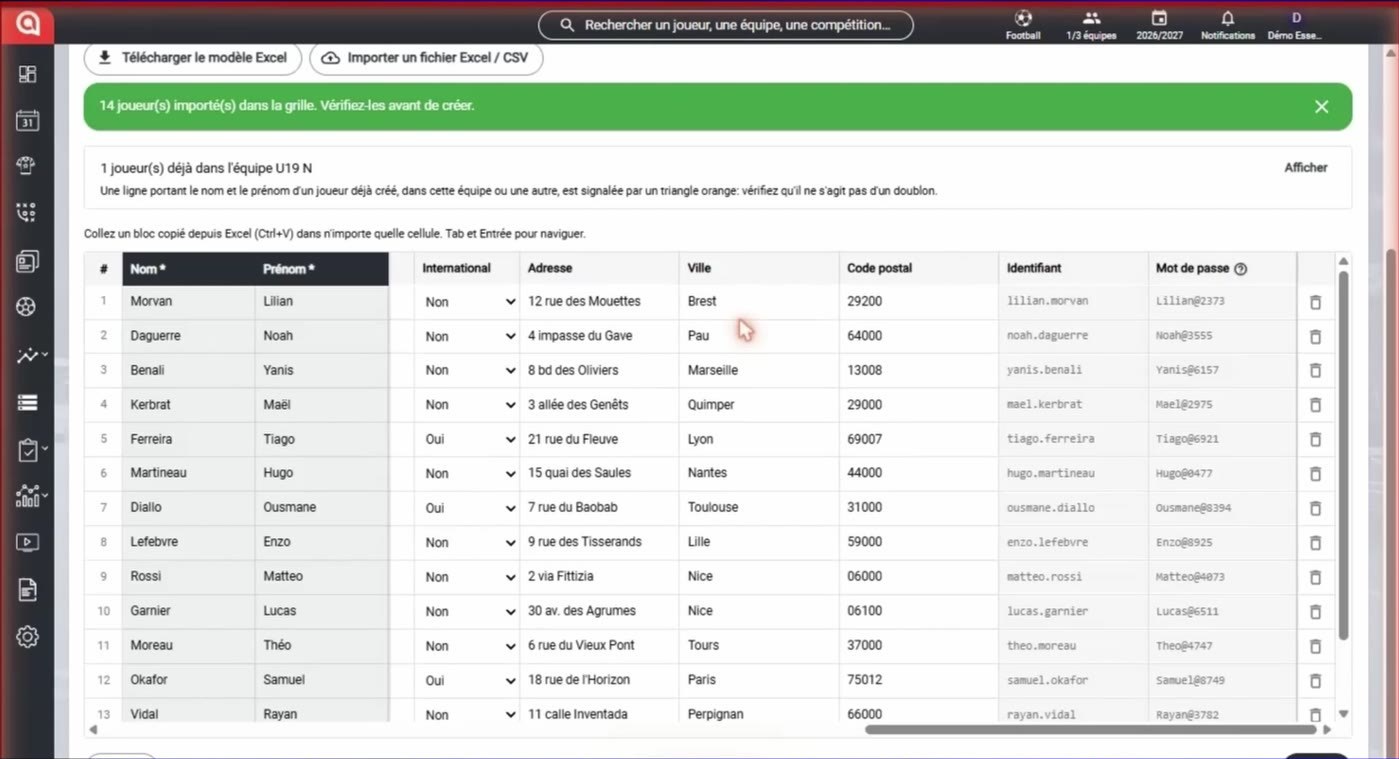
The completed grid before the check
-
At the Check step, a number is added to usernames that are already taken: they appear in blue in the grid.
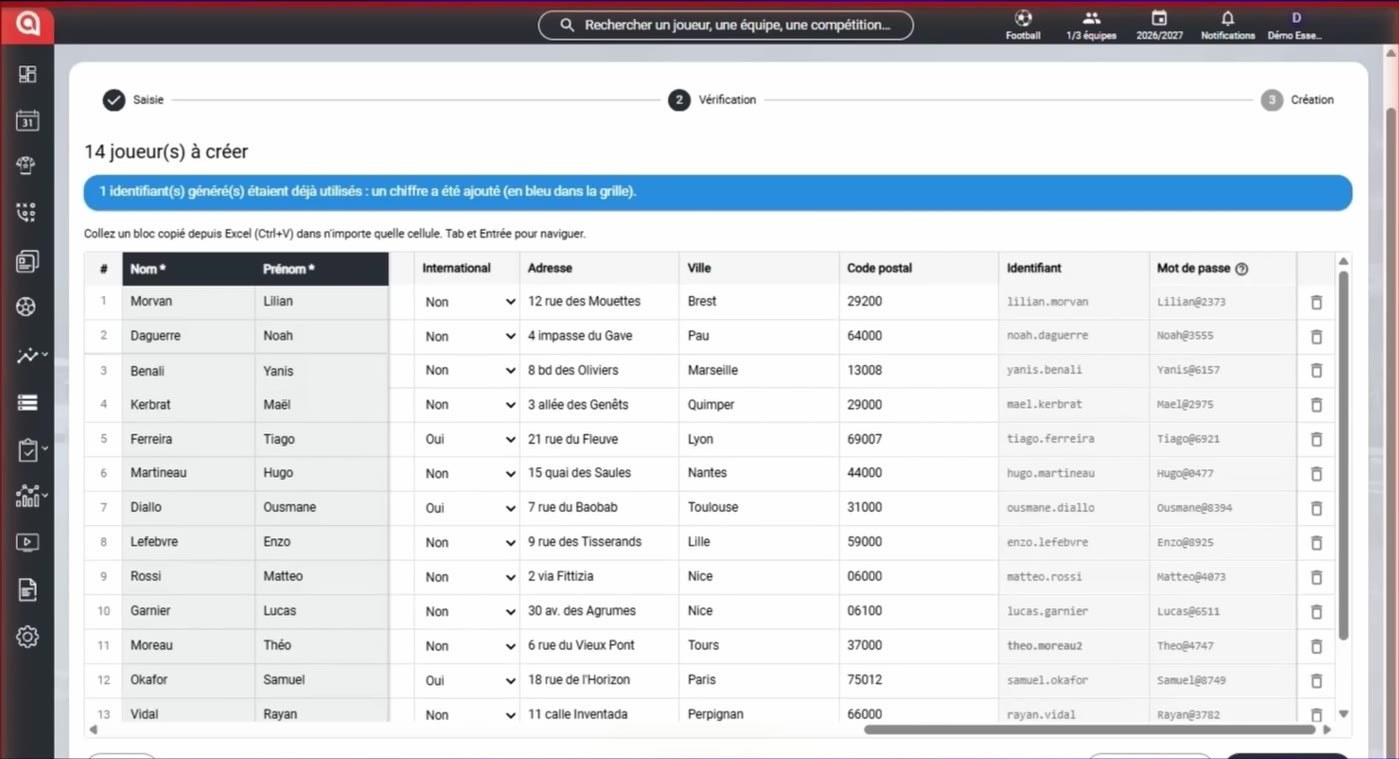
The Check step
-
Start the creation, then confirm with Ok.
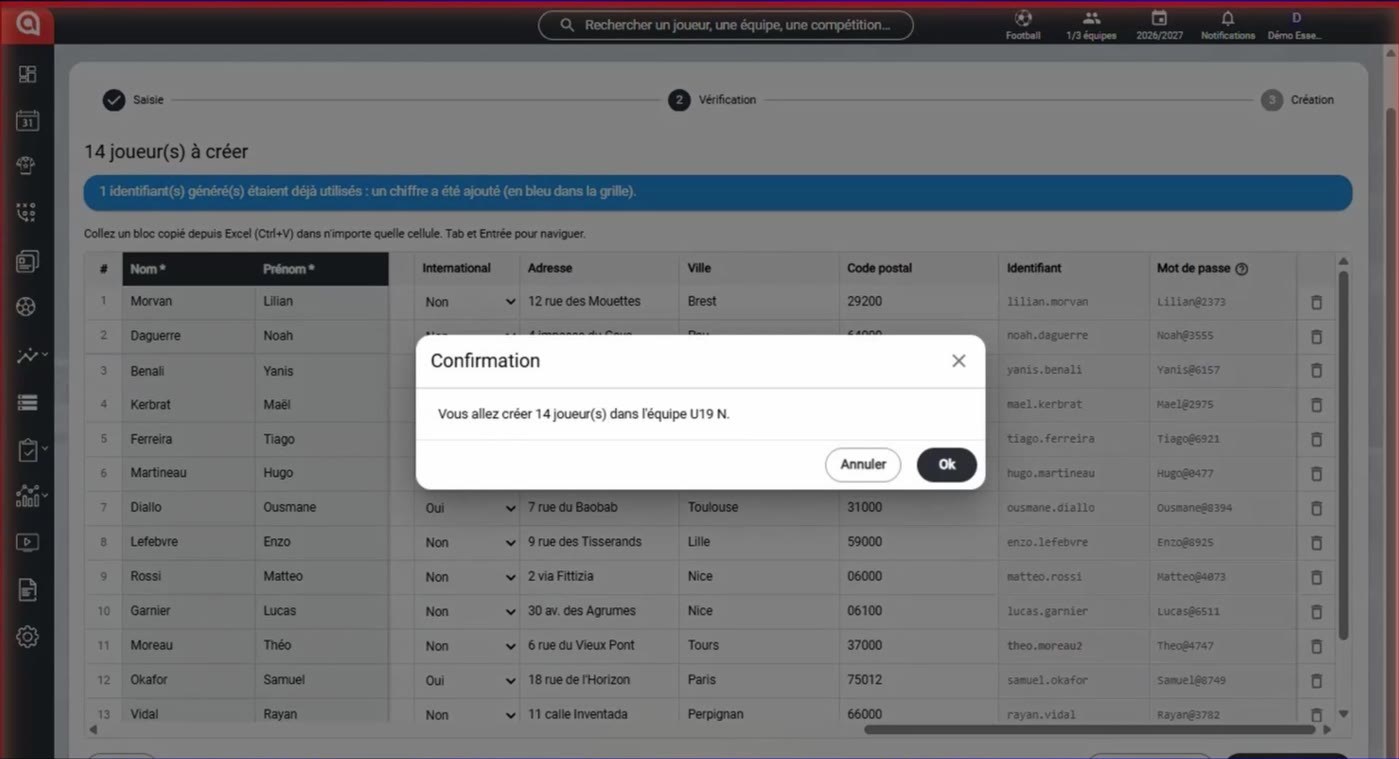
The confirmation window
-
The accounts are created: write down or export the passwords.
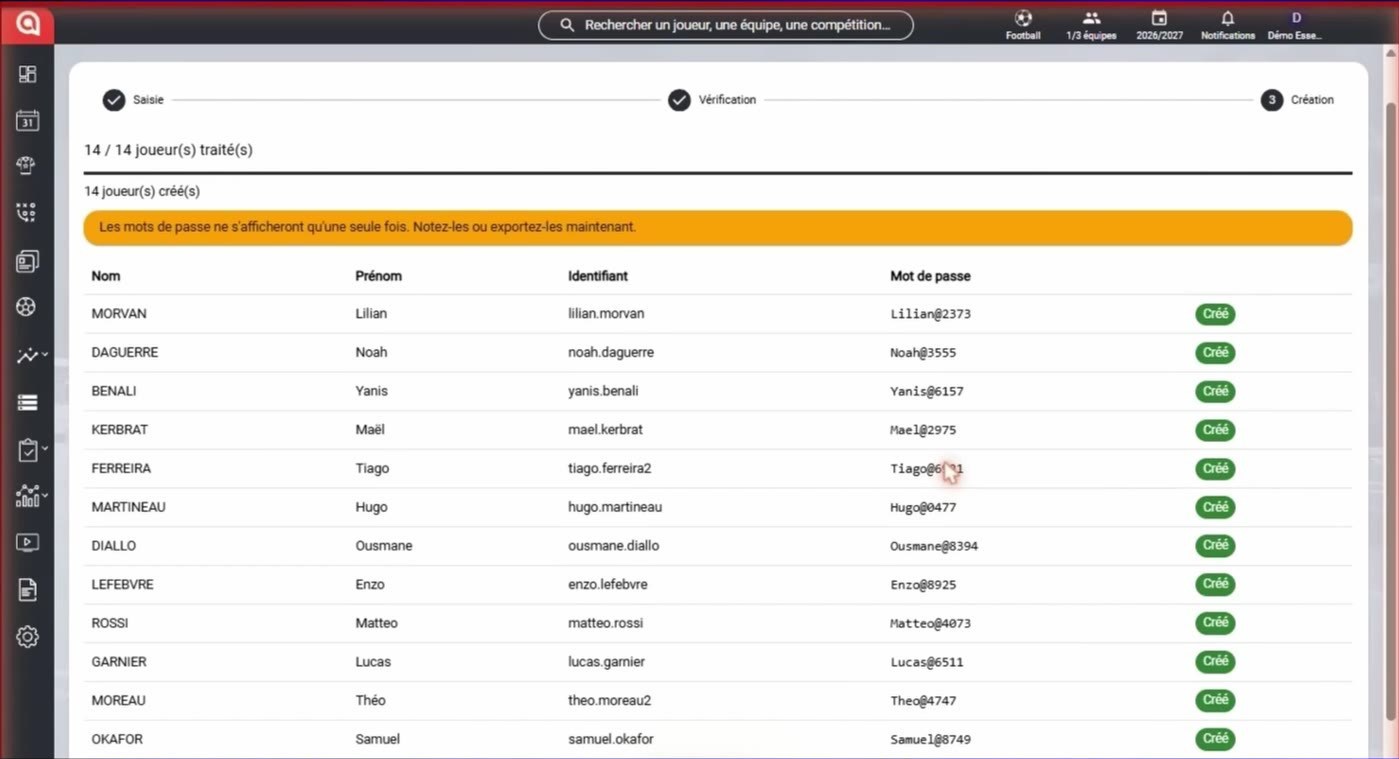
The created accounts
Passwords shown only onceThe passwords will only be shown once. Write them down or export them before leaving the page.
Print the login credentials
-
On the Players page, open the menu and choose Print access sheets.
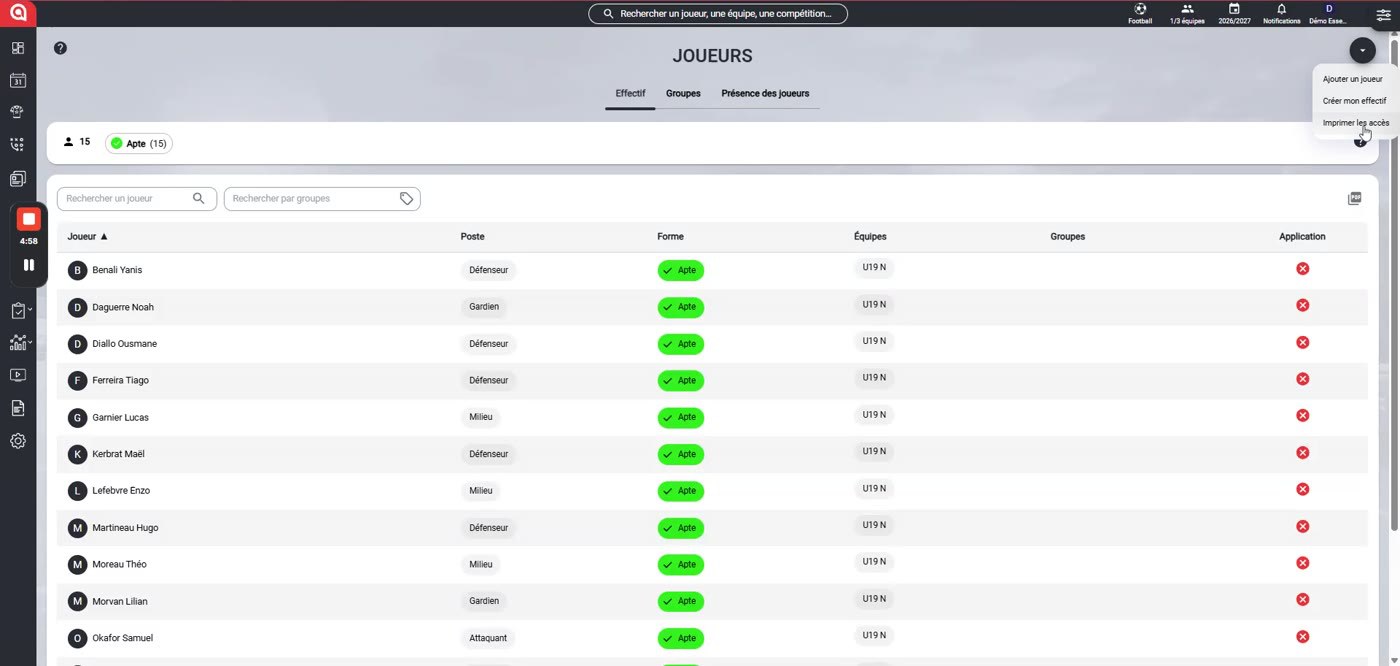
The Print access details option
-
Choose the team, the document format and the language.
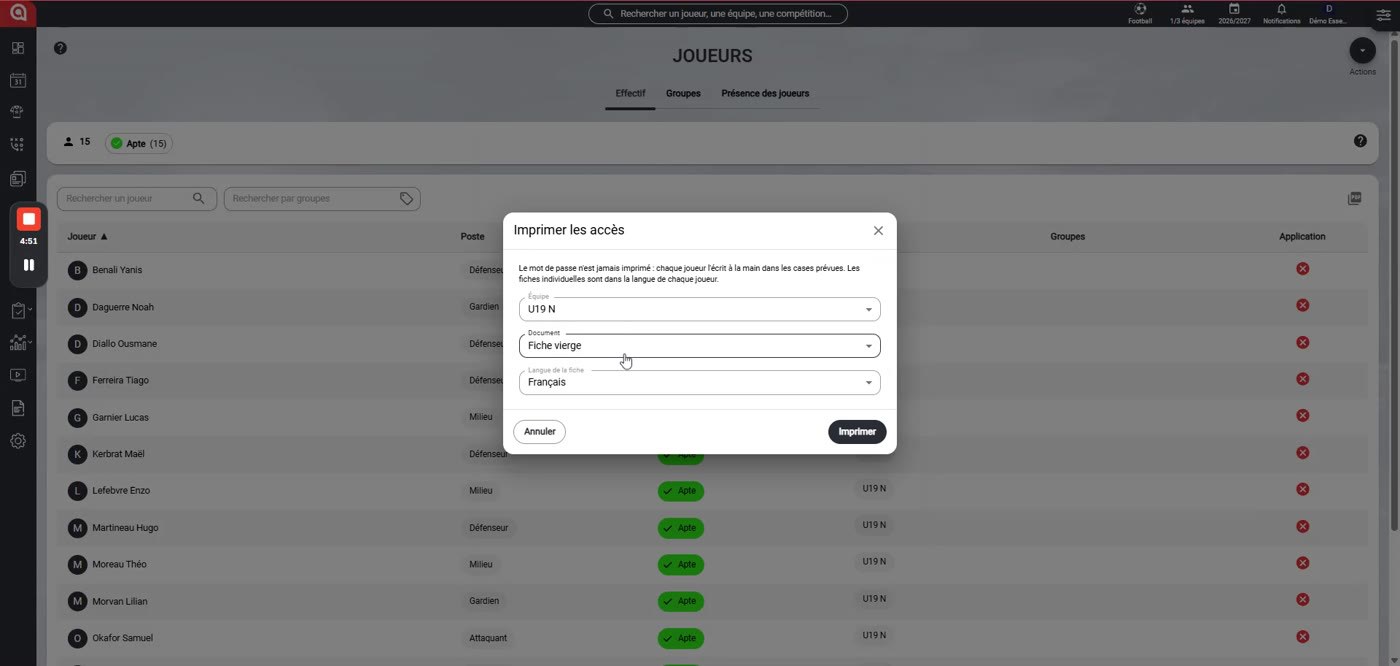
The Print access details window
-
One sheet per player format: select the players, then click Print.
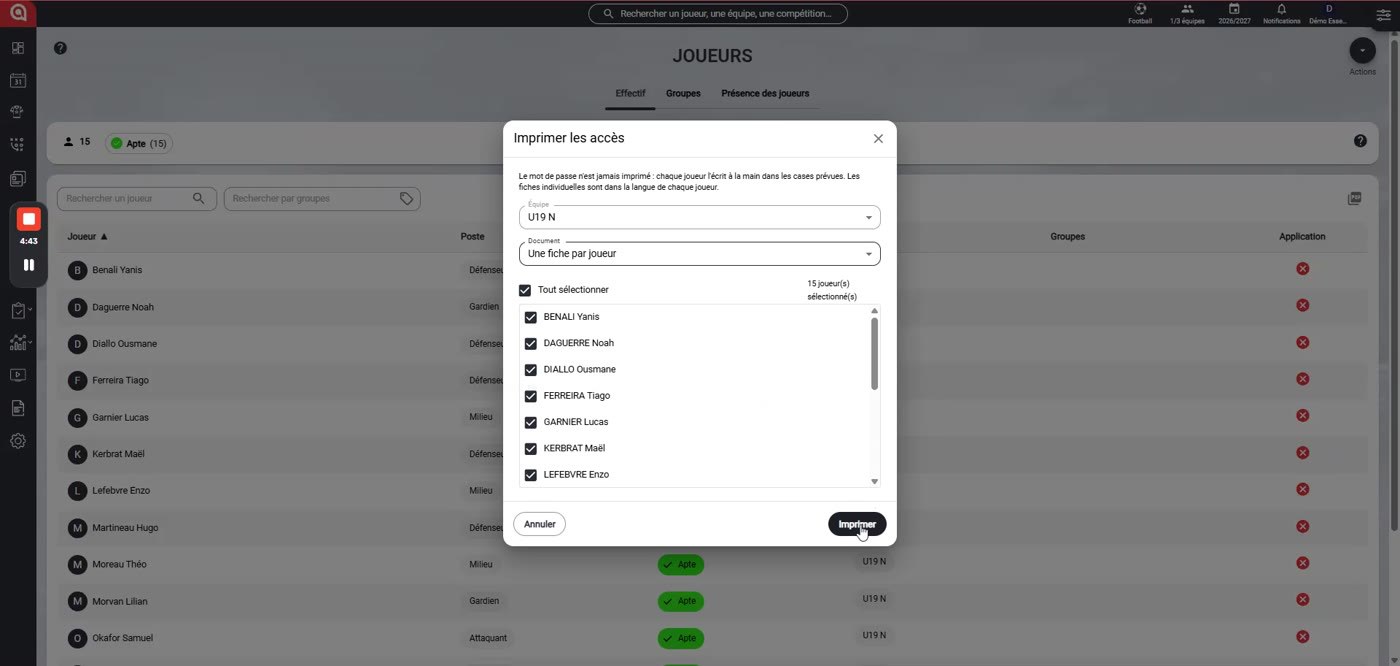
The One sheet per player format
-
Each sheet contains the player's login credentials and the app download links.
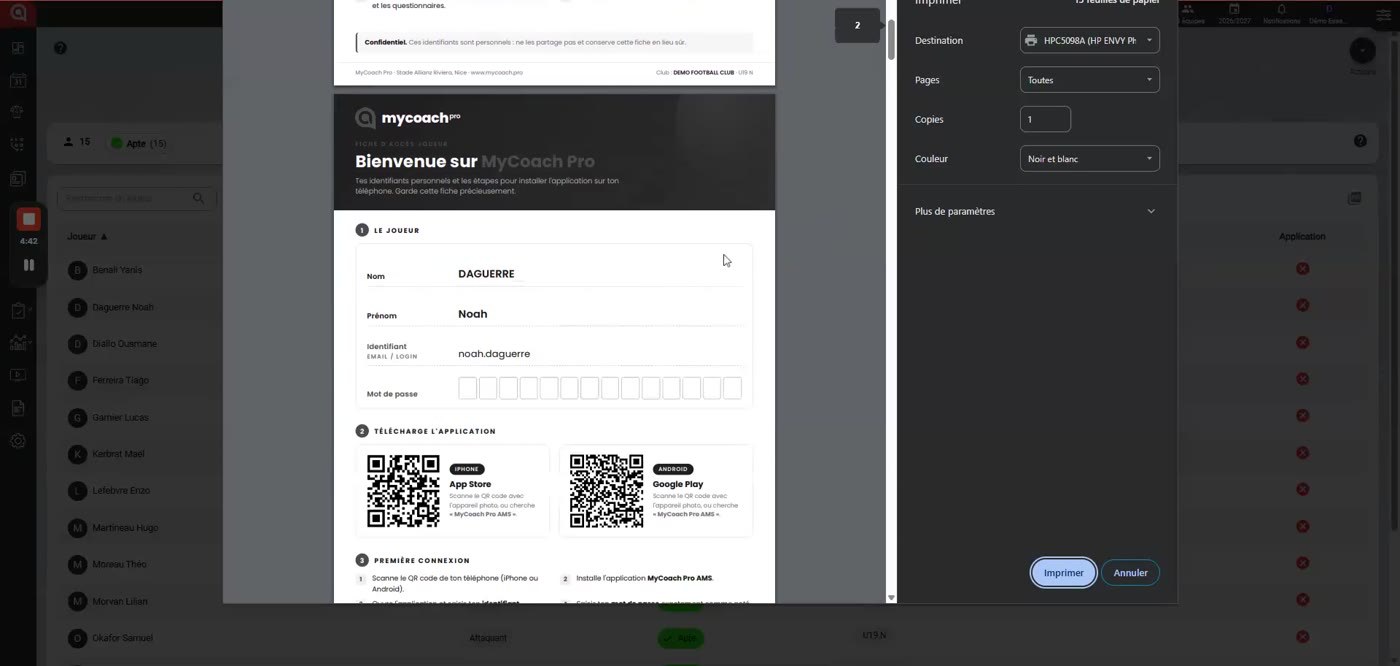
A player's individual sheet
-
Or choose the Squad sheet format, then click Print.
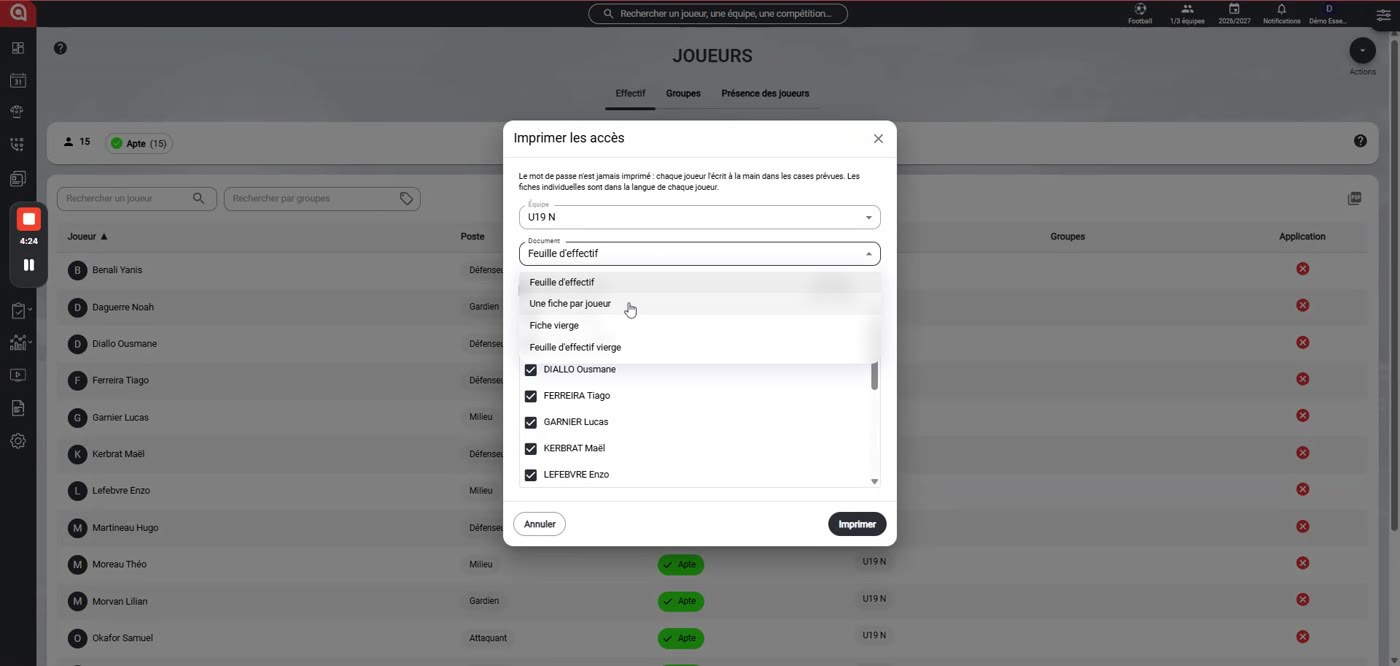
The Squad sheet format
-
The squad sheet gathers the login credentials of the whole team.
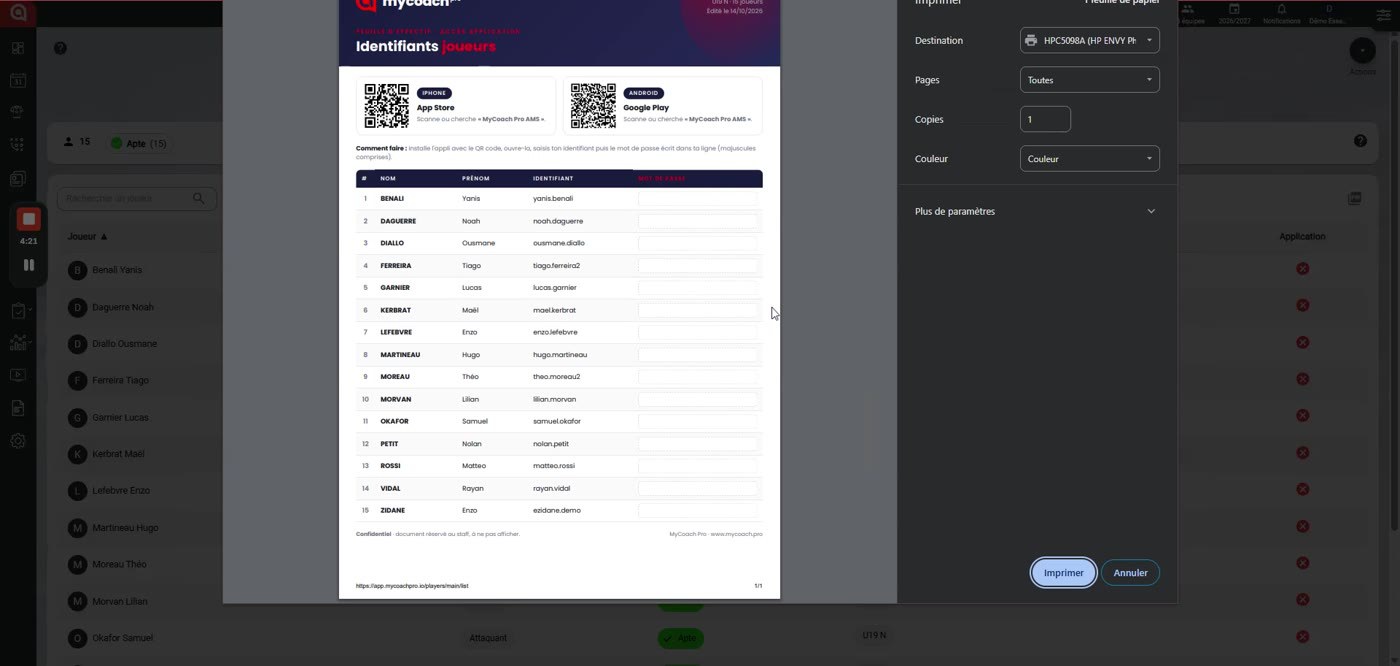
The squad sheet
You can also send login credentials to a player by email.
Need help
Email support@mycoachpro.io with any questions about creating a squad.