Create and manage player groups
Groups bring together players from the same team: defenders, players in return-to-play, elite group… You then find them in the player list filters and when calling up players.
Create a group
-
Click the Players module, then the Groups tab. The list shows each group, its team and its number of players.
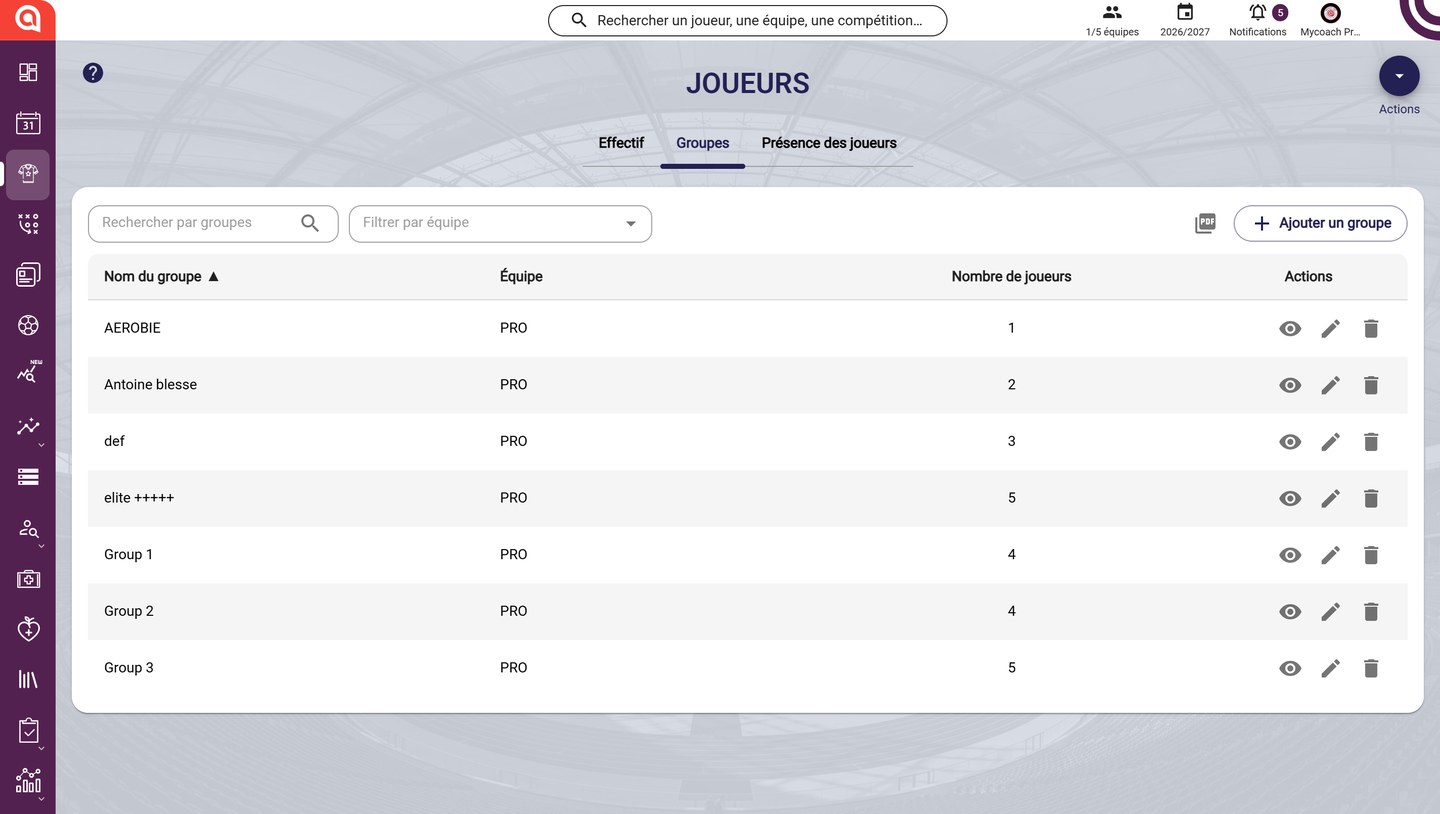
The Groups tab
-
Click ADD A GROUP, enter the group name and choose its team.

The group name and team
-
If needed, expand Advanced filters to find your players by group, status, position or year of birth.
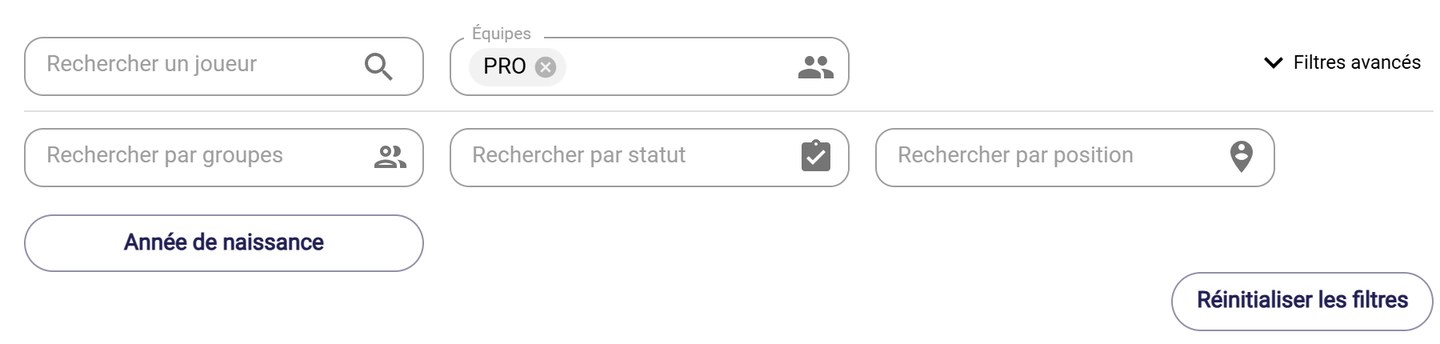
The advanced filters
-
Click a player's + to add them to the group, or ADD ALL to add all the players shown. The chosen players appear in Selected players; the bin or REMOVE ALL removes them.
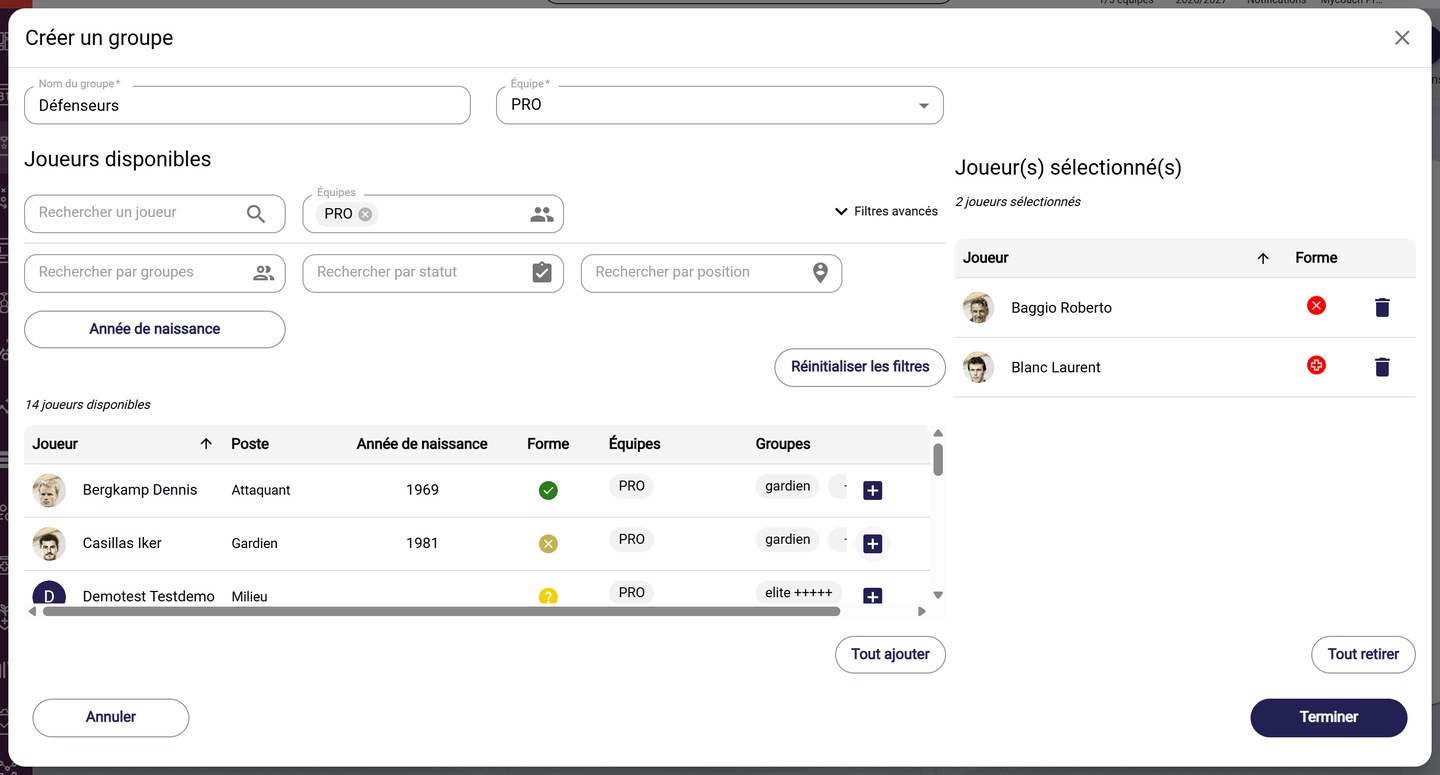
Selecting the players
-
Click FINISH. The group appears in the list.
Manage your groups
-
In the Actions column, click the eye to see the group's players, the pencil to edit it or the bin to delete it.
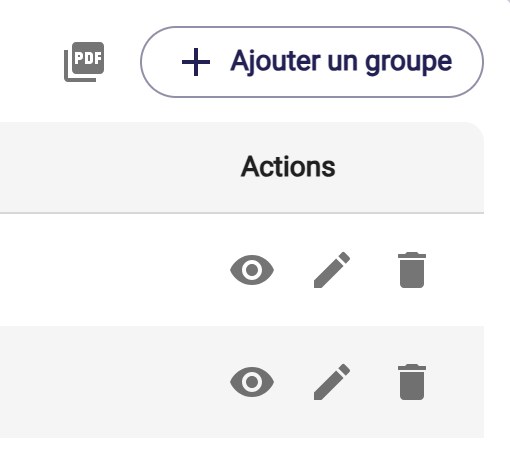
The actions on a group
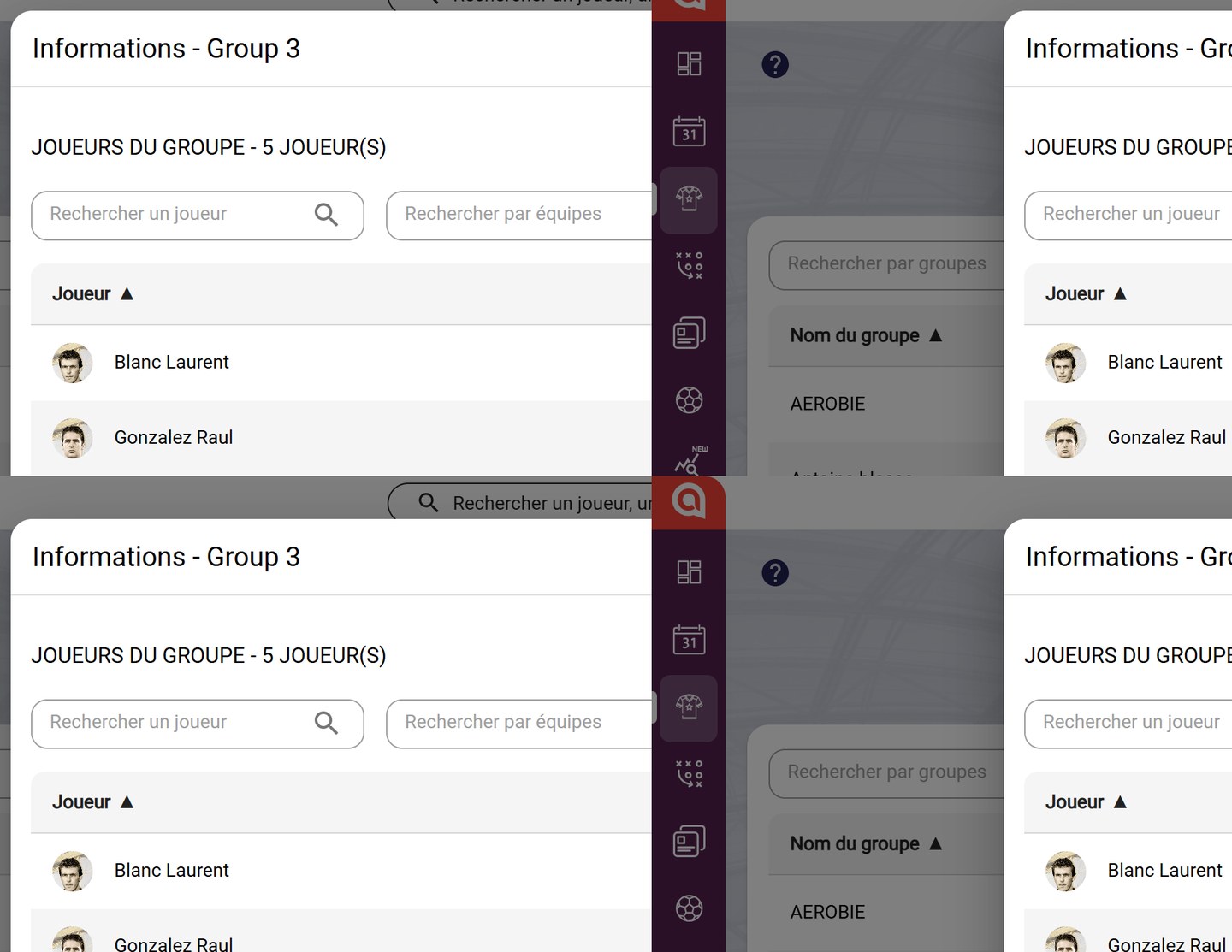
The players in a group
Use Search by groups and Filter by team above the list. In the Squad tab, the Search by groups field shows the players in a group: see Filter the player list.
Need help
Email support@mycoachpro.io with any questions about player groups.