Filter the player list
The Squad list in the Players module shows each player's position, form type, teams, groups and app access. Filter it to show only the players you are interested in.
Show the player list
-
Click the Players module. The Squad tab opens.
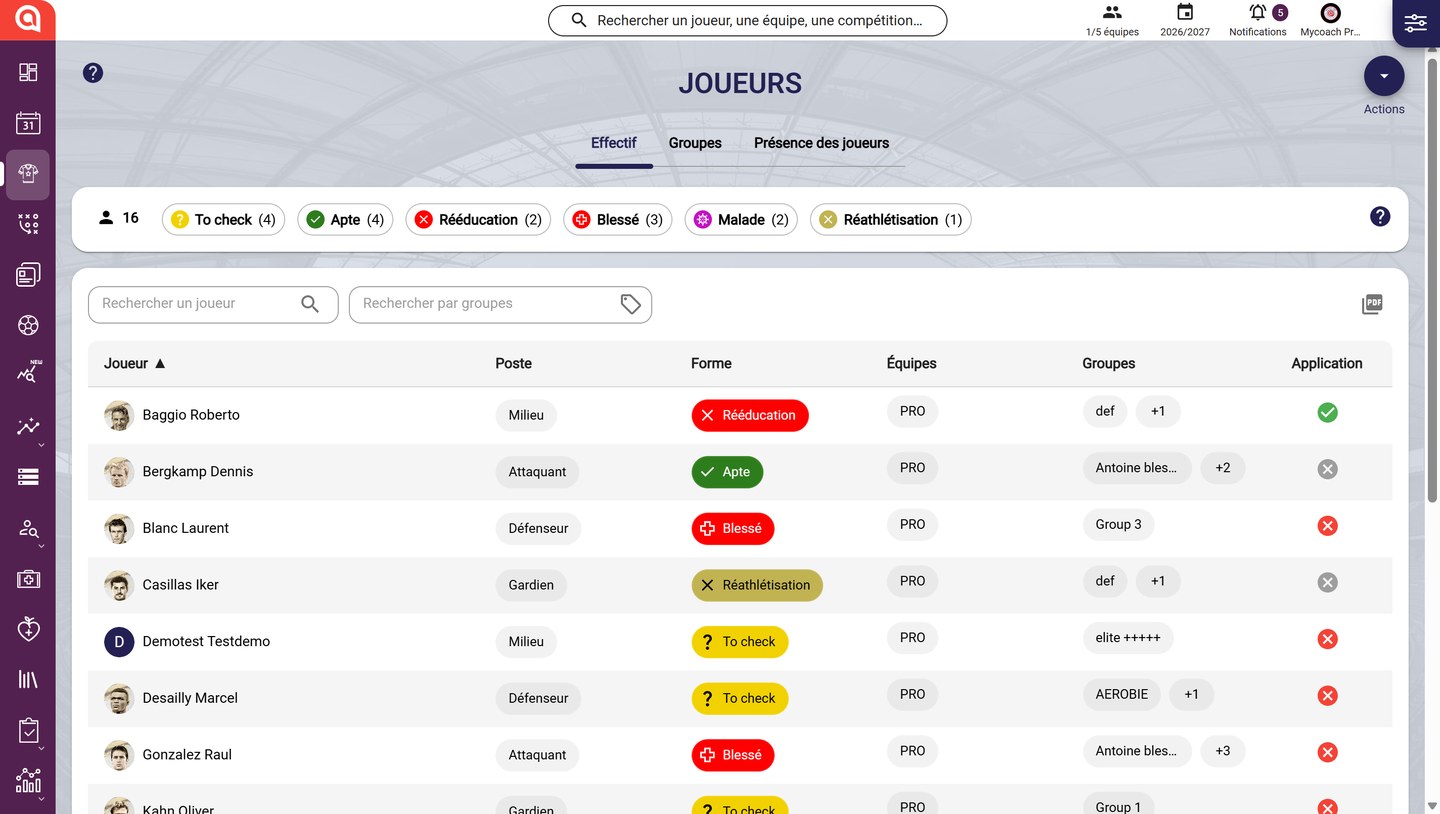
The Squad list
Choose the teams shown
-
At the top of the screen, click the teams selector (for example 1/5 teams), tick the teams to show, then click CONFIRM.
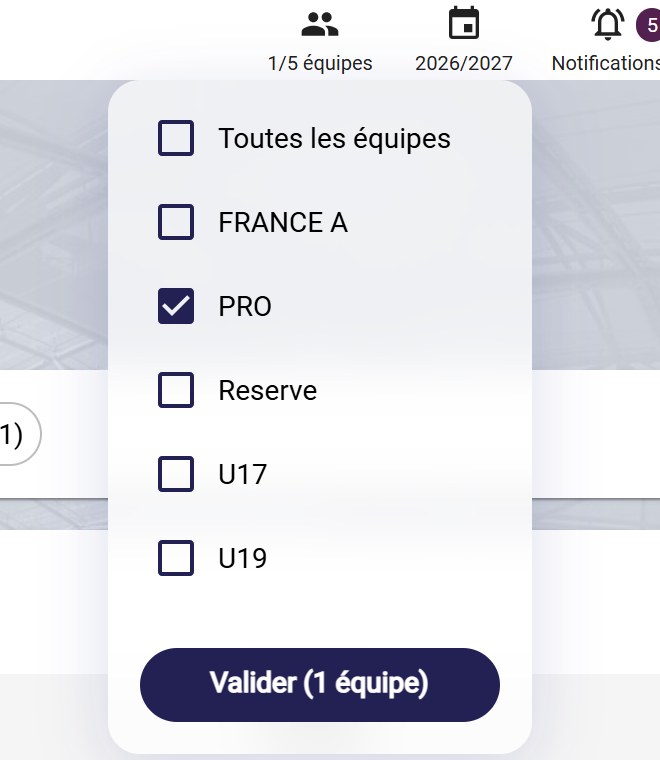
The teams selector
Available everywhereThis selector is in the top bar: you will find it in the other MyCoach Pro modules too.
Filter by team and position
-
Click the Filters icon, top right, then tick the teams and positions to show.
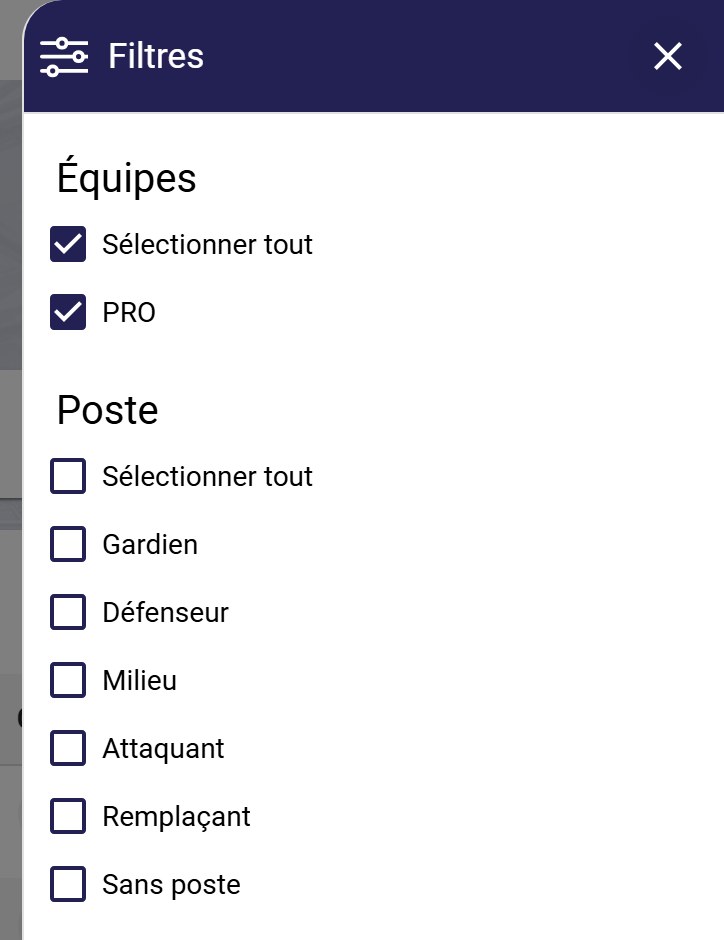
The Filters panel
Filter by fitness status
-
Click a form type (Fit, Injured, Rehab…) to show only the players concerned. The number in brackets shows how many players have that status.

The squad's fitness statuses
Several statuses at onceHold Ctrl (Windows) or Cmd (Mac) while clicking to select several fitness statuses.
-
The list now shows only the filtered players. Click the cross next to the filter to go back to the whole squad.
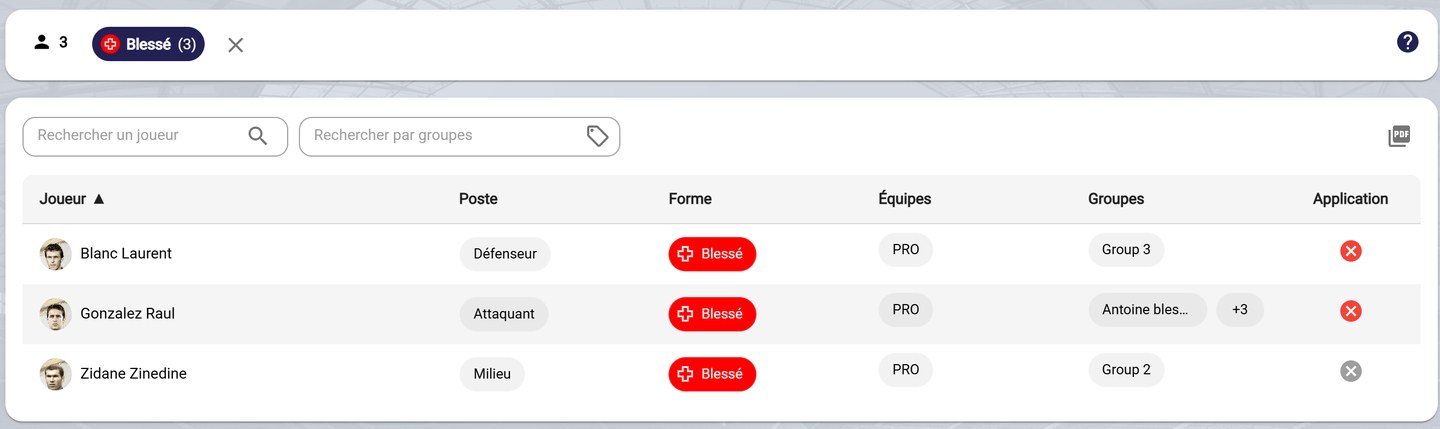
The list filtered on injured players
Search for a player or a group
-
Type a player's name in Search for a player, or choose one or more groups in Search by groups.

Search fields and the PDF icon
Export the listThe PDF icon, at the far right of the search row, exports the displayed list as a PDF.
Need help
Email support@mycoachpro.io with any questions about the player list.