Manage a player's interviews and documents
From the player profile, the Reviews tab keeps a record of your one-to-one meetings and the Documents tab gathers the files linked to the player.
Add an interview
-
On the player's profile, click the Reviews tab, then ADD REVIEW.
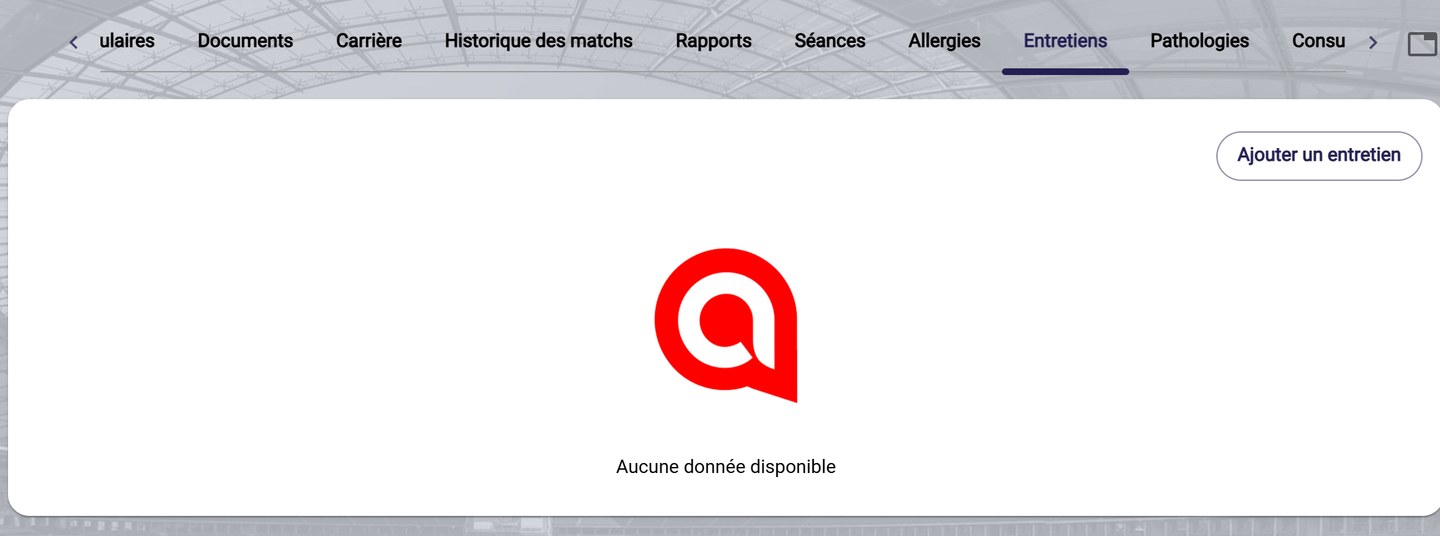
The Interviews tab
-
Enter the interview date, the period covered by the interview (Start / End) and its reason, then click FINISH.
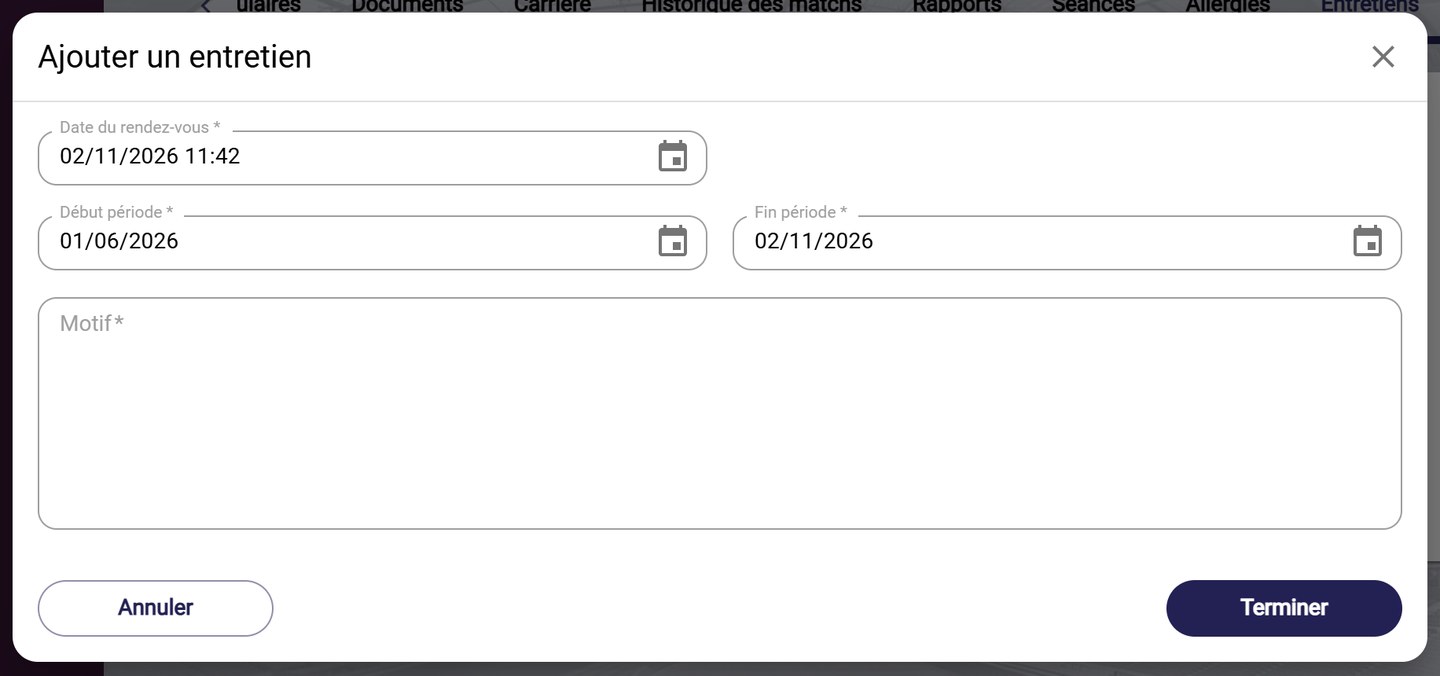
The Add an interview window
View the player's documents
-
Click the Documents tab. Filter the documents added by Staffs or by Players, choose the Mosaic or List view, then the period and the event type. Click View to open a document.
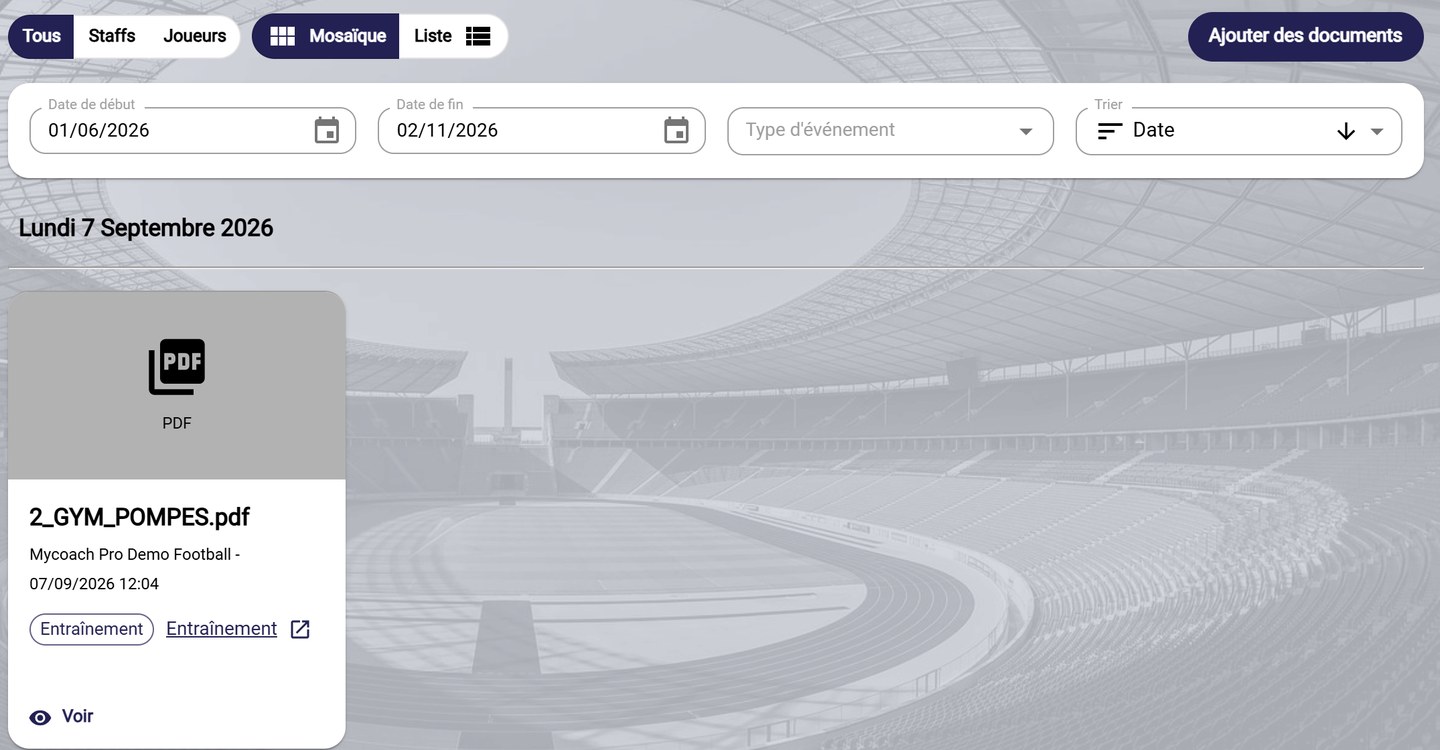
The Documents tab
Add documents
-
Click ADD DOCUMENTS, drag and drop your files (or click to choose them), then click UPLOAD.
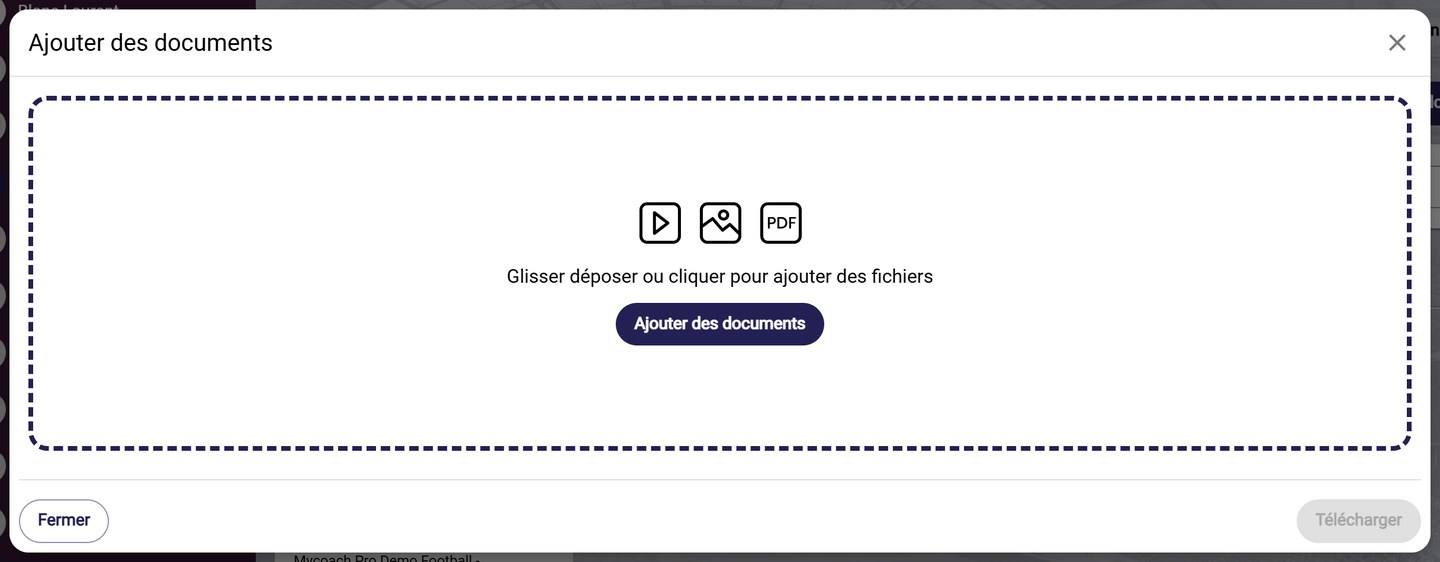
The Add documents window
Need help
Email support@mycoachpro.io with any questions about interviews and documents.