Configure a match
Once your game is created, configure it from start to finish:
- Lineups — add your players and the opposing players.
- Score and periods — enter the score, the number of periods and their durations.
- Match events — record what happens during the match.
In most cases, your official calendars are synchronized with your MyCoach Pro teams: games are then created and synchronized automatically.
Lineups
Click Make my call-up / line-up to add your players and, if needed, the opposing players to the match. These can be your official players as well as unofficial players created on your team.
An option lets you create players on the fly directly from the lineup.
Once the lineup is set, the Game summary tab shows the game system, the players on the pitch, then the starters and substitutes with their playing time. Switch between your team, All teams and the opposing team, and click the pencil to modify the lineup.
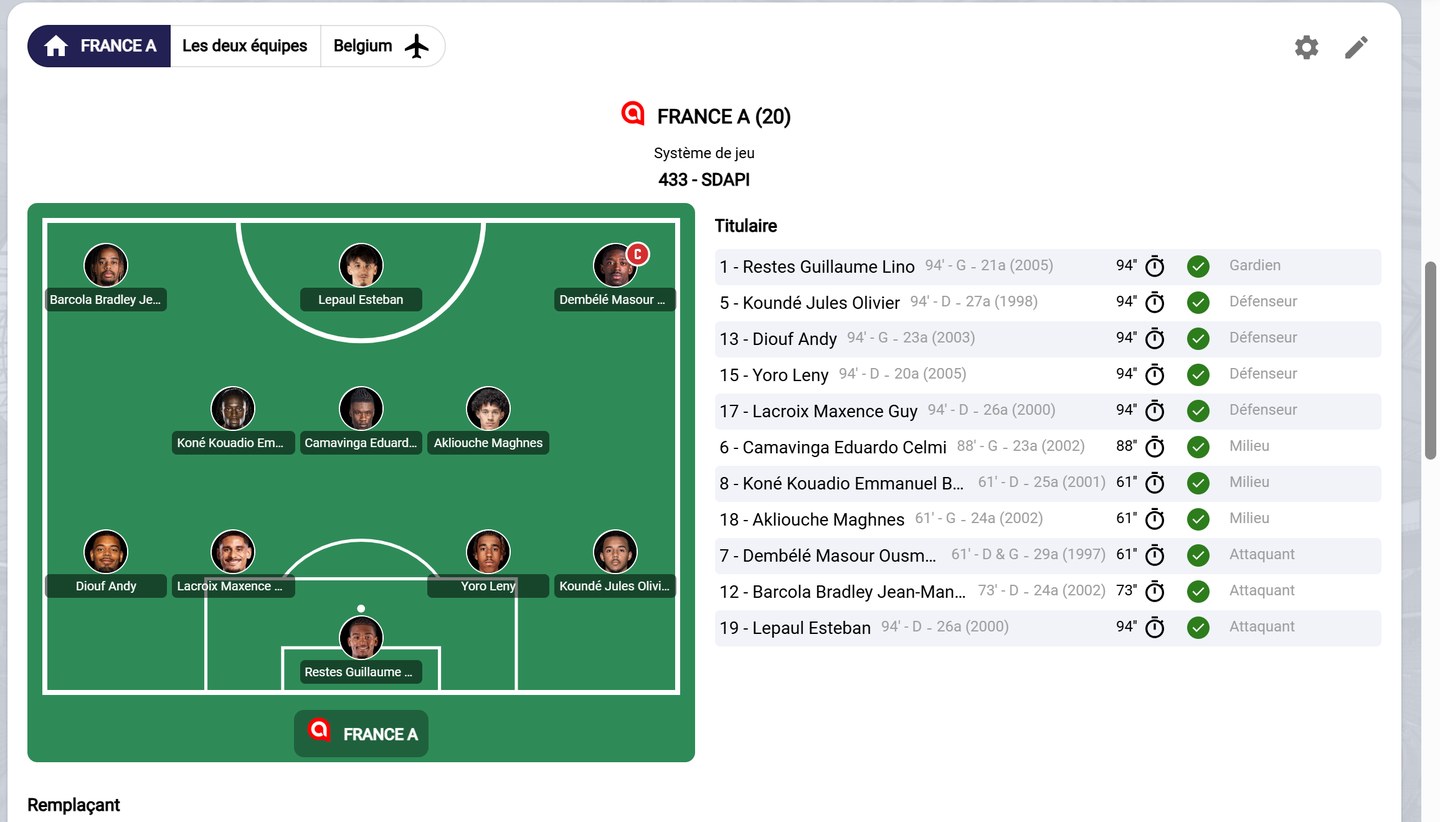
The game lineup
Score and periods
Enter the match score, the number of periods and their durations.
The total duration of the periods is used to calculate the playtime of starting players not affected by a substitution match event.
In the Game summary, click the pencil next to Periods to change their duration, or + to add one. Each period's score is shown on its right.

The game periods
Match events
Game events describe precisely what happened during the match. They also feed your players' statistics and the match score, and are used to calculate your squad's playing time in case of substitutions.
Above the timeline, each team has its own match events bar: Substitution, Goal, Yellow card, Second yellow card, Red card, Shot and Decisive stop. Match events are then shown minute by minute, in Simple or Detailed view.
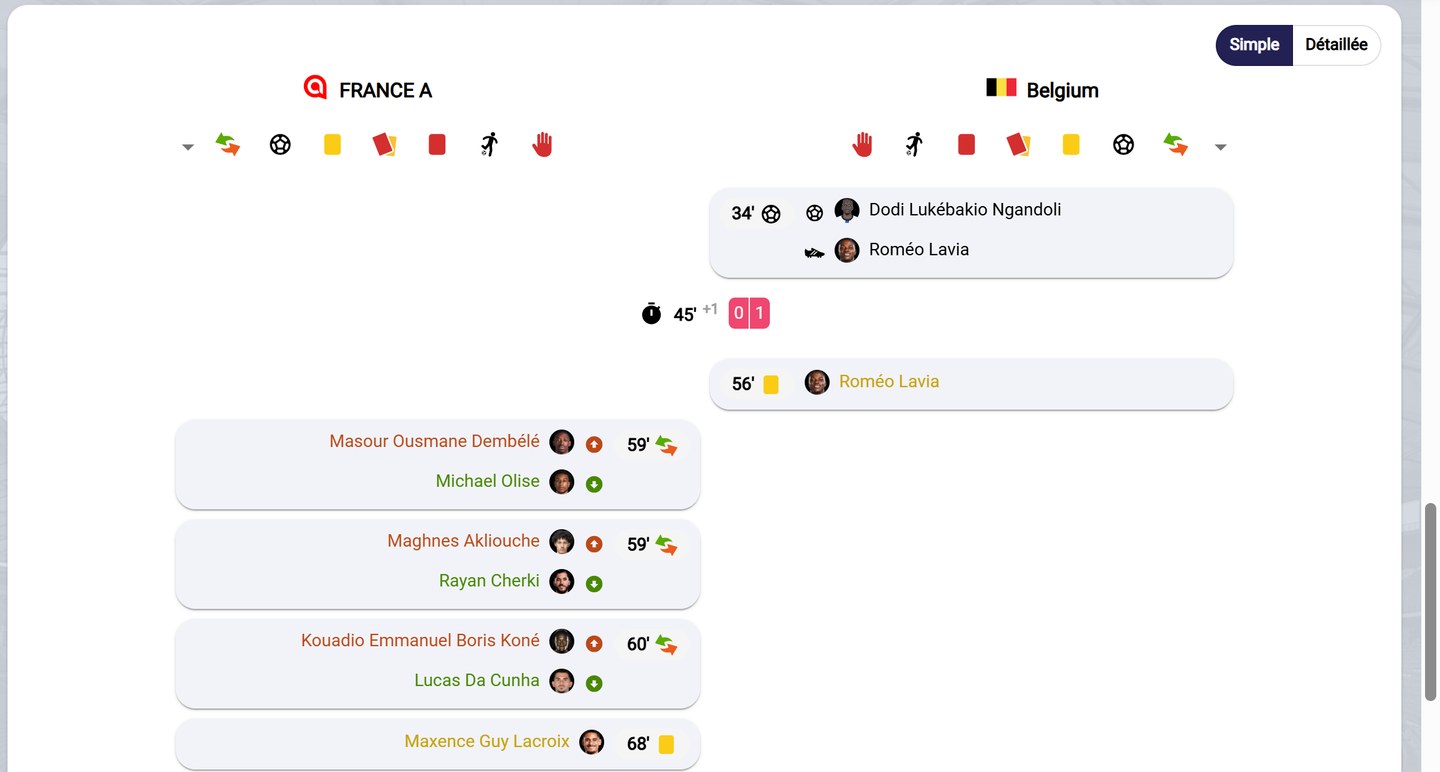
The match events timeline
Click an icon to enter the match event: its minute, its period, the player or players involved and, if needed, a comment. Then click Save.
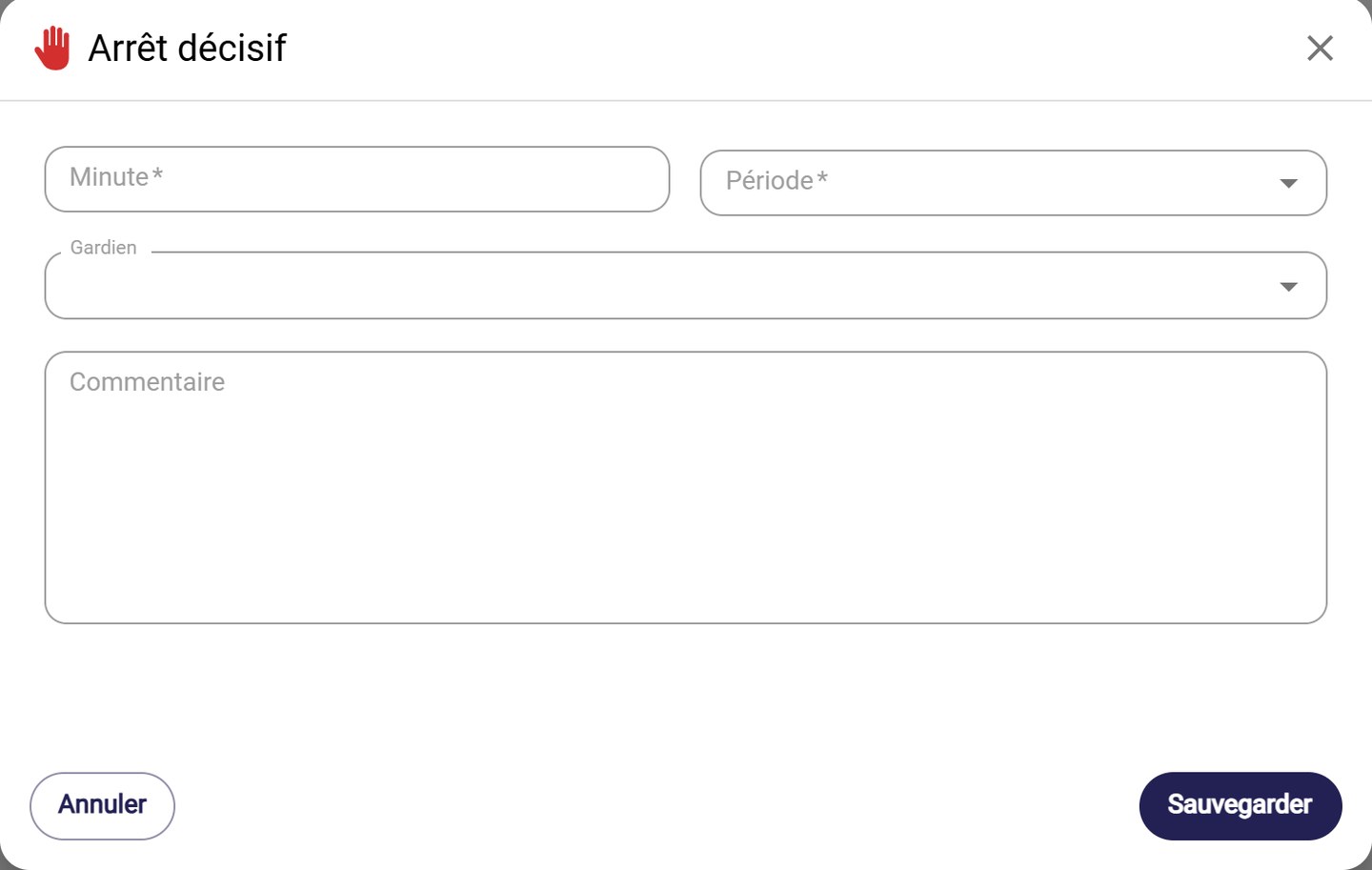
Entering a match event
Need help
Email support@mycoachpro.io with any questions about configuring your matches.