View a game
A game's page brings together everything about it: its summary, its statistics, its videos, your players' review, its reports and its documents.
Navigate between games
-
Open a game from the dashboard or the calendar. On the left, the list of Weeks (or Months) lets you move from one game to another without going back.
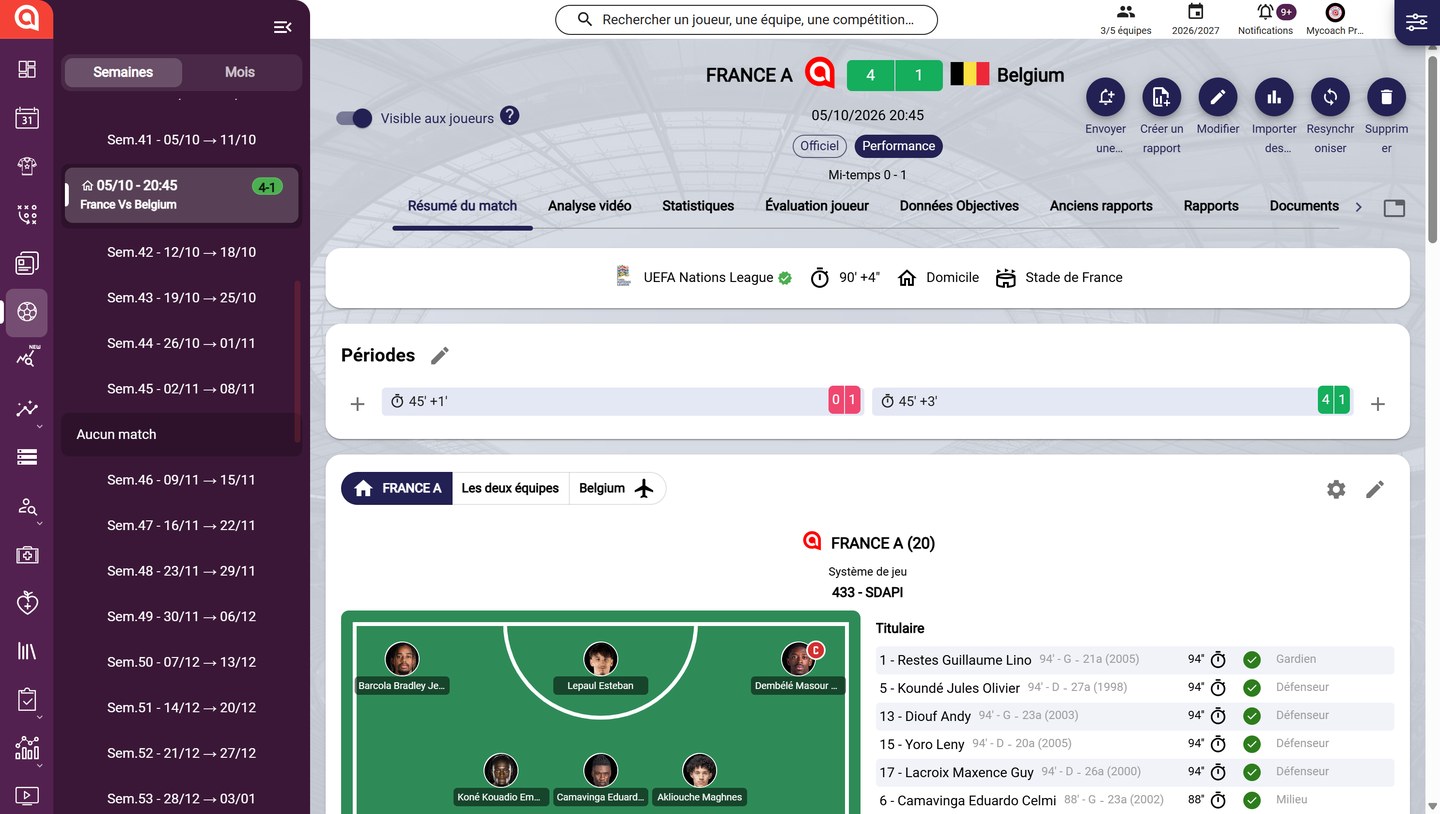
A game's page
Make the game visible to players
-
Turn on Visible to players so your players see the game in their app.
Automatic visibilityThe game automatically becomes visible 2 hours before kick-off, so that called-up players can see it and answer the form.
Game actions
-
At the top right, the action buttons let you:
- Send notification about the game;
- Create a report;
- Modify the game: date, teams, competition, form, etc.;
- Import objective data: see Import your objective data;
- Resynchronize the game with its official data;
- Delete the game.

A game's actions
Official gamesSend notification and Resynchronize are only available for official games, synchronized from your official calendar. They carry the Official badge under the date.
Game tabs
- Below the header, the tabs give access to:
- Game summary: periods, lineups and match events, see Configure a match;
- Video analysis: see Analyze a game on video;
- Statistics (official games): see View a game's statistics;
- Player review: see Review your players after a game;
- Objective data: the GPS data imported for the game;
- Reports and Legacy reports: the reports linked to the game;
- Documents: the files attached to the game.
Attach documents to the game
-
In the Documents tab, click Add documents or drag and drop your videos, images or PDFs. Filter them by Staffs or Players, and display them as a Mosaic or a List.
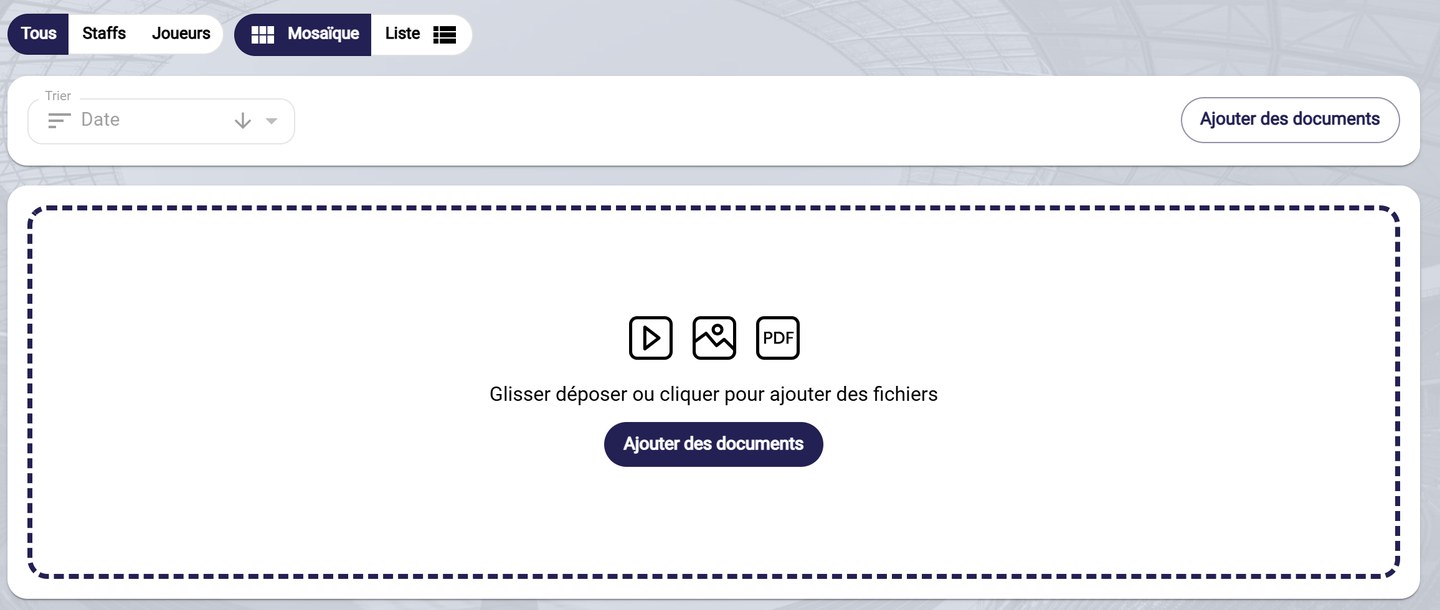
The Documents tab
Need help
Email support@mycoachpro.io for any question about a game's page.