View a player's summary
Four tabs of the player profile sum up a player's activity: the Summary, their Sessions, their Career and their Game history.
The Summary tab
-
On the player's profile, click the Summary tab. Choose the event types and the period (Start / End), then click CONFIRM. The printer icon prints the summary.

The summary filters
-
Session attendances shows the number of events, the attendance rate and the split between present, excused absences and unexcused absences.
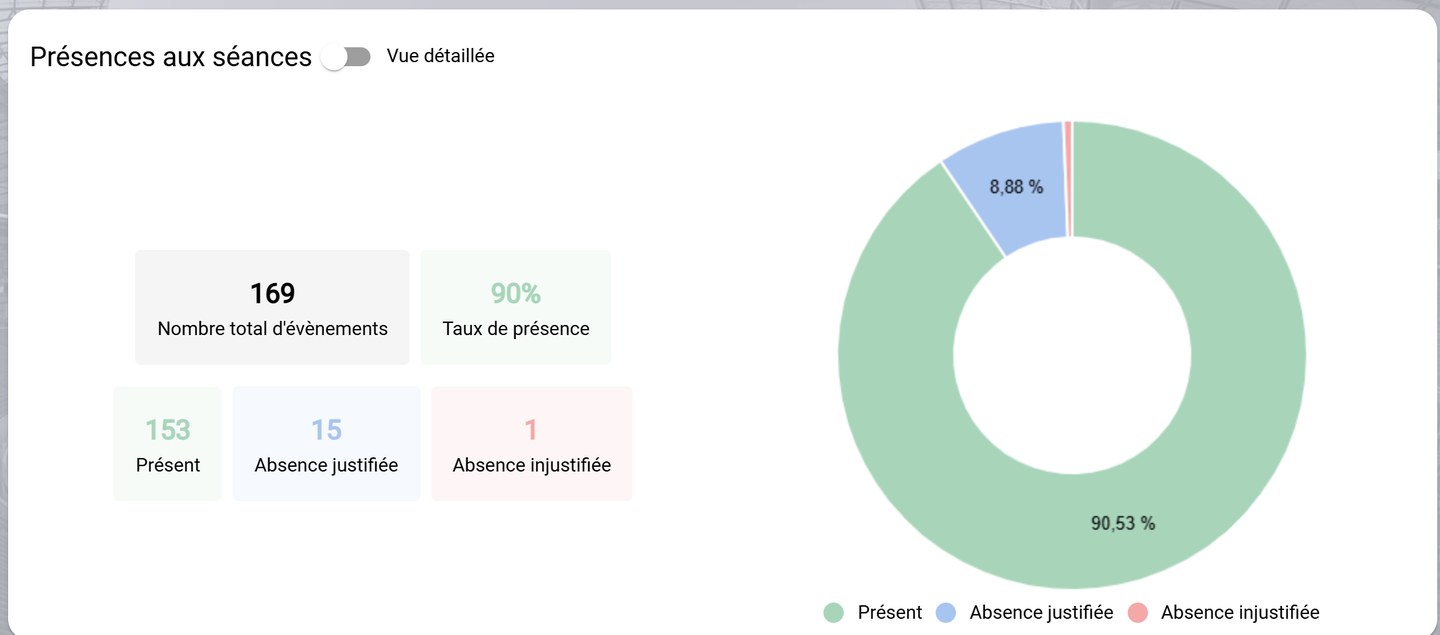
Session attendance
-
Convocation history lists each event the player was called up for, with their status and individual duration.
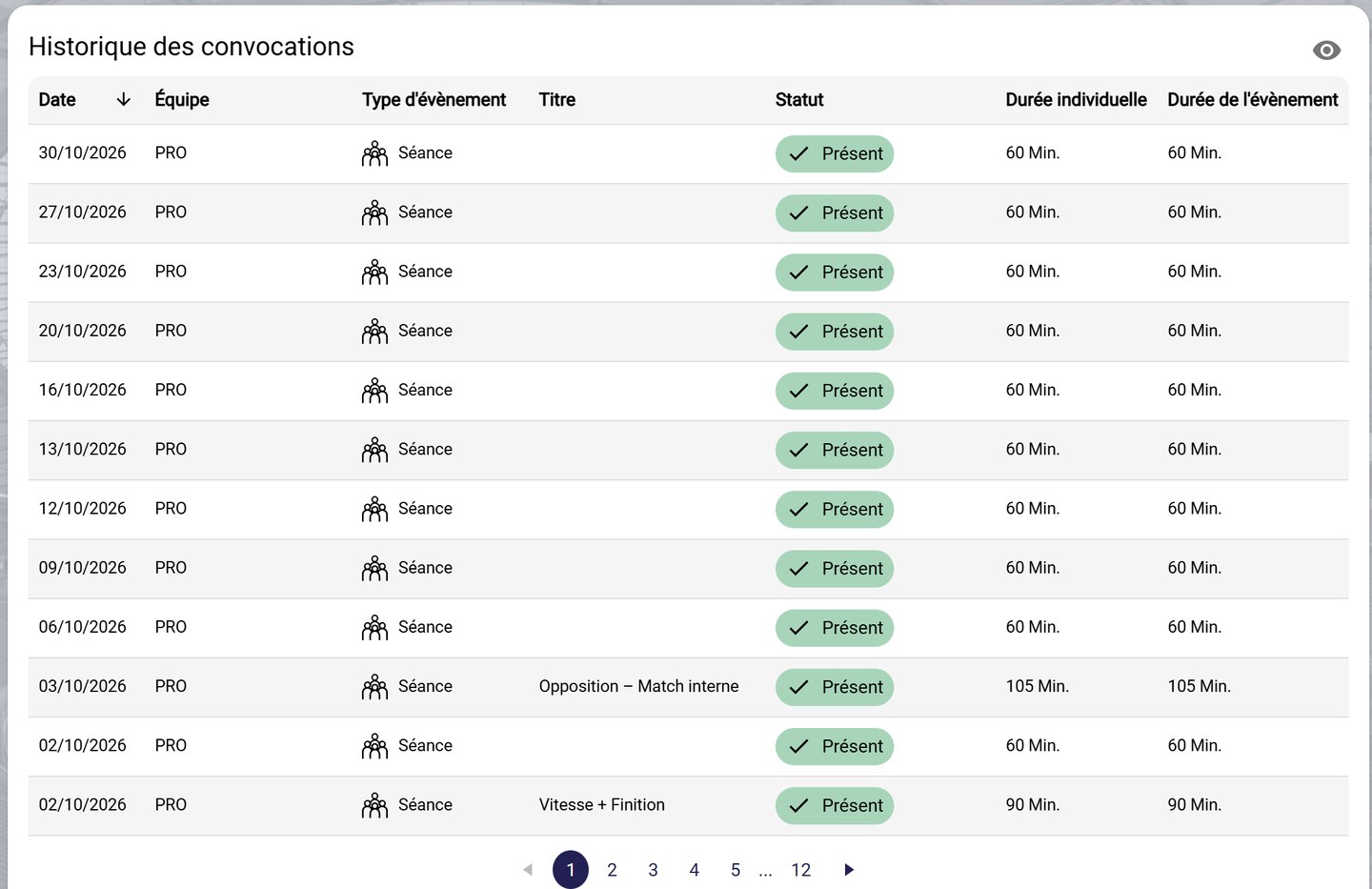
The call-up history
-
Breakdown of session types shows the time spent per session type. Switch between Duration and Usage (number of sessions). The following blocks break down session tags and exercise tags.
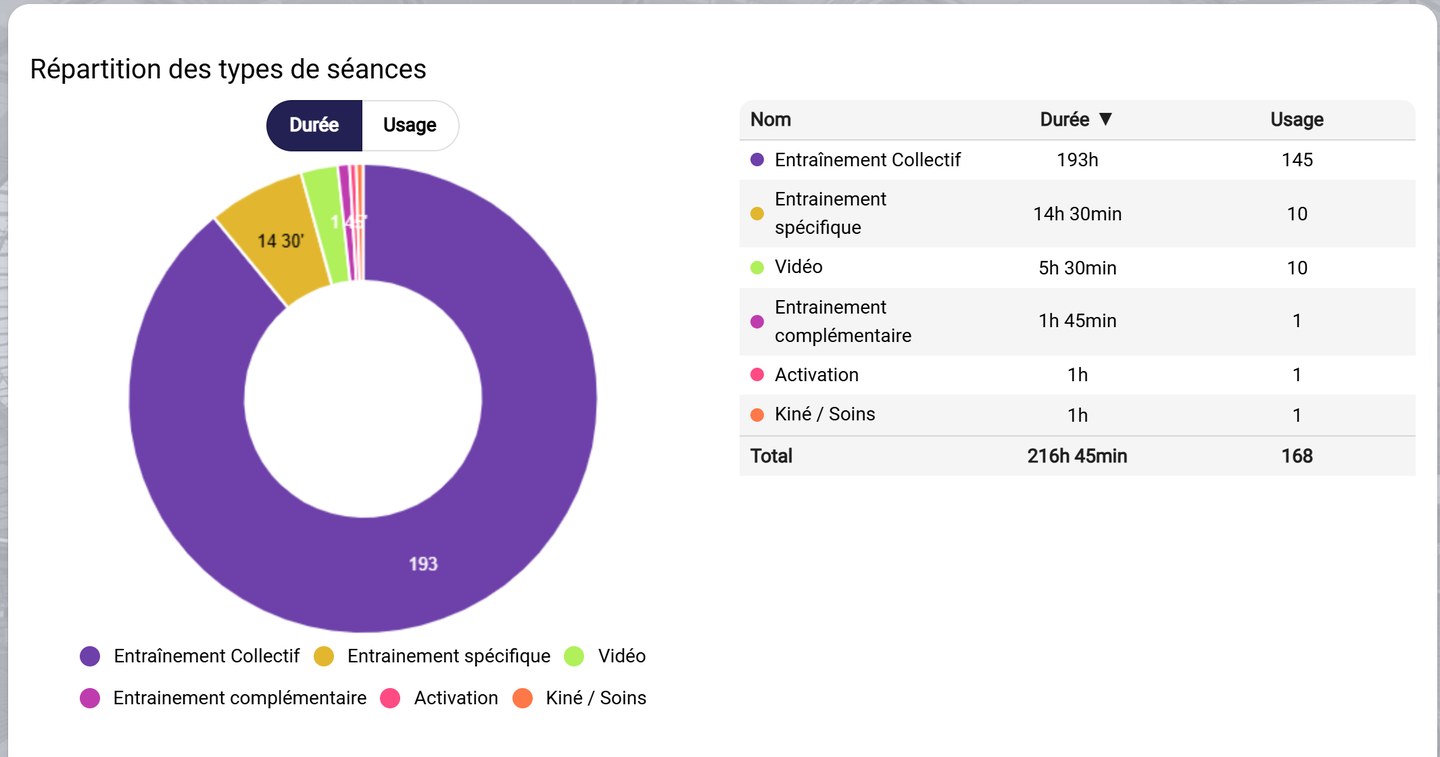
The session type breakdown
-
Form statistics shows, for each event type, the number of call-ups, forms sent and responses, with the player's response rate.
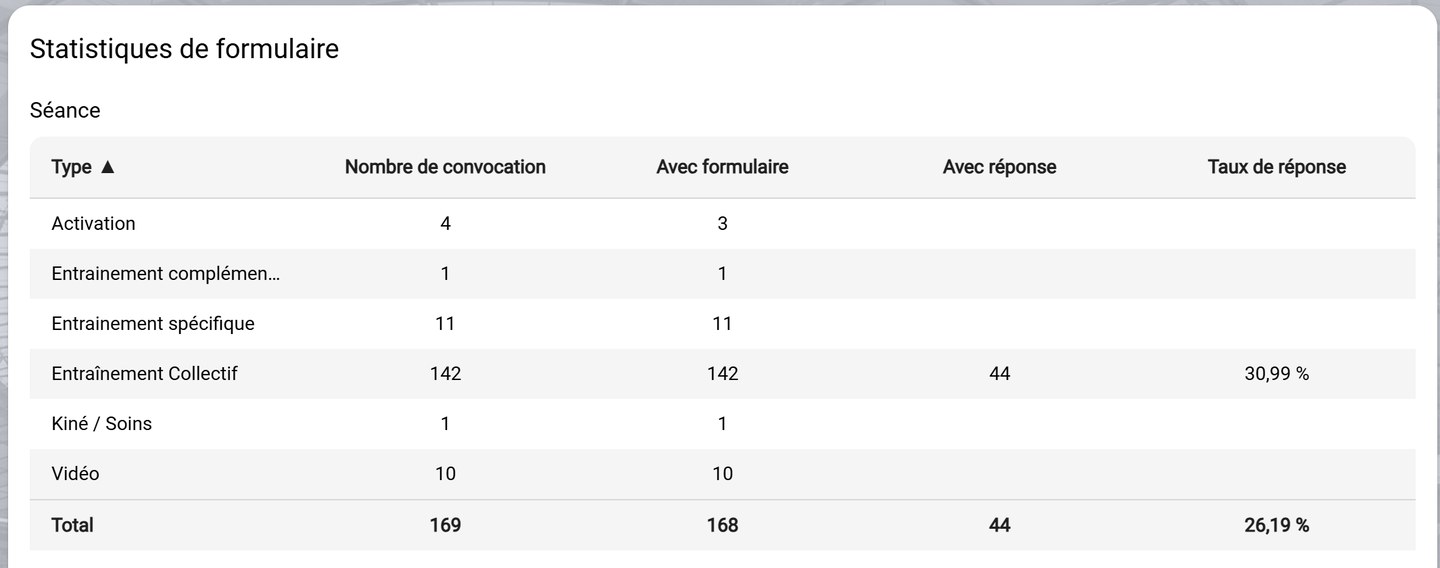
Form statistics
The Sessions tab
-
The Sessions tab lists all the player's sessions: date, team, session type, theme, attendance and duration. Expand Filters to narrow the list and Statistics for an overview.
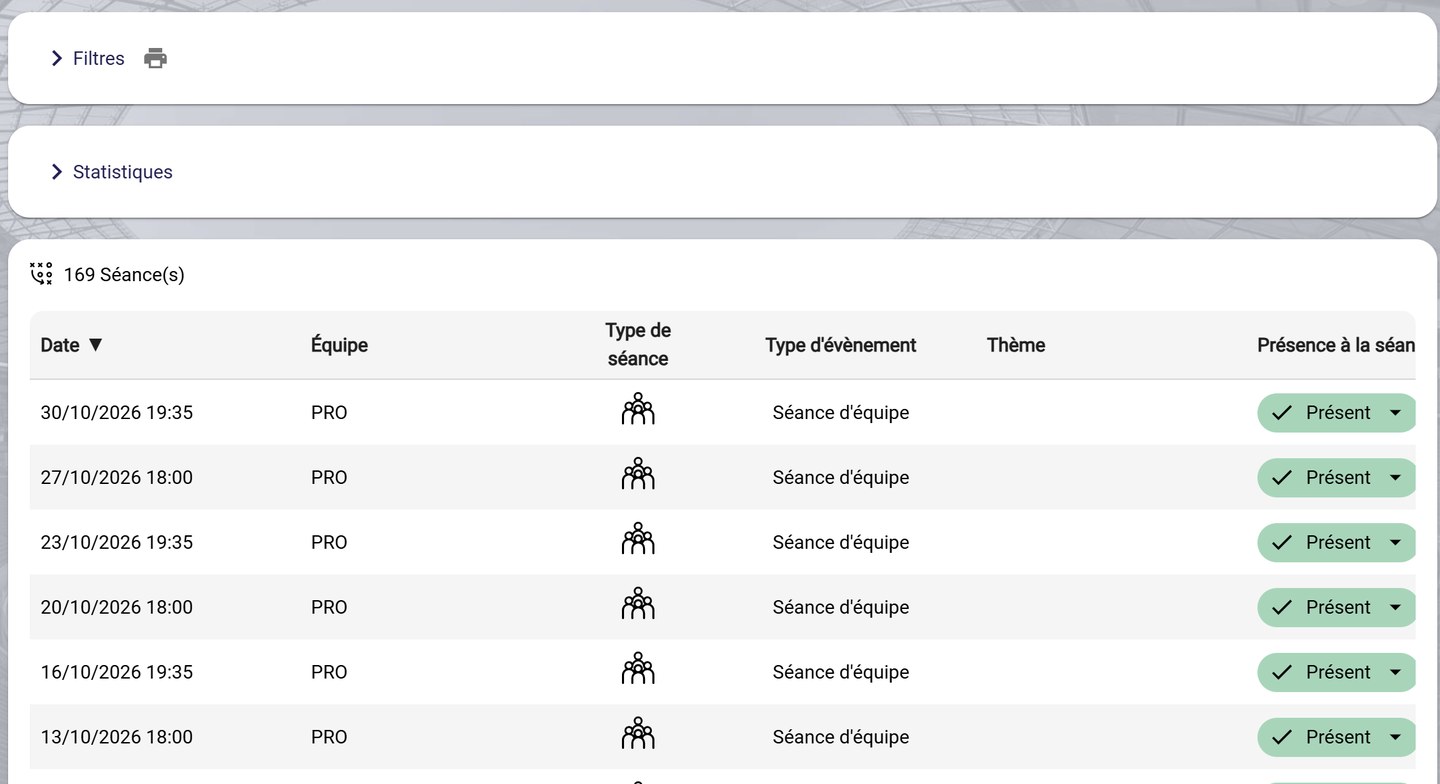
The Sessions tab
Correct an attendanceClick a session's attendance status to change it directly from this list.
The Career tab
-
The Career tab adds up the player's playing time: matches played, starts, full matches, minutes, % On field, goals… Group the rows by season and filter by competition type or source.
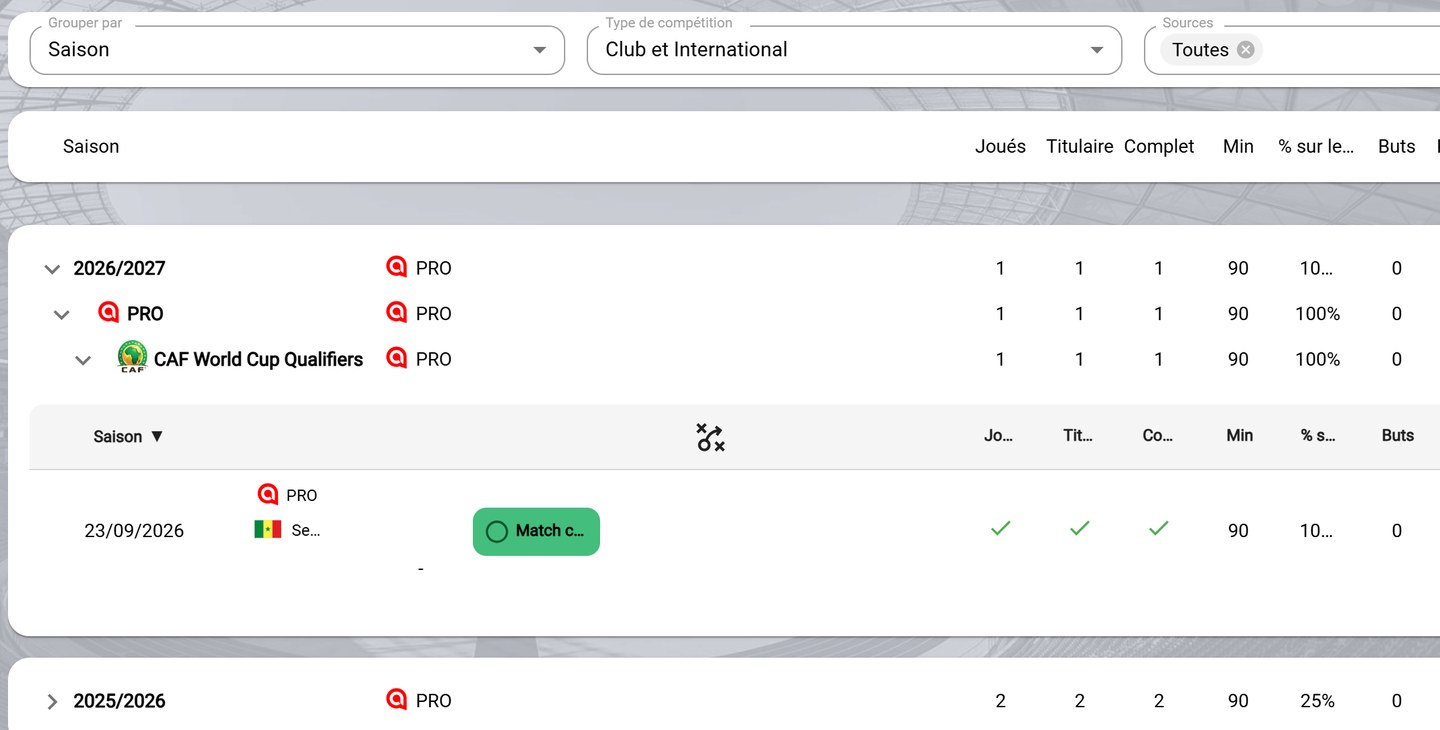
The Career tab
The Match history tab
-
The Game history tab lists the player's matches with their status, position and statistics. Filter by period, teams, competitions or status.
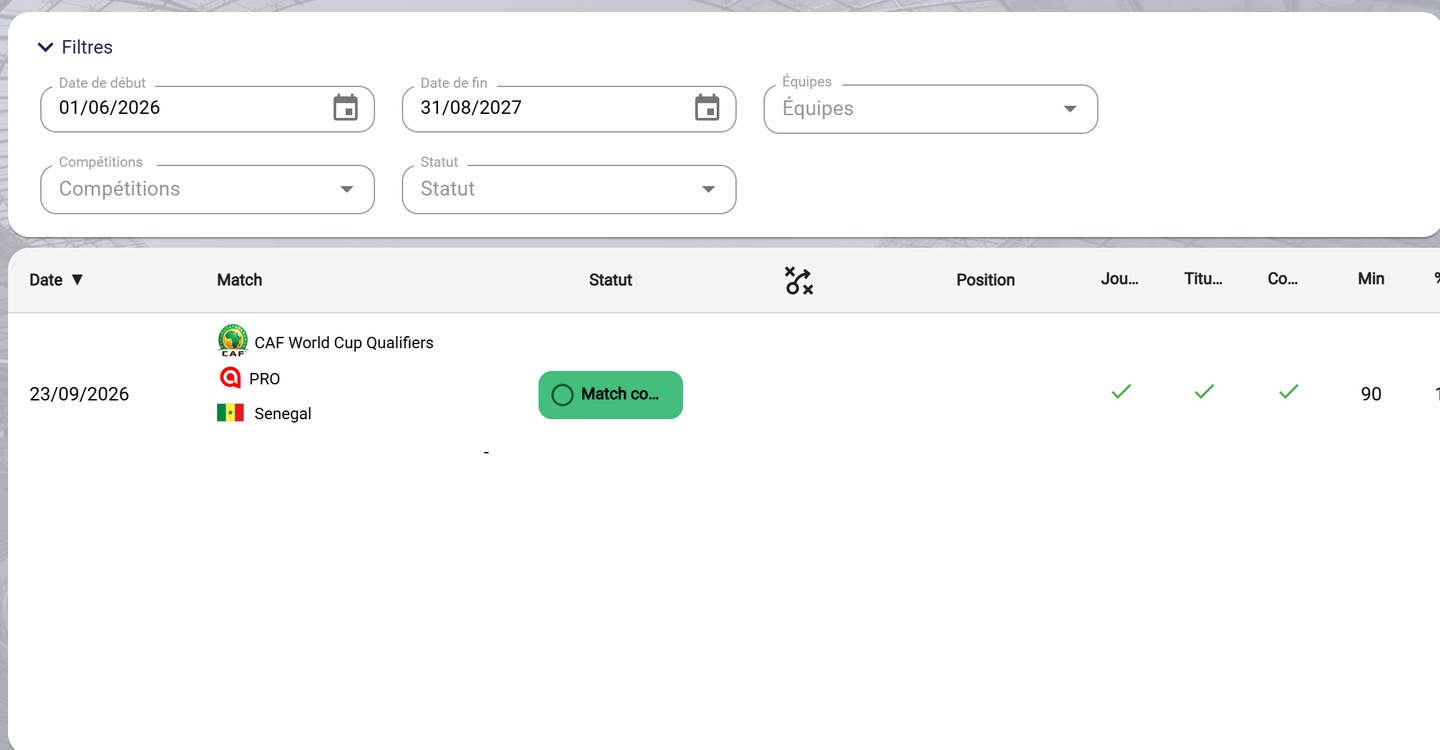
The match history
Need help
Email support@mycoachpro.io with any questions about a player's summary.