Set up answers and alerts
Each answer to a question has its own color, its own numerical value and can trigger an alert. These settings make answers readable at a glance and flag the players to keep an eye on.
Set up an answer
-
Open the form editor (gear > See) and choose the PRE or POST phase.
-
In the list on the left, expand the question, then click an answer. Its details are displayed on the right.
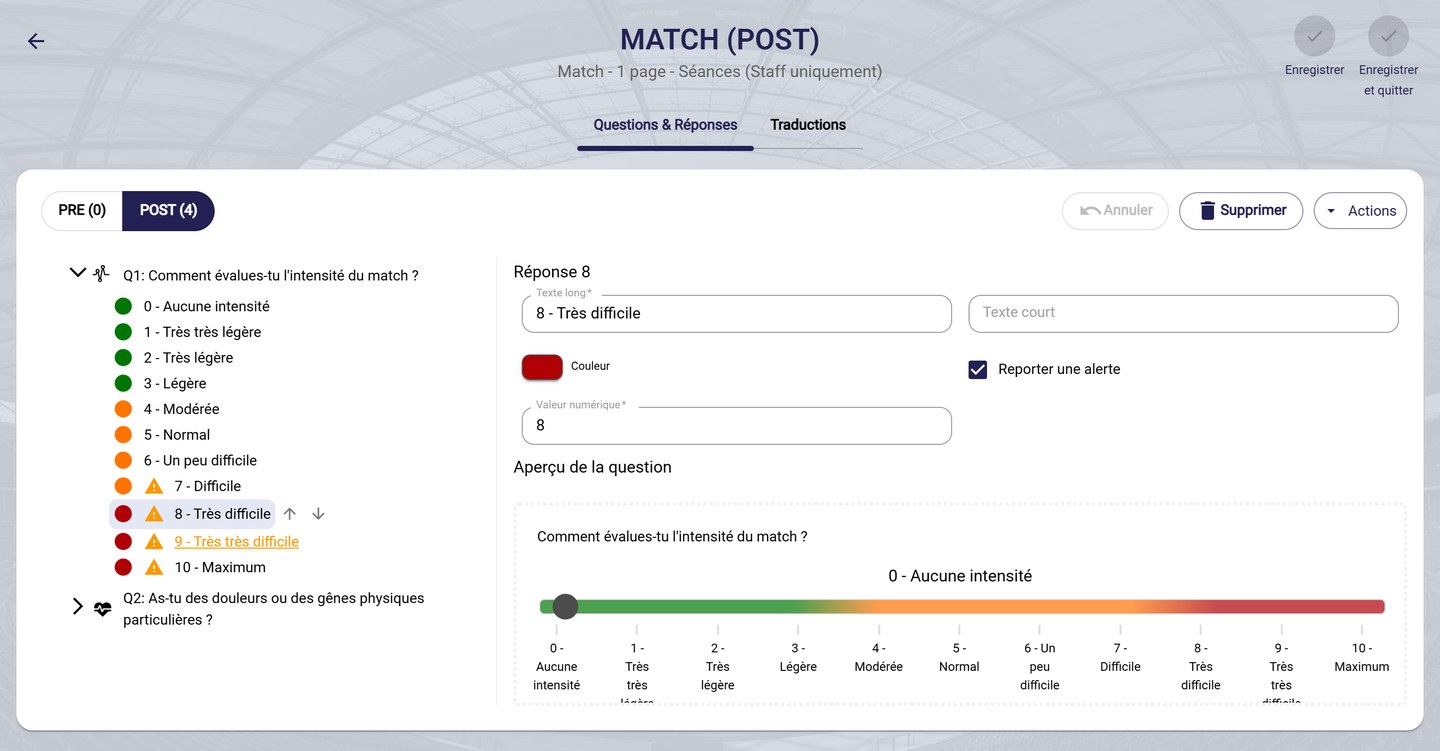
An answer's details
-
Fill in:
- Long text and Short text: the answer's label;
- Numerical value: the value recorded when the player chooses this answer. It is the value used in calculations and charts;
- Color: the dot displayed next to the answer.
-
Click the Color dot to change it: choose a color from the palette or enter its code.
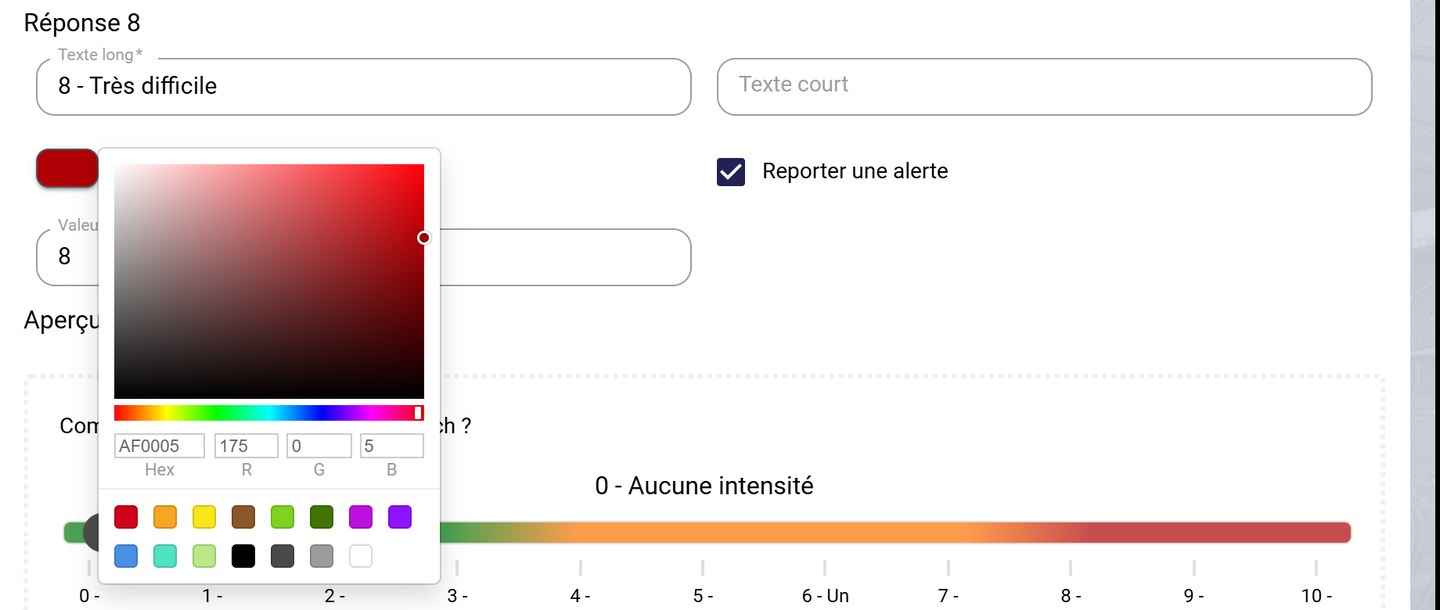
Choosing the color
Trigger an alert
-
Tick Report alert? on the answers that need your attention. In the list, these answers are flagged with an orange triangle.
In the example above, answers 7 to 10 of the intensity question trigger an alert: a player who rates the game as very hard is flagged to the staff.
Which answers to choose?Keep alerts for answers that call for action: severe pain, high fatigue, a bad night… Too many alerts drown out the real ones.
Apply settings to all answers
-
Select the question, then open the Actions menu:
- Reverse answers flips the order of the answers;
- Reverse answer colors flips the gradient, for example so that green matches the best answer;
- Generate numerical values on answers numbers the answers automatically;
- Apply a color scheme colors all the answers with a gradient.
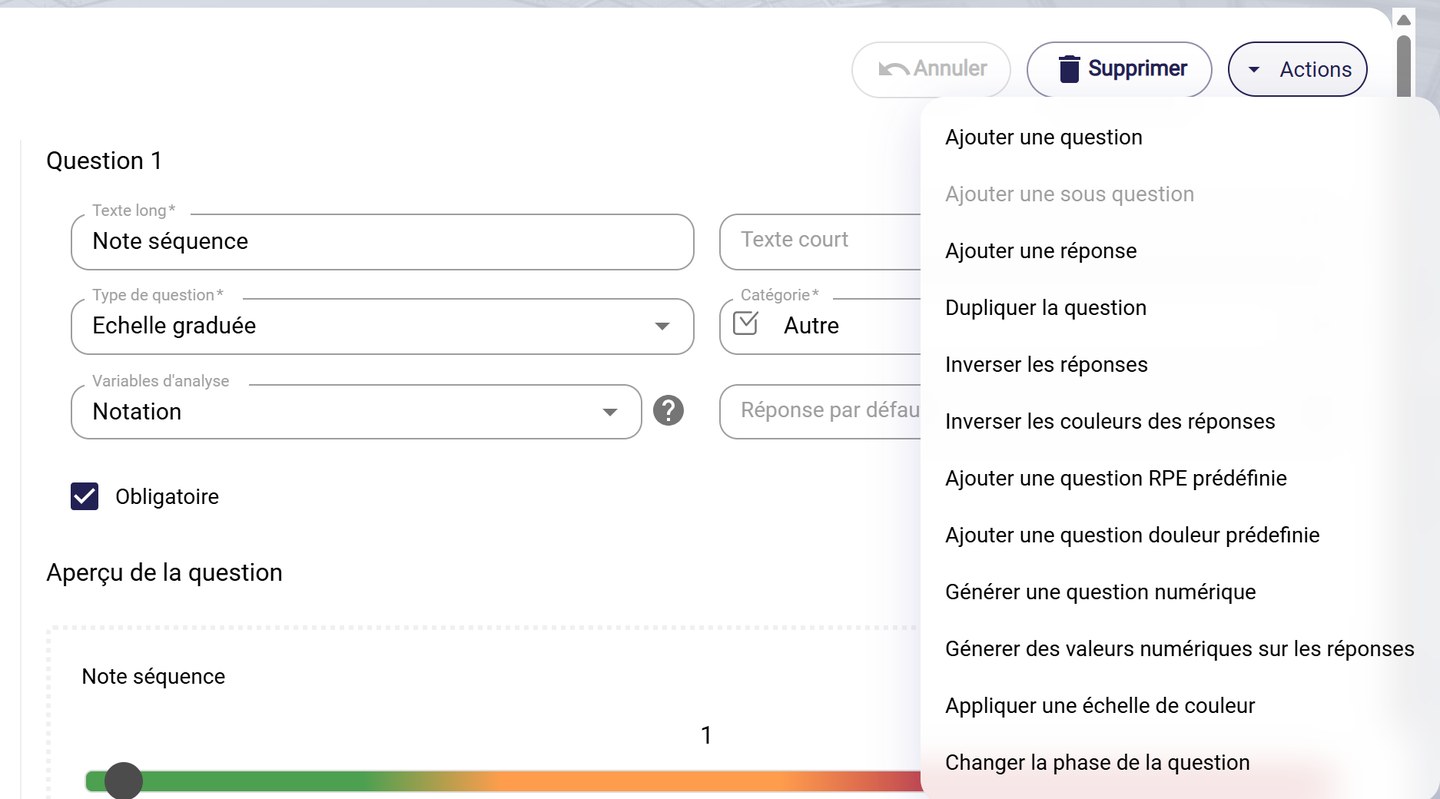
The actions on answers
These actions are only offered for the questions they apply to.
-
Click Save to keep your settings.
Need help
Email support@mycoachpro.io with any questions about answers and alerts.