Add and set up questions
The form editor gathers a form's questions and their answers. This is where you add, edit and order the questions.
Open the editor
-
In Insights > Forms, Configuration tab, click the form's gear, then See.
-
The Questions & Answers tab opens. Choose the phase to edit:
- PRE: questions asked before the event;
- POST: questions asked after the event, such as a session's RPE.
The number in brackets shows how many questions each phase contains.
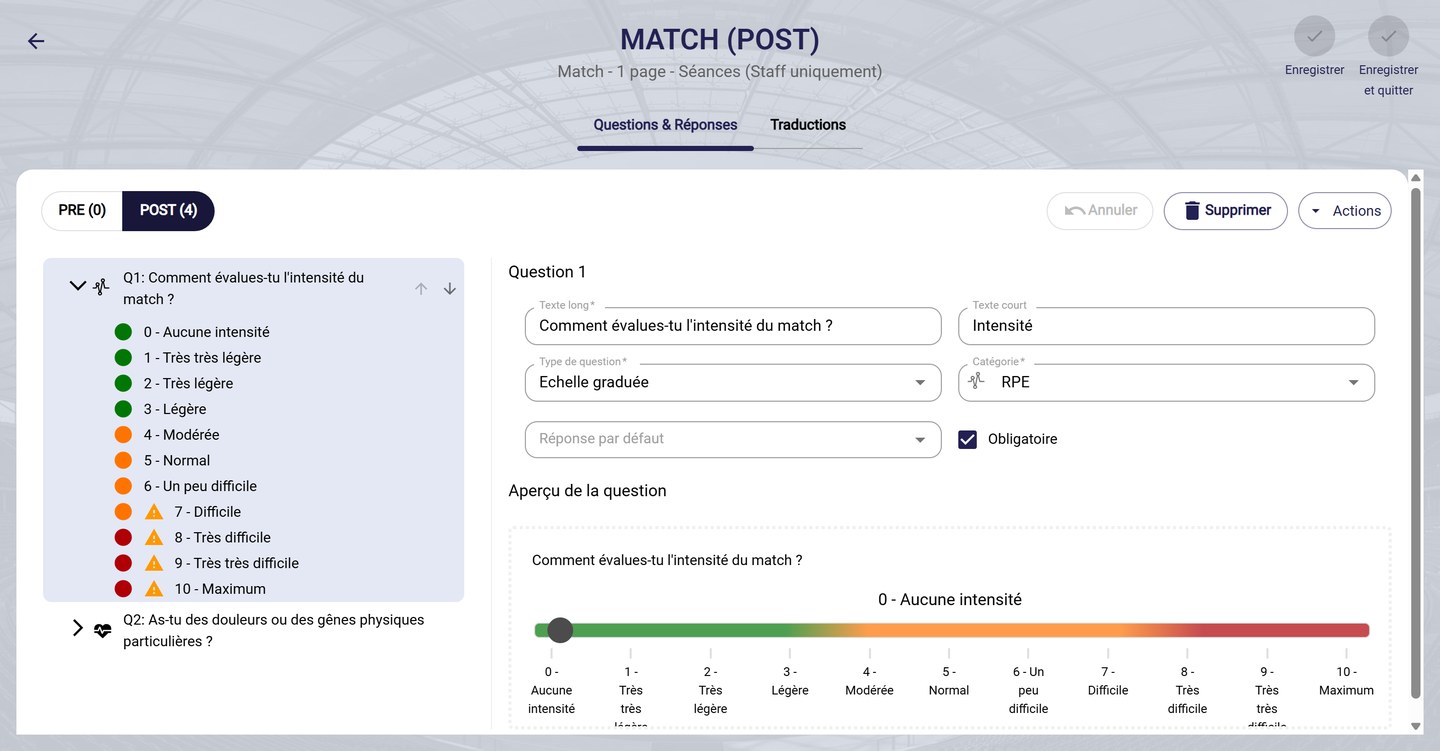
The editor: the list of questions on the left, the details on the right
-
The list on the left shows the questions and, under each one, its answers. Use the arrows to change the order of the questions. Click a question to show its details on the right.
Set up a question
-
Fill in the question's fields:
- Long text: the question as it is displayed to the player;
- Short text: a shortened label, displayed when space is limited;
- Question type: how the player answers (see below);
- Category: RPE, Intensity, Fitness, Mood, Fatigue, Pleasure, Performance, Feeling, Analysis variable or Other;
- Analysis variables: the variable fed by the answers, so you can find them in your analyses and reports;
- Default answer: the preselected answer;
- Mandatory: the player must answer to submit the form.
-
Choose the Question type:
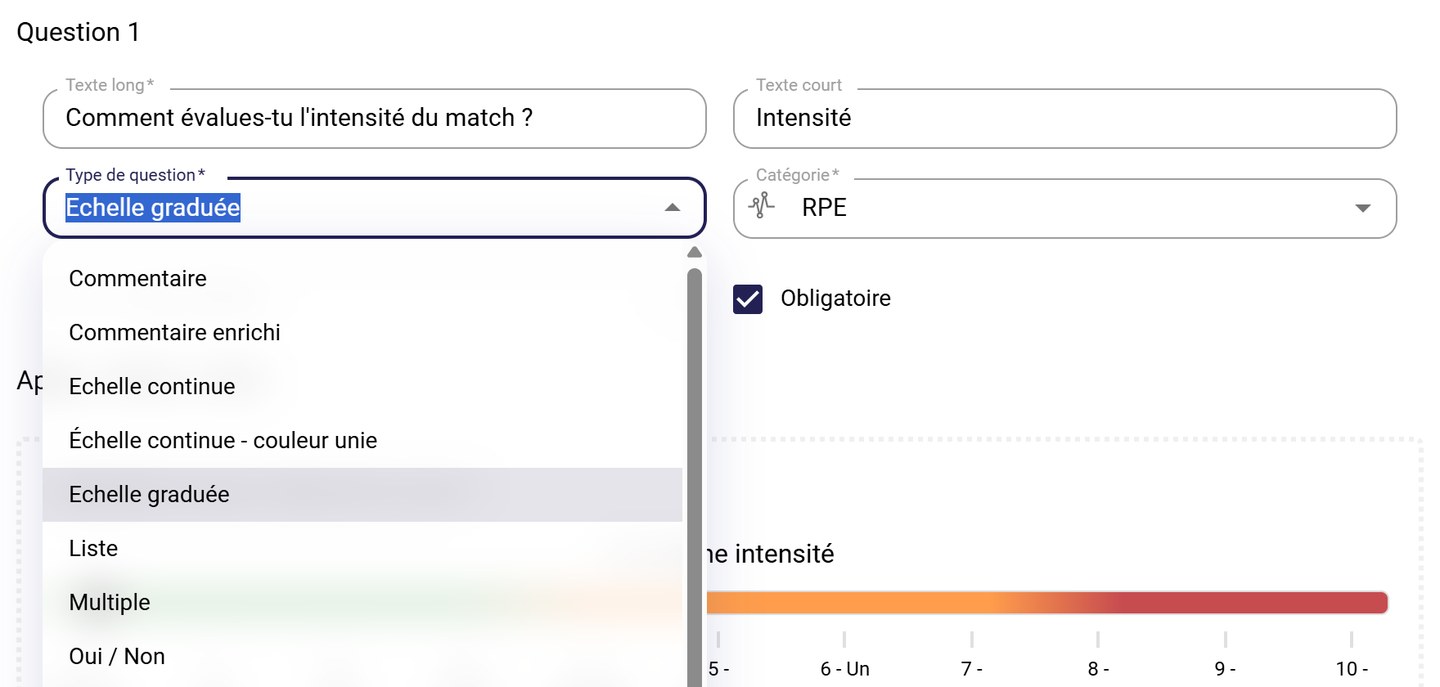
The question types
Type The player… Comment enters free text Rich comment enters formatted text Slider places a cursor on a scale with a color gradient Slider - single color places a cursor on a single-color scale Scale chooses a value among steps, for example from 0 to 10 List chooses an answer from a list Multiple ticks several answers Yes/No answers yes or no Numerical input enters a number -
The Question overview, at the bottom, shows how it looks to the player.
Add questions with the Actions menu
-
Click Actions to add or transform questions.
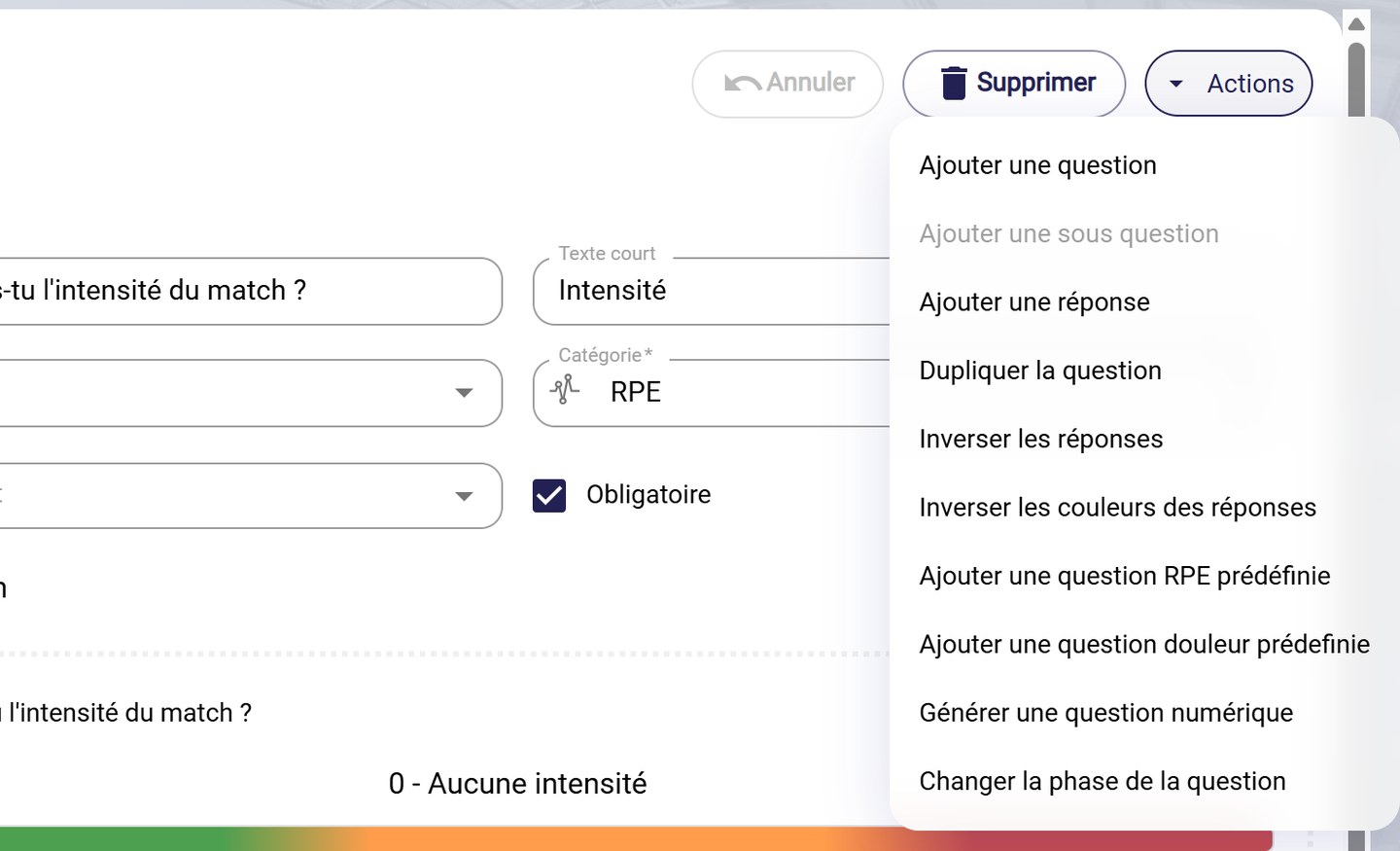
The Actions menu
- Add a question, Add a sub question or Add an answer to the selected question;
- Duplicate a question;
- Add a predefined RPE question or Add a predefined pain question, ready to use;
- Generate numerical question, with a minimum, a maximum and a step;
- Change question phase, to move it from PRE to POST or the other way round.
The actions on answers (reverse, colors, numerical values) are described in Set up answers and alerts.
-
To remove the selected question or answer, click Delete. Undo reverts the last change.
-
Click Save, or Save and quit to go back to the list of forms.
The editor's Translations tab lets you translate questions and answers. See Manage form translations.
Need help
Email support@mycoachpro.io with any questions about setting up questions.