Manage form translations
Translate your forms so that each player receives them in their own language on the mobile app.
Open the translations
-
In Insights > Forms, Configuration tab, click the form's gear, then See.
-
Open the Translations tab. Each row shows a question or an answer: on the left in the default language, on the right in the chosen language.
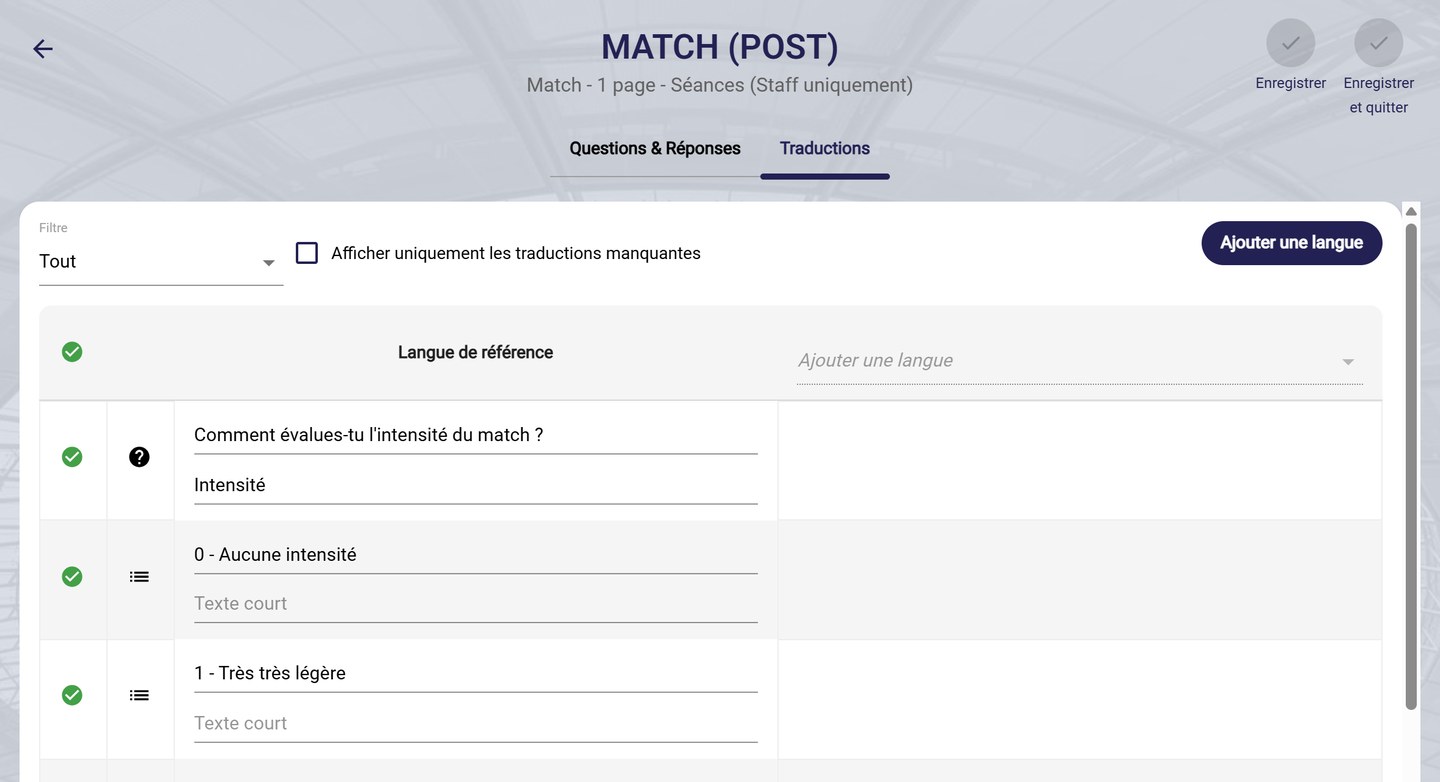
The Translations tab
Add a language
-
Click Add language.
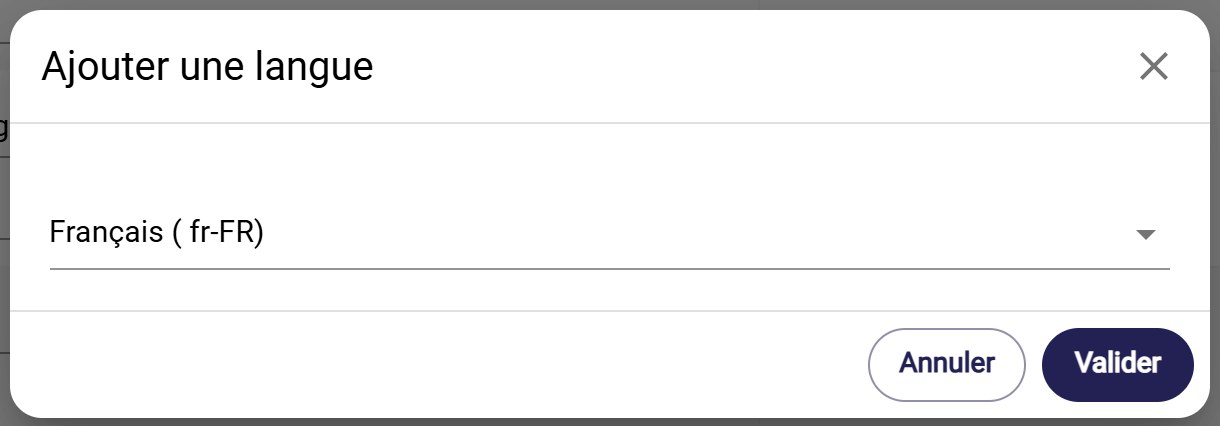
The Add language window
-
Choose the language from the list, then click Confirm.
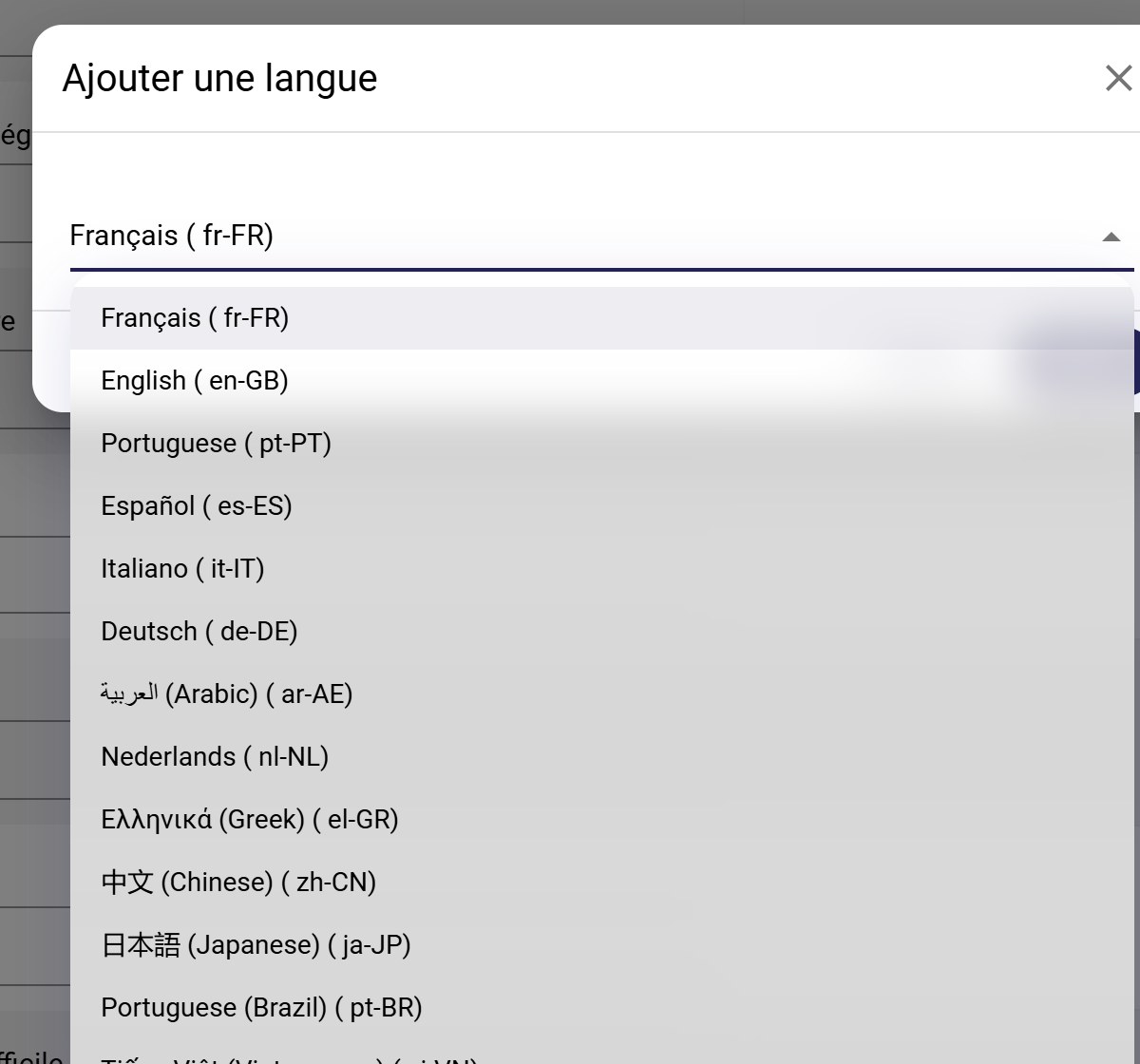
The available languages
Translate
-
In the right-hand column, choose the language to display, then enter the translation of each question (long text and short text) and each answer.
-
Tick Display only missing translations to see only what remains to be translated. The Filter limits the display to questions or answers.
-
Click Save.
When you create a form from a template, tick the Locales to import: the template's translations are added automatically. See Create an RPE form from a template.
Need help
Email support@mycoachpro.io with any questions about translating forms.