Manage your forms
The Configuration tab of the Insights > Forms module lists all your teams' forms. It is the starting point for creating, editing or removing them.
Find a form
-
In the left menu, expand Insights, then click Forms. The Configuration tab opens.
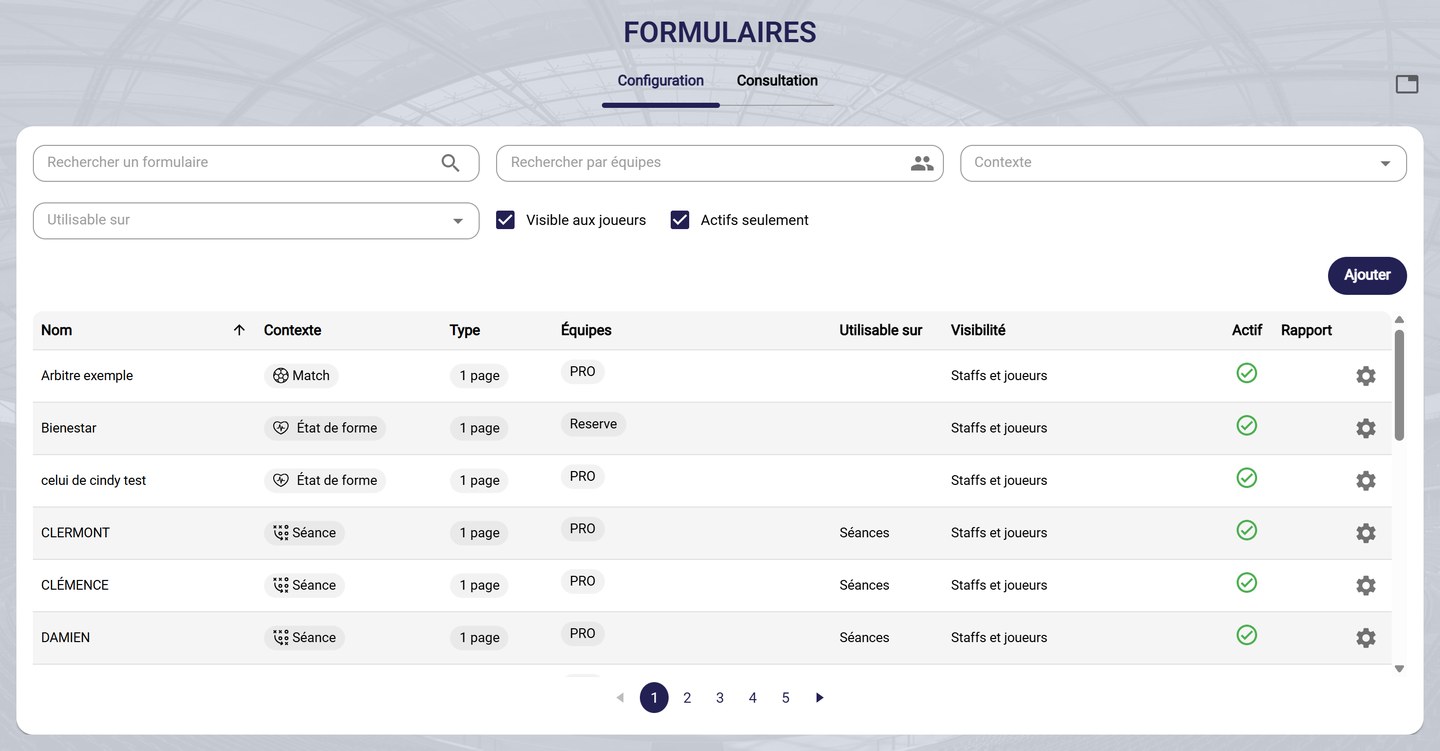
The Configuration tab
-
Narrow down the list with the filters:
- Search a form finds a form by its name;
- Search by teams only shows the forms of one or more teams;
- Context filters by use: Game, Training, Wellness, Nutrition…;
- Can be used on filters the forms linked to training sessions;
- Visible to players and Enabled only hide the forms reserved for staff or disabled. Untick Enabled only to find a disabled form.
-
Each row shows:
- the form's Context and Type (1 page or 1 by 1);
- the Teams that use it;
- Can be used on, for a training session form;
- the Visibility: staffs and players, or staffs only;
- Active: a green tick indicates an available form.
Manage a form
-
Click the gear at the end of the row to open the form's menu.
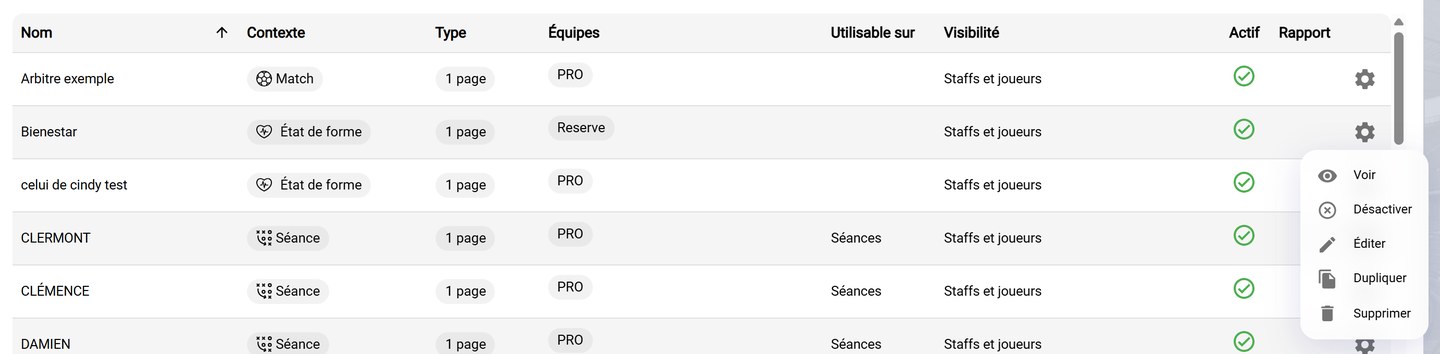
A form's menu
- See opens the form editor, with its questions and translations;
- Edit renames the form and changes its visibility to players;
- Duplicate creates a copy, for example for another team;
- Set as default makes it the form automatically suggested for its context;
- Disable removes it from the available forms without deleting it. It can be enabled again with Enable;
- Delete removes it permanently.
Disable rather than deletePrefer Disable for a form you no longer use: you will be able to enable it again later.
Learn more
Need help
Email support@mycoachpro.io with any questions about managing your forms.