Duplicate a form
Duplicate a form to reuse it, for example for another team, without starting from scratch. The copy keeps all its questions and answers.
Duplicate the form
-
In Insights > Forms, Configuration tab, click the gear at the end of the form's row, then Duplicate.
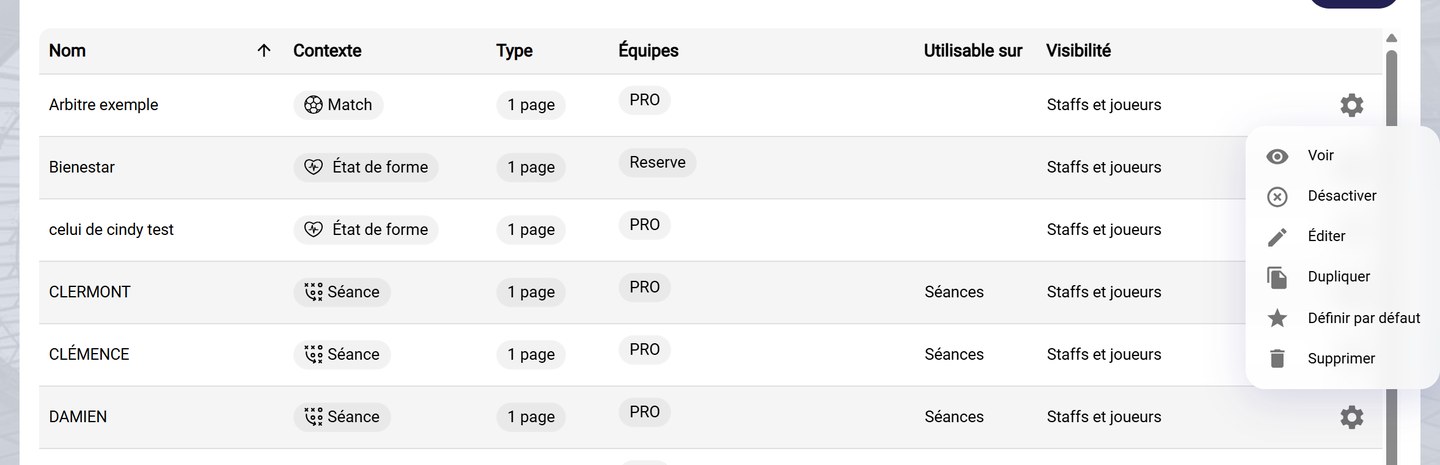
The form's menu
-
In the Duplicate a form window, rename the copy in Name and choose the Team that will use it. If needed, adjust the Context, the visibility to players and the Type. The Preview shows how it looks on mobile.
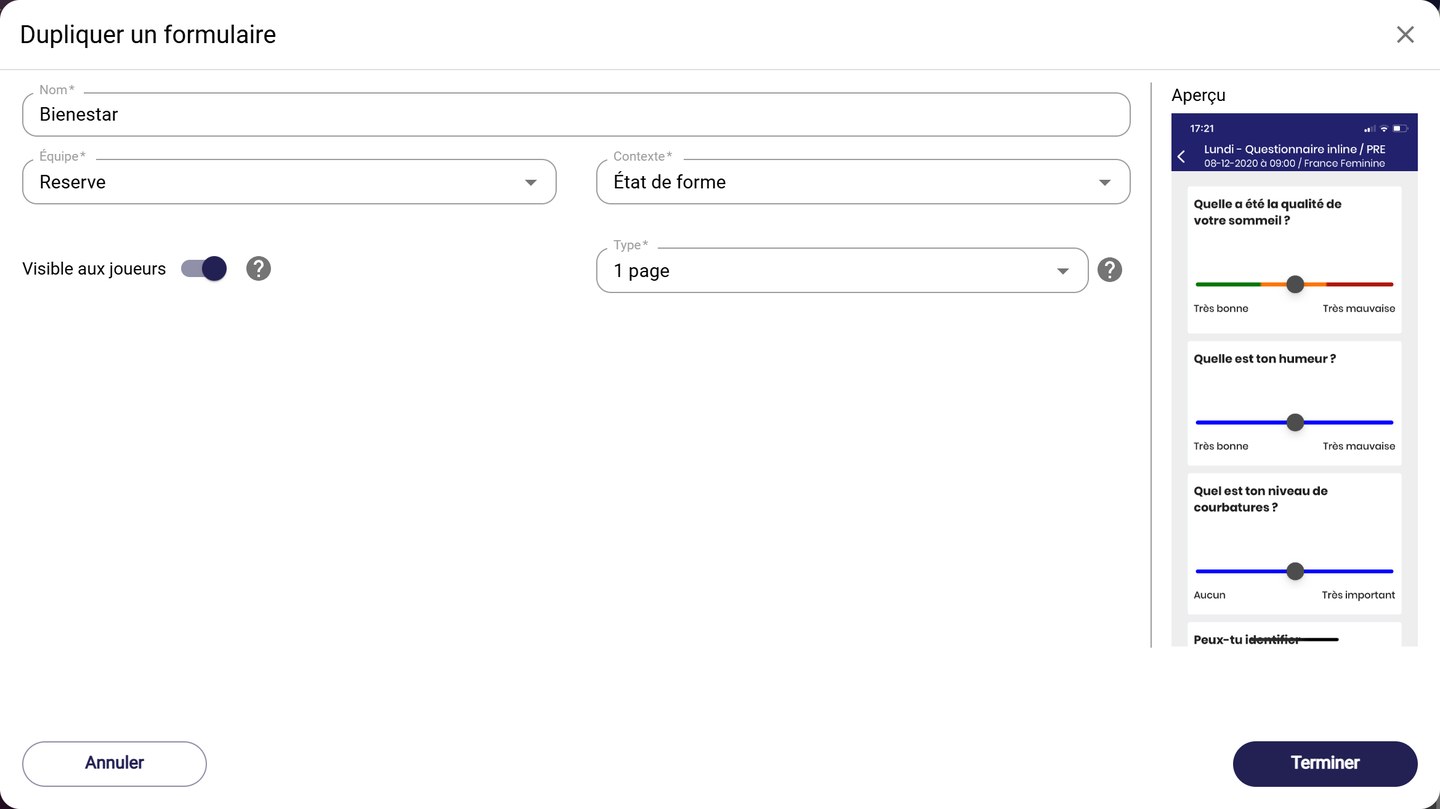
The Duplicate a form window
Active teamsTo appear in the list, the team must be one of your active teams.
-
Click Finish. The copy appears in the list of forms.
Enable the form
A disabled form appears greyed out, and only if the Enabled only box is unticked.
-
To make it available, click its gear, then Enable.
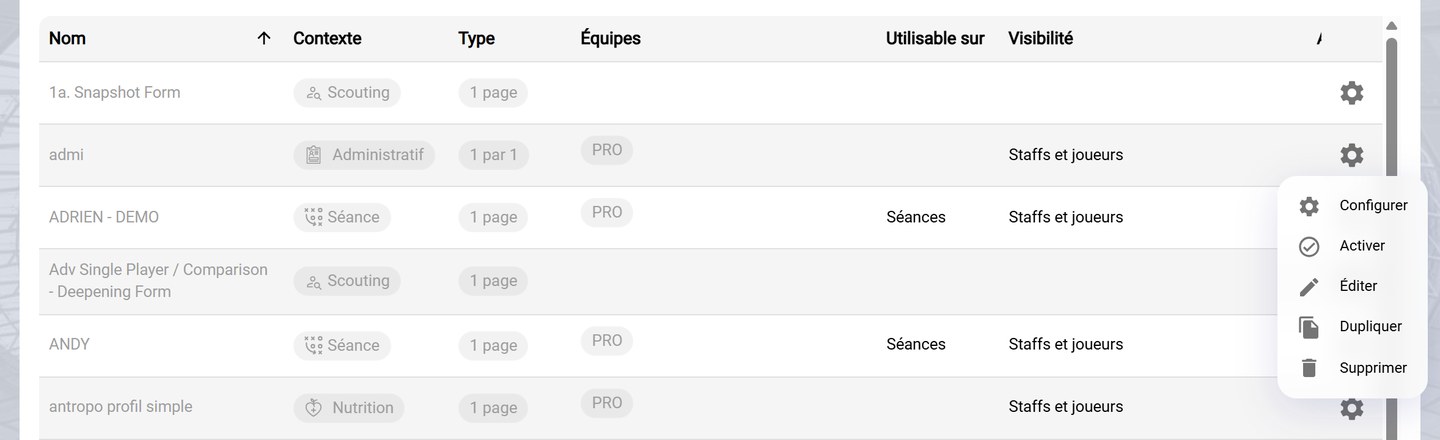
The menu of a disabled form
To start from a MyCoach Pro template, see Create an RPE form from a template. To manage your forms, see Manage your forms.
Need help
Email support@mycoachpro.io with any questions about duplicating forms.