Manage an event from the calendar
From the calendar, a single click on an event gives you access to all its actions: view it, edit it, duplicate it, delete it or open its data.
Open an event's menu
-
Click the Calendar module, then an event. Its menu opens.
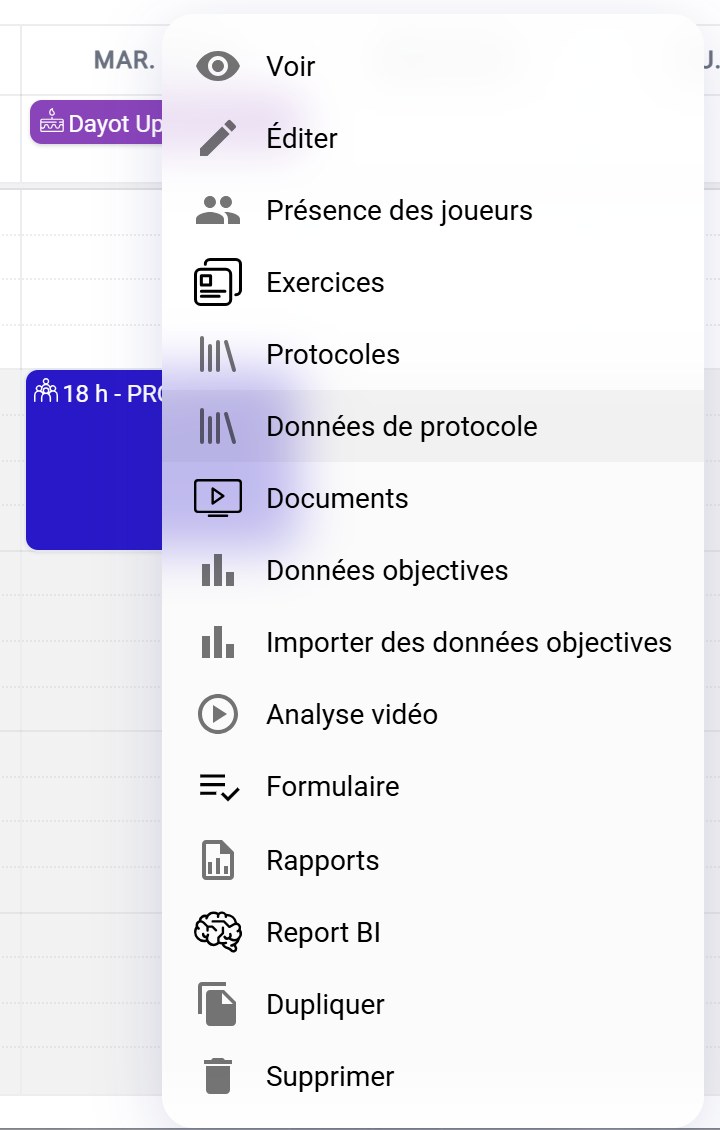
A session's menu
Options by eventThe options vary depending on the event type. For a session, the menu also gives access to players attendance, exercises, documents, objective data, video analysis, the form and reports.
View and edit an event
-
Click View to open the event's page: information, form, response rate, call-ups… The tabs give access to its data. The Actions menu on this page also lets you edit, duplicate or delete it.
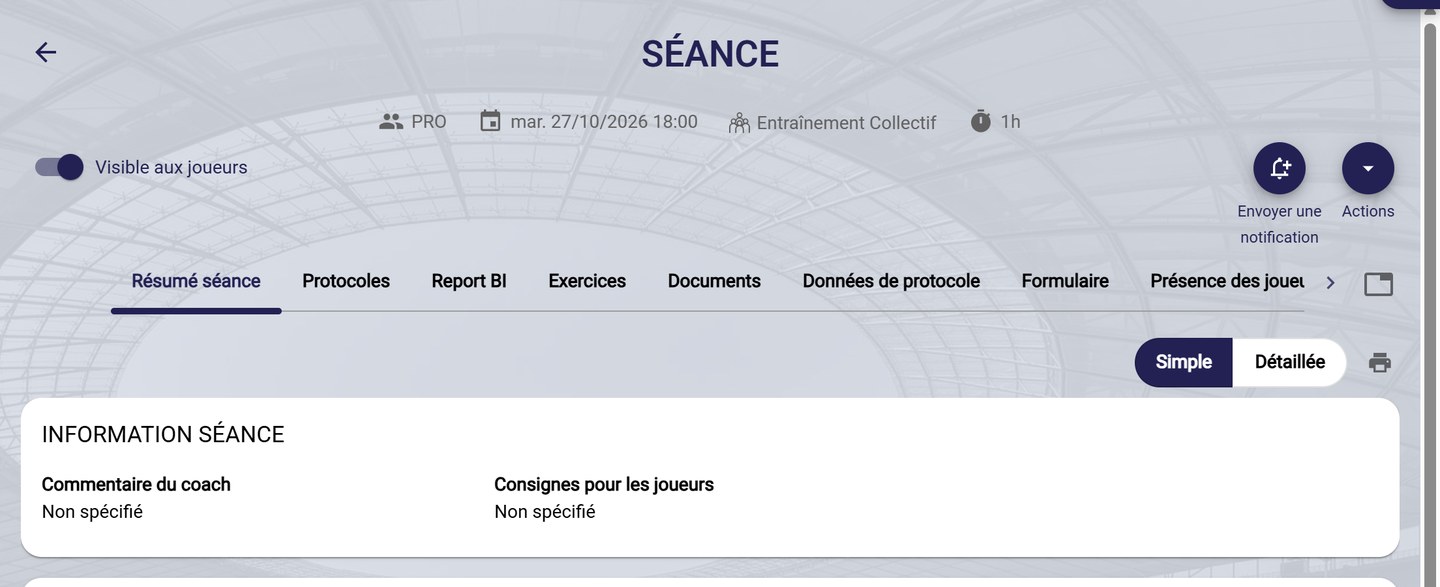
A session's page
-
To edit the event directly, choose Edit in the calendar menu.
Duplicate an event
-
Choose Duplicate. The creation form opens, pre-filled with the original event's information. Change the date and anything else that needs to change, then click FINISH.
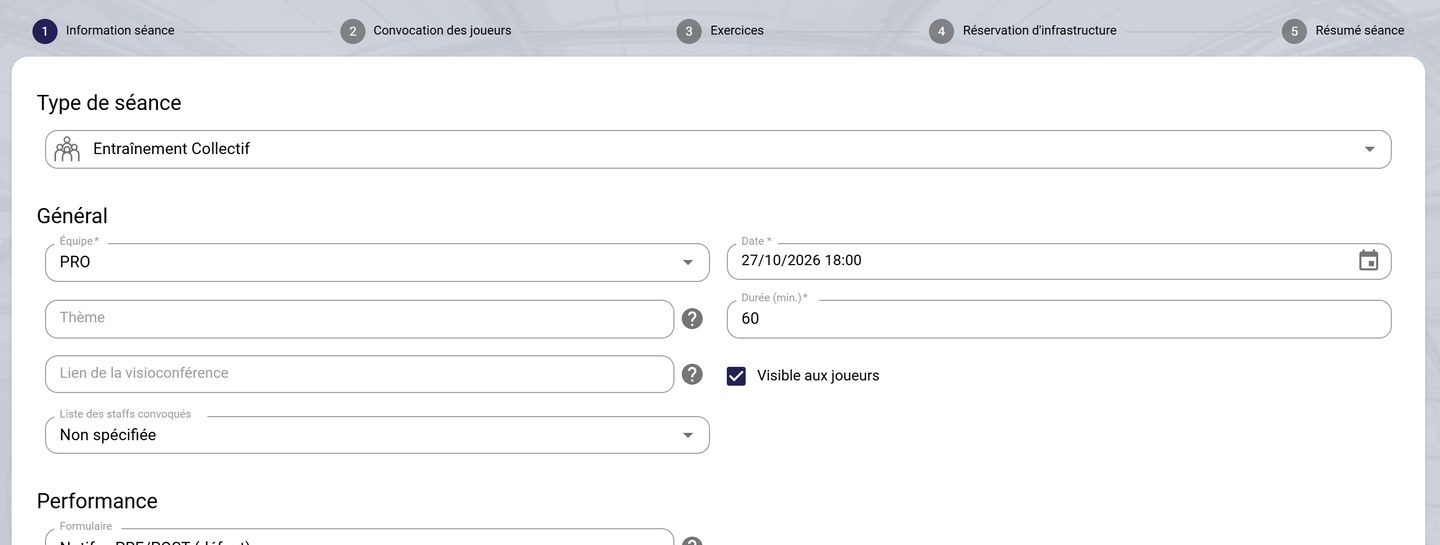
Duplicating a session
Delete an event
-
Choose Delete, then confirm with DELETE.
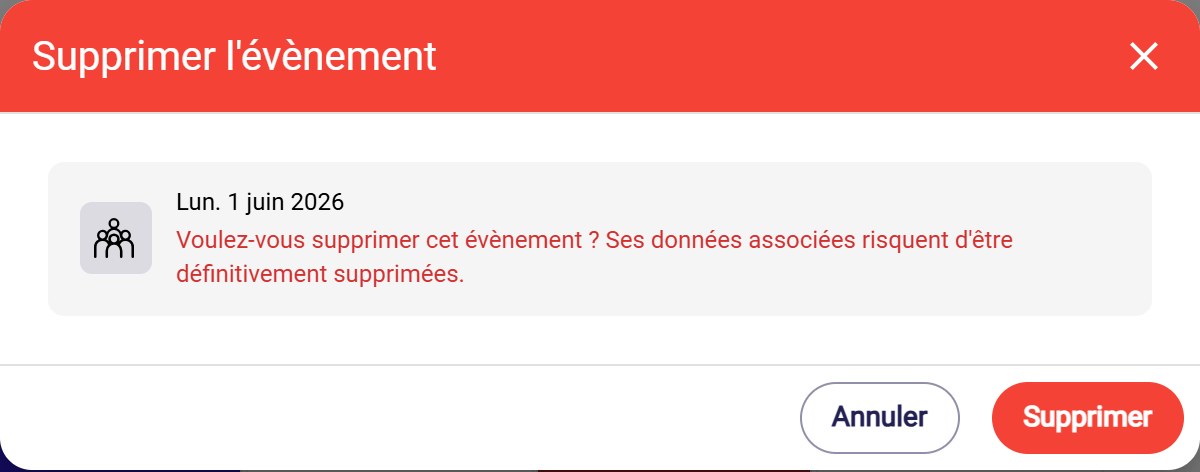
The deletion confirmation
Associated dataDeleting an event can permanently delete its associated data (attendance, form responses, objective data…).
Need help
Email support@mycoachpro.io with any questions about managing events.